
Comparison ETE Saphir PC Saphir Warfare vs Vinga Hawk A20 Hawk A2025
Add to comparison | 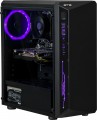 | 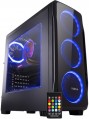 |
|---|---|---|
| ETE Saphir PC Saphir Warfare | Vinga Hawk A20 Hawk A2025 | |
| Outdated Product | Outdated Product | |
| TOP sellers | ||
| Product type | gaming | gaming |
| Form factor | Midi Tower | Midi Tower |
CPU | ||
| Chipset | Intel H310 | Intel H310 |
| Type | desktop | desktop |
| Series | Core i5 | Core i5 |
| Model | 9400F | 9400F |
| Cores | 6 | 6 |
| Threads | 6 | 6 |
| Speed | 2.9 GHz | 2.9 GHz |
| TurboBoost / TurboCore | 4.1 GHz | 4.1 GHz |
Memory | ||
| RAM | 16 GB | 16 GB |
| Memory type | DDR4 | DDR4 |
| Speed | 2666 MHz | 2666 MHz |
| Number of slots | 2 | |
| Max. memory support | 32 GB | |
Graphics card | ||
| Graphics card type | dedicated | dedicated |
| Graphics card model | GTX 1660 | RTX 2060 |
| Graphics memory | 6 GB | 6 GB |
| Memory type | GDDR5 | GDDR6 |
| 3DMark test | 7553 points | |
| Passmark G3D Mark test | 14173 points | |
Storage | ||
| Drive type | HDD+SSD | HDD+SSD |
| Drive capacity | 1 TB | 1 TB |
| 2nd drive capacity | 240 GB | 240 GB |
Back panel | ||
| Connectors | HDMI output DisplayPort | |
| PS/2 | 1 | |
| USB-A 2.0 | 4 pcs | |
| USB-A 5Gbps | 2 pcs | |
Front Panel | ||
| Optical drive | in absent | in absent |
| USB-A 2.0 | 2 pcs | |
| USB-A 5Gbps | 1 pcs | |
Multimedia | ||
| LAN (RJ-45) | 1 Gbps | 1 Gbps |
| Wi-Fi | in absent | in absent |
| Sound | 7.1 | 7.1 |
| Audiochip | Realtek ALC887 | |
General | ||
| Lighting type | backlit fan / housing | backlit fan |
| PSU power | 500 W | 600 W |
| Preinstalled OS | without OS | without OS |
| Material | steel | steel |
| Dimensions (HxWxD) | 410x180x385 mm | |
| Color | ||
| Added to E-Catalog | january 2020 | december 2019 |


Compare ETE Saphir PC and Vinga Hawk A20 ETE Saphir Warfare и Vinga Hawk A2025?
You may be interested in
My comparisons
ETE Saphir PC often compared


Vinga Hawk A20 often compared


Glossary
Number of slots
The number of slots for RAM modules provided on the PC motherboard. In this case, we are talking about slots for removable strips; for a PC with built-in memory, this parameter is irrelevant.
The slots available on the "motherboard" can be occupied all, partially or not occupied at all (in models without RAM). Anyway, you should pay attention to their number if the initially installed amount of RAM does not suit you (or ceases to suit you over time), and you plan to upgrade the system. The smallest amount found in a PC with removable memory is 1 slot ; if it is busy, you will only have to change the bar when upgrading. More connectors for RAM are always paired, this is due to a number of technical nuances; most often this number is 2 or 4, but it can be large — up to 16 in powerful workstations.
Note that when planning an upgrade, you need to take into account not only the number of slots and type of memory (see above), but also the characteristics of the motherboard. All modern "motherboards" have restrictions on the maximum amount of RAM; as a result, for example, the presence of two DDR4 slots does not mean that two strips of maximum capacity can be installed in the system at once, 128 GB each.
The slots available on the "motherboard" can be occupied all, partially or not occupied at all (in models without RAM). Anyway, you should pay attention to their number if the initially installed amount of RAM does not suit you (or ceases to suit you over time), and you plan to upgrade the system. The smallest amount found in a PC with removable memory is 1 slot ; if it is busy, you will only have to change the bar when upgrading. More connectors for RAM are always paired, this is due to a number of technical nuances; most often this number is 2 or 4, but it can be large — up to 16 in powerful workstations.
Note that when planning an upgrade, you need to take into account not only the number of slots and type of memory (see above), but also the characteristics of the motherboard. All modern "motherboards" have restrictions on the maximum amount of RAM; as a result, for example, the presence of two DDR4 slots does not mean that two strips of maximum capacity can be installed in the system at once, 128 GB each.
Max. memory support
The maximum amount of RAM that can be installed on a computer. It depends, in particular, on the type of memory modules used, as well as on the number of slots for them. Paying attention to this parameter makes sense, first of all, if the PC is bought with the expectation of upgrading RAM and the amount of actually installed memory in it is noticeably less than the maximum available
So the amount of maximum installed memory depends on the number of slots in the PC and can be from 16 GB(a modest PC) to 64 GB and above. The most popular on the market are PCs with a maximum installed 32 GB of memory.
So the amount of maximum installed memory depends on the number of slots in the PC and can be from 16 GB(a modest PC) to 64 GB and above. The most popular on the market are PCs with a maximum installed 32 GB of memory.
Graphics card model
The main manufacturers of video cards nowadays are AMD, NVIDIA and Intel, and each has its own specifics. NVIDIA produces primarily discrete solutions; Among the most common are the GeForce MX1xx, GeForce MX3xx, GeForce GTX 10xx series (in particular GTX 1050, GTX 1050 Ti and GTX 1060), GeForce GTX 16xx, GeForce RTX 20xx, GeForce RTX 30xx( GeForce RTX 3060, GeForce RTX 3060 Ti, GeForce RTX 3070, GeForce RTX 3070 Ti, GeForce RTX 3080, GeForce RTX 3080 Ti, GeForce RTX 3090, GeForce RTX 3090 Ti), GeForce RTX 4060 , GeForce RTX 4060 Ti, GeForce RTX 4070, GeForce RTX 4070 SUPER, GeForce RTX 4070 Ti, GeForce RTX 4070 Ti SUPER, Ge Force RTX 4080..., GeForce RTX 4080 SUPER, GeForce RTX 4090, GeForce RTX 5050, GeForce RTX 5060, GeForce RTX 5060 Ti, GeForce RTX 5070, GeForce RTX 5070 Ti, GeForce RTX 5080, GeForce RTX 5090. AMD offers both discrete and integrated graphics - including the popular Radeon RX 6000, Radeon RX 7000, Radeon RX 9000. And Intel deals exclusively with modules integrated into processors of its own production - these can be HD Graphics, UHD Graphics and Iris.
Note that many configurations with discrete graphics also have an integrated graphics module; in such cases, the name of the discrete video card is indicated as more advanced.
Note that many configurations with discrete graphics also have an integrated graphics module; in such cases, the name of the discrete video card is indicated as more advanced.
Memory type
The type of graphics memory used by the discrete graphics card (see "Video Card Type").
In most of these adapters, GDDR graphics memory is installed — a kind of regular DDR "RAM", optimized for use with graphics tasks. This memory is available on the market in several versions; in addition, there are other varieties. Here is a more detailed description of the different options:
— GDDR3. At one time — a fairly common type of graphic memory; today, however, it is considered obsolete and is not used in new PCs.
— GDDR5. The most popular (for 2020) type of GDDR graphic memory. At a reasonable cost, it provides good performance, due to which it is found in computers of different price categories.
— GDDR5X. Modification of the above-mentioned GDDR5, characterized by a 2-fold increased throughput. Accordingly, the performance of such memory (with the same volumes) is noticeably higher; on the other hand, such modules are expensive.
— GDDR6. The newest of the GDDR standards for 2020 — the first video cards based on this type of memory were introduced in 2018. It differs from its immediate predecessor — GDDR5X — in both increased bandwidth and lower operating voltage, which provides both increased efficiency and reduced power consumption. It is also worth noting that GDDR6 was developed with specific applications in mind, such as VR or work with resolutions above 4K UHD.
— HBM2. The original HBM is a type of RAM d...esigned to maximize the speed of data exchange; HBM2 is the second version of this technology, in which the bandwidth compared to the original HBM has been doubled. Such a memory is fundamentally different from DDR in terms of device — in particular, the memory cells in it are placed in layers and allow simultaneous access. Thanks to this, HBM is several times faster than the fastest versions of GDDR, which makes this technology perfect for high workloads such as processing UltraHD graphics and virtual reality. At the same time, the clock frequency of such modules is low and, accordingly, power consumption and heat dissipation are small. The disadvantage of this option is traditional — the high price.
— DDR3. Memory that does not have a specialization for graphics — in other words, the same DDR3 that is used in RAM sticks (see "Memory Type" above). In the case of video cards, such solutions are completely obsolete and are almost never used nowadays.
In most of these adapters, GDDR graphics memory is installed — a kind of regular DDR "RAM", optimized for use with graphics tasks. This memory is available on the market in several versions; in addition, there are other varieties. Here is a more detailed description of the different options:
— GDDR3. At one time — a fairly common type of graphic memory; today, however, it is considered obsolete and is not used in new PCs.
— GDDR5. The most popular (for 2020) type of GDDR graphic memory. At a reasonable cost, it provides good performance, due to which it is found in computers of different price categories.
— GDDR5X. Modification of the above-mentioned GDDR5, characterized by a 2-fold increased throughput. Accordingly, the performance of such memory (with the same volumes) is noticeably higher; on the other hand, such modules are expensive.
— GDDR6. The newest of the GDDR standards for 2020 — the first video cards based on this type of memory were introduced in 2018. It differs from its immediate predecessor — GDDR5X — in both increased bandwidth and lower operating voltage, which provides both increased efficiency and reduced power consumption. It is also worth noting that GDDR6 was developed with specific applications in mind, such as VR or work with resolutions above 4K UHD.
— HBM2. The original HBM is a type of RAM d...esigned to maximize the speed of data exchange; HBM2 is the second version of this technology, in which the bandwidth compared to the original HBM has been doubled. Such a memory is fundamentally different from DDR in terms of device — in particular, the memory cells in it are placed in layers and allow simultaneous access. Thanks to this, HBM is several times faster than the fastest versions of GDDR, which makes this technology perfect for high workloads such as processing UltraHD graphics and virtual reality. At the same time, the clock frequency of such modules is low and, accordingly, power consumption and heat dissipation are small. The disadvantage of this option is traditional — the high price.
— DDR3. Memory that does not have a specialization for graphics — in other words, the same DDR3 that is used in RAM sticks (see "Memory Type" above). In the case of video cards, such solutions are completely obsolete and are almost never used nowadays.
3DMark test
The result shown by the PC graphics card in the 3DMark test (benchmark).
3DMark is a specialized test designed primarily to test the performance and stability of a graphics card in demanding games. The verification is carried out by running 3D videos created on various game engines using various technologies. The final result is evaluated both in terms of frame rate and in conditional points; in this paragraph, just the number of points is given. The higher it is, the more powerful and performant the graphics card is.
Note that 3DMark testing can be carried out for any type of graphics (see "Graphics card type"). At the same time (as of 2020) in integrated solutions, the final result rarely exceeds 1000 points; the most modest indicator for discrete adapters is about 1700 points; and in some high-end graphics cards, it can exceed 10,000 points.
3DMark is a specialized test designed primarily to test the performance and stability of a graphics card in demanding games. The verification is carried out by running 3D videos created on various game engines using various technologies. The final result is evaluated both in terms of frame rate and in conditional points; in this paragraph, just the number of points is given. The higher it is, the more powerful and performant the graphics card is.
Note that 3DMark testing can be carried out for any type of graphics (see "Graphics card type"). At the same time (as of 2020) in integrated solutions, the final result rarely exceeds 1000 points; the most modest indicator for discrete adapters is about 1700 points; and in some high-end graphics cards, it can exceed 10,000 points.
Passmark G3D Mark test
The result shown by the PC graphics card in the test (benchmark) Passmark G3D Mark.
Passmark G3D Mark is a comprehensive test to check the performance of a graphics card in various modes. Traditionally for such tests results are displayed in points, more points mean (proportionately) higher computing power. However, note that the graphics card is tested in different modes, and the final score is derived based on several results in specialized tests. Therefore, adapters with a similar overall result may differ slightly in actual performance in certain specific formats of operation. So if a PC is purchased for professional work with graphics, and high efficiency in some specialized tasks is critical, it will not hurt to clarify these nuances separately.
Note that with the help of Passmark G3D Mark, nowadays, all types of graphics adapters are tested (see "Graphics card type"). At the same time, for integrated solutions, a result of more than 1200 points is considered very good, and in discrete models this figure can vary from 2200 – 2300 points to 20,000 points or more.
Passmark G3D Mark is a comprehensive test to check the performance of a graphics card in various modes. Traditionally for such tests results are displayed in points, more points mean (proportionately) higher computing power. However, note that the graphics card is tested in different modes, and the final score is derived based on several results in specialized tests. Therefore, adapters with a similar overall result may differ slightly in actual performance in certain specific formats of operation. So if a PC is purchased for professional work with graphics, and high efficiency in some specialized tasks is critical, it will not hurt to clarify these nuances separately.
Note that with the help of Passmark G3D Mark, nowadays, all types of graphics adapters are tested (see "Graphics card type"). At the same time, for integrated solutions, a result of more than 1200 points is considered very good, and in discrete models this figure can vary from 2200 – 2300 points to 20,000 points or more.
Connectors
In most desktop PCs, this assortment is determined both by connectors on the "motherboard" and on a discrete graphics card, among which VGA, DVI, HDMI output(there are models where HDMI 2 pcs), HDMI input, DisplayPort, miniDisplayPort. More details about them.
— VGA. He's D-Sub. Analogue video output with maximum resolution up to 1280x1024 and no audio support. It is rarely installed in modern devices, but it can be useful for connecting certain models of projectors and TVs, as well as outdated video equipment.
— DVI. Modern PCs can be equipped with both pure digital DVI-D and hybrid DVI-I; the latter also allows analogue connection, including work with VGA-devices through an adapter, and in analogue format has a resolution of 1280x1024. In digital DVI, this parameter can reach 1920x1200 in single-link mode (single link) and 2560x1600 in dual-link mode. The presence of a dual-channel mode must be specified separately.
— HDMI output. Digital output originally designed for HD content — high-definition video and multi-channel audio. The HDMI interface is almost mandatory for modern HD multimedia technology, and it is also extremely popular in computer monitors — so the presence of such an output on a PC provides ve...ry extensive features for connecting external screens and even high-end audio devices. Some devices may even have 2 HDMI outputs.
— HDMI input. Your PC has at least one HDMI input. See above for details on the interface itself; here we note that it is the inputs of this format that are found mainly in monoblocks (see "Type"). At a minimum, this allows you to use the monoblock's own display as a screen for another device (for example, as an external monitor for a laptop). However, there are other, more specific options for using the HDMI input — for example, recording an incoming video signal, or transferring (switching) it to one of the PC video outputs.
Both the HDMI inputs and outputs in modern PCs may correspond to different versions:
— COM port (RS-232). Serial port, originally used to connect dial-up modems and some peripherals, in particular, mice. However, today this interface is used as a service interface in various devices — TVs, projectors, network equipment (routers and switches), etc. Connecting to a PC via RS-232 allows you to control the operation parameters of an external device from a computer.
— VGA. He's D-Sub. Analogue video output with maximum resolution up to 1280x1024 and no audio support. It is rarely installed in modern devices, but it can be useful for connecting certain models of projectors and TVs, as well as outdated video equipment.
— DVI. Modern PCs can be equipped with both pure digital DVI-D and hybrid DVI-I; the latter also allows analogue connection, including work with VGA-devices through an adapter, and in analogue format has a resolution of 1280x1024. In digital DVI, this parameter can reach 1920x1200 in single-link mode (single link) and 2560x1600 in dual-link mode. The presence of a dual-channel mode must be specified separately.
— HDMI output. Digital output originally designed for HD content — high-definition video and multi-channel audio. The HDMI interface is almost mandatory for modern HD multimedia technology, and it is also extremely popular in computer monitors — so the presence of such an output on a PC provides ve...ry extensive features for connecting external screens and even high-end audio devices. Some devices may even have 2 HDMI outputs.
— HDMI input. Your PC has at least one HDMI input. See above for details on the interface itself; here we note that it is the inputs of this format that are found mainly in monoblocks (see "Type"). At a minimum, this allows you to use the monoblock's own display as a screen for another device (for example, as an external monitor for a laptop). However, there are other, more specific options for using the HDMI input — for example, recording an incoming video signal, or transferring (switching) it to one of the PC video outputs.
Both the HDMI inputs and outputs in modern PCs may correspond to different versions:
- v 1.4. The earliest standard widely used today. Supports resolutions up to 4096x2160 and frame rates up to 120 fps (however, only at a resolution of 1920x1080 or lower), and can also be used to transmit 3D video. In addition to the original version 1.4, you can find improved v 1.4a and v 1.4b — in both cases, the improvements affected mainly the work with 3D.
- v2.0. The standard, also known as HDMI UHD, was the first to introduce full support for UltraHD 4K, with frame rates up to 60 fps, as well as compatibility with a 21:9 aspect ratio. In addition, the number of simultaneously transmitted channels and audio streams has increased to 32 and 4, respectively. It is also worth noting that initially version 2.0 did not provide support for HDR, but it appeared in update v 2.0a; if this feature is important to you, it's ok to clarify which version 2.0 is provided in the PC, the original or the updated one.
- v2.0b. The second update of the above v 2.0. The main update was the expansion of HDR capabilities, in particular, support for two new formats.
- v2.1. It is also HDMI Ultra High Speed: the bandwidth has been increased to such an extent that it became possible to transfer 10K video at 120 fps (not to mention more modest resolutions) as well as work with extended colour schemes up to 16 bits. The latter may come in handy for some professional tasks. However, note that all the features of HDMI v 2.1 are available only when using cables designed for this standard.
- v 1.2. The earliest widely used version (2010). However, already in this version, 3D compatibility and the daisy chain mode appeared. The maximum fully supported resolution when connecting a single monitor is 5K (30 fps), transmission up to 8K is possible with certain restrictions; a frame rate of 60 Hz is supported up to a resolution of 3840x2160, and 120 Hz — up to 2560x1600. And when using daisy chain, you can connect up to 2 2560x1600 screens at 60 frames per second or up to 4 1920x1200 screens at the same time. In addition to the original version 1.2, there is an improved v 1.2a, the main innovation of which is support for AMD FreeSync, a technology for synchronizing the monitor's frame rate with the signal from an AMD graphics card.
- v 1.3. An update introduced in 2014. The increased bandwidth made it possible to provide full, without restrictions, support for 8K at 30 fps, as well as transmit 4K images at 120 fps, sufficient for 3D work. Resolutions in daisy chain mode have also increased — up to 4K (3840x2160) at 60 fps for two screens and 2560x1600 at the same frame rate for four. Of the specific innovations, it is worth mentioning the Dual Mode mode, which allows you to connect HDMI and DVI devices to such a connector through the simplest passive adapters.
- v 1.4. The newest version widely used in modern PCs. Formally, the maximum connection speed has not increased compared to the previous version, but thanks to signal optimization, it became possible to work with 4K and 5K resolutions at 240 fps and with 8K at 120 fps. However for this, the connected screen must support DSC encoding technology — otherwise, the available resolutions will not differ from version 1.3. In addition, v 1.4 added support for a number of special features, including HDR10, and the maximum number of simultaneously transmitted audio channels increased to 32.
— COM port (RS-232). Serial port, originally used to connect dial-up modems and some peripherals, in particular, mice. However, today this interface is used as a service interface in various devices — TVs, projectors, network equipment (routers and switches), etc. Connecting to a PC via RS-232 allows you to control the operation parameters of an external device from a computer.
PS/2
The number of PS/2 connectors provided on the back of the PC.
PS/2 (colloquially "pi-es in half") is a specialized connector with a characteristic round shape, used exclusively for keyboards and mice. Due to the advent of more advanced interfaces (USB 3.2, Thunderbolt, etc.), it is considered obsolete, but it is still found in certain PC models. This is due, in part, to the fact that the use of PS/2 peripherals allows you to free up more advanced ports that may be required for more demanding devices.
As for the quantity, PS/2 connectors are used for a maximum of two — one for the keyboard, the second for the mouse. There are configurations with one such socket — in such cases it is usually made combined and allows the connection of both types of peripherals, to choose from. However, it's ok to clarify these details separately.
PS/2 (colloquially "pi-es in half") is a specialized connector with a characteristic round shape, used exclusively for keyboards and mice. Due to the advent of more advanced interfaces (USB 3.2, Thunderbolt, etc.), it is considered obsolete, but it is still found in certain PC models. This is due, in part, to the fact that the use of PS/2 peripherals allows you to free up more advanced ports that may be required for more demanding devices.
As for the quantity, PS/2 connectors are used for a maximum of two — one for the keyboard, the second for the mouse. There are configurations with one such socket — in such cases it is usually made combined and allows the connection of both types of peripherals, to choose from. However, it's ok to clarify these details separately.
USB-A 2.0
The number of full size USB 2.0 connectors on the back of the PC.
USB is the most popular modern interface for connecting peripherals. And the number of connectors is, accordingly, the number of devices that can be simultaneously connected to the rear panel without the use of splitters. Specifically, version 2.0 was the most popular some time ago, but now it is considered obsolete, it is gradually being replaced by more advanced standards like USB 3.0 (3.1 gen1). However, USB 2.0 capabilities (data transfer rates up to 480 Mbps) are still sufficient for many peripheral devices, from keyboards and mice to printers. So it's still a long way from the end of the standard, and some PCs may have 4 or more USB 2.0 ports on the back.
Separately, it should be noted that similar connectors can be placed on the front side of the case. However, for peripherals that need to be constantly connected to the computer, it is more convenient to use the rear panel, while the front placement is better suited for frequent connection / disconnection.
USB is the most popular modern interface for connecting peripherals. And the number of connectors is, accordingly, the number of devices that can be simultaneously connected to the rear panel without the use of splitters. Specifically, version 2.0 was the most popular some time ago, but now it is considered obsolete, it is gradually being replaced by more advanced standards like USB 3.0 (3.1 gen1). However, USB 2.0 capabilities (data transfer rates up to 480 Mbps) are still sufficient for many peripheral devices, from keyboards and mice to printers. So it's still a long way from the end of the standard, and some PCs may have 4 or more USB 2.0 ports on the back.
Separately, it should be noted that similar connectors can be placed on the front side of the case. However, for peripherals that need to be constantly connected to the computer, it is more convenient to use the rear panel, while the front placement is better suited for frequent connection / disconnection.