
Comparison Wooting 60HE+ vs Qcyber Zadiak
Add to comparison |  | 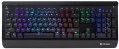 |
|---|---|---|
| Wooting 60HE+ | Qcyber Zadiak | |
| Outdated Product | Outdated Product | |
| TOP sellers | ||
| Connection | wired | wired |
| Cable length | 2 m | 1.8 m |
| Type | for game | for game |
| Form factor | 60% (mini) | 100% (full size) |
| Layout | ANSI / ISO / JIS | JIS |
Keyboard | ||
| Key profile | high | high |
| Key type | classic type | classic type |
| Switch technology | magnetic | mechanical |
| Switches | Lekker L60 V2 | Jixian Blue (Clicky) |
| Trigger path | 0.1 – 4 mm | |
| Polling rate | 1000 Hz (1 ms) | |
| PBT keycaps |  |  |
| Hot Swap | | |
| Anti-Ghosting | | |
| #KRO | N-KRO | |
| Rapid Trigger | | |
| Fn key | | |
Features | ||
| Cyrillic colour | transparent | |
| Application of symbols (Latin) | double-shot | |
| Volume control | fn | fn |
| Built-in memory | | |
| Game mode | | |
| Lighting | RGB | RGB |
| Lighting effects | + | + |
Connection and power supply | ||
| Cable | USB-A removable braided | USB-A |
General | ||
| Skeleton keyboard | | |
| Waterproof | | |
| Replacement keys included | | |
| Replacement switches included | | |
| Size | 302x116x38 mm | 468x218x41 mm |
| Weight | 605 g | 1200 g |
| Color | ||
| Added to E-Catalog | october 2025 | july 2017 |


Compare Wooting 60HE+ and Qcyber Zadiak
You may be interested in
My comparisons
Wooting 60HE+ often compared


Qcyber Zadiak often compared


Glossary
Cable length
The length of the cable that the keyboard is equipped with for wired connection (see "Connection type").
When choosing this parameter, you should first of all take into account the distance from the device to the connection port: a cable that is too short may simply not reach the connector, and a cable that is too long may get confused at hand and create inconvenience. As for specific values, the reference length is 1.8 m. However, there are cables both shorter and longer.
When choosing this parameter, you should first of all take into account the distance from the device to the connection port: a cable that is too short may simply not reach the connector, and a cable that is too long may get confused at hand and create inconvenience. As for specific values, the reference length is 1.8 m. However, there are cables both shorter and longer.
Form factor
— 100% (full-sized). Classic layout with 104/105 keys featuring a full NumPad, dedicated F1–F12 row, and navigation cluster including Insert/Delete, Home/End, PgUp/PgDn; this version is valued for its familiar geometry, typing speed, and ease of frequent number entry, making it optimal for work in Excel, accounting, IDEs, and editing programs, while in games, the NumPad is often used for binds and macros; compared to TKL/80% without a numeric block, as well as 96% and 1800-compact, the 100% format offers maximum comfort and requires less retraining, but takes up more desk space and pushes the mouse further away, so for compact workplaces, it might be wiser to consider smaller formats.
— 1800 (compact full-sized). A full-featured layout with a numeric block but in a narrower body: the NumPad is shifted closer to the main field, and navigation is often placed above it or compacted next to the arrow keys. It feels like "100%", but is shorter by a few centimeters, so the mouse is closer to the center, offering more comfort for wrists. Compared to TKL, you retain fast number entry, and against 96%, you gain a slightly more "airy" geometry with clear orientation. Note the non-standard sizes of some keys and the right block, which sometimes require special keycap sets. This format is convenient for Excel, accounting, IDEs, and editing, while offering gamers the NumPad for macros while saving desk space.
...r>
— 96% (compact full-sized). Keyboards that preserve all key zones of 100% (F1–F12 row, arrow keys, navigation, and NumPad) but place them in a tight "grid" layout, almost like TKL in width. The numeric block is shifted closer to the main area, while Insert/Home/End and PgUp/PgDn are often reduced to 1u and grouped above the arrows or next to the NumPad. Compared to the 1800 format, 96% is even more compact and visually "smoother," and against TKL, you do not lose the speed of number entry. Note the possible non-standard sizes of the right shift, zeros, and plus on the NumPad, requiring a more selective keycap choice. This format is chosen for Excel and accounting, editing and coding, while gamers use the NumPad for macros, gaining maximum functions with minimal table width.
— 80% (TKL, without Num-block). A full-featured keyboard without a numeric block: retains the F1–F12 row, arrow keys, and navigation Insert/Delete, Home/End, PgUp/PgDn, but is considerably narrower, bringing the mouse closer to the center, which is easier on the shoulders and wrists. Gamers and developers favor this format: there’s more desk space, while familiar keys and hotkeys remain in place. Compared to 100%, you only lose quick number entry, which can be supplemented with a separate wireless NumPad. In comparison to 75%, TKL is more readable and "airy" thanks to its separate navigation block; unlike 96%, it is more compact for mouse grip, though lacking a NumPad. The 80% (TKL) format is optimal for FPS, work in IDEs, editing, and everyday office tasks where numbers aren’t entered continuously.
— 75% (compact TKL, without Num-block). "Almost TKL," where all main keys are within reach, but the body is shorter by several centimeters due to a tight "staircase" arrangement of arrows and navigation. Compared to 80%, it decreases the distance between hands and mouse, enhancing ergonomics for prolonged use, and relative to 100% and 96%, you lose only the numeric block, gaining space for the mouse and a more neutral shoulder posture. This format is chosen for IDEs and design packages, FPS and MOBA, mobile setups with narrow desks, when numbers are entered infrequently or supplemented with an external NumPad. Note: 75% may have non-standard sizes in the right block and individual keys, which is important when selecting keycaps and stabilizers.
— 65% (ultra-compact, without F-row). "Condensed TKL": the alphanumeric block, arrow keys, and a pair of navigation keys remain in place, while the NumPad and the top F1–F12 row are accessed via Fn. This layout is significantly narrower in width, moving the mouse closer to the center, which reduces the spread of arms — ideal for narrow desks, when working on a laptop, and for travel. Compared to 60%, the 65% format is more practical thanks to dedicated arrows and Delete; against 75% and 80%, it is more compact but often requires getting accustomed to layers. Possible non-standard sizes of the right shift and navigation keys are important when choosing keycaps. In real-world scenarios, the 65% format is excellent for IDEs, streaming, and FPS/MOBA games, while regular number entry is complemented by an external wireless NumPad.
— 60% (mini). Classic "trimmed" layout with ~61/62 keys without NumPad, no F1–F12 top row, and no separate navigation cluster: all accessed through the Fn layer, with arrows usually assigned to combinations. Compared to 65%, this format is even more compact but often requires acclimatization to layers; against 75%/80%, you save desk width and achieve a more neutral shoulder posture, at the cost of losing "quick" F-keys. The strong points of 60% are portability, free space for the mouse and mat, and reduced arm movement between keyboard and mouse, making it popular with FPS gamers, streamers, and those working on laptops at narrow desks or traveling. If active number entry or "hot" F-keys are needed, an external wireless NumPad and well-thought-out layer layout help.
— 40% (ultra-mini). Radically compact layout with about 40–50 keys, lacking a number row, arrows, and F-keys: all are accessed via Fn layers, combined presses, and macros, often with an ortholinear matrix. Due to the minimal width, the mouse is closer to the center, reducing hand spread and freeing up desk space, appreciated by mobile users and minimalists. Compared to 60% and 65%, the 40% format requires more serious adaptation and thoughtful firmware (QMK/VIA, home-row mods, tap-dance), and keycap selection is more challenging due to non-standard sizes. The strong point is portability and speed after getting used to it; weakness — reliance on layers and inconvenience of frequent number entry and arrow navigation. The 40% format is practical for travel, work on laptops with docking stations, text editing with hotkeys, and streaming, while numbers are usually supplemented with an external NumPad.
— 1800 (compact full-sized). A full-featured layout with a numeric block but in a narrower body: the NumPad is shifted closer to the main field, and navigation is often placed above it or compacted next to the arrow keys. It feels like "100%", but is shorter by a few centimeters, so the mouse is closer to the center, offering more comfort for wrists. Compared to TKL, you retain fast number entry, and against 96%, you gain a slightly more "airy" geometry with clear orientation. Note the non-standard sizes of some keys and the right block, which sometimes require special keycap sets. This format is convenient for Excel, accounting, IDEs, and editing, while offering gamers the NumPad for macros while saving desk space.
— 80% (TKL, without Num-block). A full-featured keyboard without a numeric block: retains the F1–F12 row, arrow keys, and navigation Insert/Delete, Home/End, PgUp/PgDn, but is considerably narrower, bringing the mouse closer to the center, which is easier on the shoulders and wrists. Gamers and developers favor this format: there’s more desk space, while familiar keys and hotkeys remain in place. Compared to 100%, you only lose quick number entry, which can be supplemented with a separate wireless NumPad. In comparison to 75%, TKL is more readable and "airy" thanks to its separate navigation block; unlike 96%, it is more compact for mouse grip, though lacking a NumPad. The 80% (TKL) format is optimal for FPS, work in IDEs, editing, and everyday office tasks where numbers aren’t entered continuously.
— 75% (compact TKL, without Num-block). "Almost TKL," where all main keys are within reach, but the body is shorter by several centimeters due to a tight "staircase" arrangement of arrows and navigation. Compared to 80%, it decreases the distance between hands and mouse, enhancing ergonomics for prolonged use, and relative to 100% and 96%, you lose only the numeric block, gaining space for the mouse and a more neutral shoulder posture. This format is chosen for IDEs and design packages, FPS and MOBA, mobile setups with narrow desks, when numbers are entered infrequently or supplemented with an external NumPad. Note: 75% may have non-standard sizes in the right block and individual keys, which is important when selecting keycaps and stabilizers.
— 65% (ultra-compact, without F-row). "Condensed TKL": the alphanumeric block, arrow keys, and a pair of navigation keys remain in place, while the NumPad and the top F1–F12 row are accessed via Fn. This layout is significantly narrower in width, moving the mouse closer to the center, which reduces the spread of arms — ideal for narrow desks, when working on a laptop, and for travel. Compared to 60%, the 65% format is more practical thanks to dedicated arrows and Delete; against 75% and 80%, it is more compact but often requires getting accustomed to layers. Possible non-standard sizes of the right shift and navigation keys are important when choosing keycaps. In real-world scenarios, the 65% format is excellent for IDEs, streaming, and FPS/MOBA games, while regular number entry is complemented by an external wireless NumPad.
— 60% (mini). Classic "trimmed" layout with ~61/62 keys without NumPad, no F1–F12 top row, and no separate navigation cluster: all accessed through the Fn layer, with arrows usually assigned to combinations. Compared to 65%, this format is even more compact but often requires acclimatization to layers; against 75%/80%, you save desk width and achieve a more neutral shoulder posture, at the cost of losing "quick" F-keys. The strong points of 60% are portability, free space for the mouse and mat, and reduced arm movement between keyboard and mouse, making it popular with FPS gamers, streamers, and those working on laptops at narrow desks or traveling. If active number entry or "hot" F-keys are needed, an external wireless NumPad and well-thought-out layer layout help.
— 40% (ultra-mini). Radically compact layout with about 40–50 keys, lacking a number row, arrows, and F-keys: all are accessed via Fn layers, combined presses, and macros, often with an ortholinear matrix. Due to the minimal width, the mouse is closer to the center, reducing hand spread and freeing up desk space, appreciated by mobile users and minimalists. Compared to 60% and 65%, the 40% format requires more serious adaptation and thoughtful firmware (QMK/VIA, home-row mods, tap-dance), and keycap selection is more challenging due to non-standard sizes. The strong point is portability and speed after getting used to it; weakness — reliance on layers and inconvenience of frequent number entry and arrow navigation. The 40% format is practical for travel, work on laptops with docking stations, text editing with hotkeys, and streaming, while numbers are usually supplemented with an external NumPad.
Layout
The layout describes the physical geometry of the keys and their standard arrangement: the shape of Enter and Shift, the presence of additional keys, the width of the space bar, and consequently, compatibility with keycap sets and typing familiarity. The standards hardly affect productivity in software and gaming — comfort and how easy it is to find suitable keycaps/cases are more important. The following types are found:
— ANSI (American). A distinctive feature of the American layout is the single-row Enter key; it is the only popular layout where this key occupies one row, not two. Additionally, unlike the European ISO, the Shift keys on ANSI keyboards have the same width, and the Alt key has the same function. The backslash “\” is usually placed above the Enter and can be longer.
— ISO (European). One characteristic feature of the European layout is the Enter key, which occupies two rows and is slightly wider at the top. Also, the modifier keys are asymmetrical: the Shift keys differ in size (the left one is shorter than the right), and the Alts differ in function (the right Alt is marked as “Alt Gr” and is used for typing special characters of European languages). From the similar in many ways "Japanese" JIS layout, the ISO layout differs by the placement of the backslash “\” — it is standardly located near the left Shift (in some models, it is duplicated near the Enter). As a result,...the left Shift is shorter than usual; this can be inconvenient, especially for new users.
— KS (Korean). The “Korean” layout can be distinguished by the characteristic shape of the Enter key: it occupies two rows and is longer at the bottom than at the top. Another feature is the backslash “\”, which is located to the left of the Backspace, resulting in a shorter Backspace than in other layouts.
— JIS (Japanese). A layout much like the European ISO: it has the same two-row Enter with an increased length of the upper half. In many models, the right Alt is labeled “Alt Gr” and is designed for typing special symbols. The main differences lie in two aspects: the length of the left Shift (it is standard in JIS, not shortened) and the placement of the backslash “\” (it is standardly installed to the left of the lower half of the Enter, where some ISO keyboards have a second, additional backslash).
— ANSI (American). A distinctive feature of the American layout is the single-row Enter key; it is the only popular layout where this key occupies one row, not two. Additionally, unlike the European ISO, the Shift keys on ANSI keyboards have the same width, and the Alt key has the same function. The backslash “\” is usually placed above the Enter and can be longer.
— ISO (European). One characteristic feature of the European layout is the Enter key, which occupies two rows and is slightly wider at the top. Also, the modifier keys are asymmetrical: the Shift keys differ in size (the left one is shorter than the right), and the Alts differ in function (the right Alt is marked as “Alt Gr” and is used for typing special characters of European languages). From the similar in many ways "Japanese" JIS layout, the ISO layout differs by the placement of the backslash “\” — it is standardly located near the left Shift (in some models, it is duplicated near the Enter). As a result,...the left Shift is shorter than usual; this can be inconvenient, especially for new users.
— KS (Korean). The “Korean” layout can be distinguished by the characteristic shape of the Enter key: it occupies two rows and is longer at the bottom than at the top. Another feature is the backslash “\”, which is located to the left of the Backspace, resulting in a shorter Backspace than in other layouts.
— JIS (Japanese). A layout much like the European ISO: it has the same two-row Enter with an increased length of the upper half. In many models, the right Alt is labeled “Alt Gr” and is designed for typing special symbols. The main differences lie in two aspects: the length of the left Shift (it is standard in JIS, not shortened) and the placement of the backslash “\” (it is standardly installed to the left of the lower half of the Enter, where some ISO keyboards have a second, additional backslash).
Switch technology
— Membrane. The name of this type is due to the fact that the contacts under each key are made in the form of two membranes — conductive disks on a flexible film. The return of the keys to their original position after pressing is ensured by the elasticity of the membranes. This design is characterized by low cost and low noise level; in addition, such keyboards are quite resistant to liquid spills (although this is still not recommended). Of the shortcomings, it is worth noting the relatively low durability — 3-4 times lower than that of mechanical ones. In addition, as the keys of this type wear out, the force required to press decreases, they begin to “fall through” under the fingers (“fatigue effect”).
— Mechanical. In this design, springs are used to return the key to its original position after being pressed. Mechanical keyboards are considered more advanced than membrane keyboards: they are more reliable and durable, almost do not lose properties as they wear out, and give a clear tactile feedback. The overall noise level is often higher than that of membrane ones, however, many attribute a characteristic click with each press to the advantages of such models; in addition, completely silent mechanical switches are also available. But of the unequivocal disadvantages, one can name the high cost and sensitivity to spilling liquid (although a mechanical keyboard can also be made waterproof).
...
— Optical-mechanical. A variation of the mechanical keyboards described above, in which each key is equipped not with a traditional pair of contacts, but with an optical switch in the form of a sensor that receives an infrared beam; when you press the key, this beam is blocked, which serves as a signal for operation. One of the key advantages of such switches is a very high response speed (fractions of a millisecond); this moment is not critical for domestic use, but it can be fundamental for gamers-enthusiasts and e-sportsmen. In addition, the absence of electrical contacts that are prone to wear and oxidize has a positive effect on durability. And although initially the “optics” are more complicated than classic systems with contacts, however, in gaming keyboards, optical-mechanical switches are often even cheaper than pure “mechanics”. And the fact that this option is relatively rare is primarily due to the fact that optical technology appeared not so long ago and is only gaining popularity.
— Membrane + mechanical. A layout in which most of the keys have a membrane design, and some, the most "responsible" ones, are mechanical. About the features of both options, see above, and a similar combination of them is found mainly in gaming keyboards. In this case, the "mechanics" are usually used on the traditional combination of WASD plus on the surrounding keys Q, E, R and F.
— Mechanical-membrane. A hybrid design that combines elements of mechanical and membrane keyboards (see above for more on both). In this case, these features are combined in each individual key. Usually, under each button in such keyboards there is a membrane, however, inside this membrane is not just a pair of contacts, but a mechanical spring system. Thus, this design combines the advantages of both options. At the same time, mechanical-membrane systems are very expensive. Therefore, their main scope is high-end gaming keyboards, and even among such devices this option is quite rare.
— Scissor. A slightly modified version of membrane keyboards (see the relevant paragraph), in which the flexible membrane on each key is supplemented by a two-piece mechanism fastened together in the form of scissors. One of the main features of scissor keyboards is the low key travel (noticeably lower than that of membrane keyboards). Also, this design is less demanding on accuracy, it allows you to achieve a clear pressing regardless of where the finger hit — in the centre or on the edge of the key. The service life of the "scissors" is large; they are more difficult to clean, however, they become dirty much more slowly than "membranes". Among the disadvantages of this option, a slightly increased noise level during operation can be noted — due to the clicking of scissor mechanisms.
— Mechanical. In this design, springs are used to return the key to its original position after being pressed. Mechanical keyboards are considered more advanced than membrane keyboards: they are more reliable and durable, almost do not lose properties as they wear out, and give a clear tactile feedback. The overall noise level is often higher than that of membrane ones, however, many attribute a characteristic click with each press to the advantages of such models; in addition, completely silent mechanical switches are also available. But of the unequivocal disadvantages, one can name the high cost and sensitivity to spilling liquid (although a mechanical keyboard can also be made waterproof).
...
— Optical-mechanical. A variation of the mechanical keyboards described above, in which each key is equipped not with a traditional pair of contacts, but with an optical switch in the form of a sensor that receives an infrared beam; when you press the key, this beam is blocked, which serves as a signal for operation. One of the key advantages of such switches is a very high response speed (fractions of a millisecond); this moment is not critical for domestic use, but it can be fundamental for gamers-enthusiasts and e-sportsmen. In addition, the absence of electrical contacts that are prone to wear and oxidize has a positive effect on durability. And although initially the “optics” are more complicated than classic systems with contacts, however, in gaming keyboards, optical-mechanical switches are often even cheaper than pure “mechanics”. And the fact that this option is relatively rare is primarily due to the fact that optical technology appeared not so long ago and is only gaining popularity.
— Membrane + mechanical. A layout in which most of the keys have a membrane design, and some, the most "responsible" ones, are mechanical. About the features of both options, see above, and a similar combination of them is found mainly in gaming keyboards. In this case, the "mechanics" are usually used on the traditional combination of WASD plus on the surrounding keys Q, E, R and F.
— Mechanical-membrane. A hybrid design that combines elements of mechanical and membrane keyboards (see above for more on both). In this case, these features are combined in each individual key. Usually, under each button in such keyboards there is a membrane, however, inside this membrane is not just a pair of contacts, but a mechanical spring system. Thus, this design combines the advantages of both options. At the same time, mechanical-membrane systems are very expensive. Therefore, their main scope is high-end gaming keyboards, and even among such devices this option is quite rare.
— Scissor. A slightly modified version of membrane keyboards (see the relevant paragraph), in which the flexible membrane on each key is supplemented by a two-piece mechanism fastened together in the form of scissors. One of the main features of scissor keyboards is the low key travel (noticeably lower than that of membrane keyboards). Also, this design is less demanding on accuracy, it allows you to achieve a clear pressing regardless of where the finger hit — in the centre or on the edge of the key. The service life of the "scissors" is large; they are more difficult to clean, however, they become dirty much more slowly than "membranes". Among the disadvantages of this option, a slightly increased noise level during operation can be noted — due to the clicking of scissor mechanisms.
Switches
The model of switches (switches) used in the keyboard - switching mechanisms installed under each individual key. These details are given if the design uses advanced mechanics, positioned as a better option than traditional switches. Mostly gaming keyboards are equipped with such mechanics.
The most popular switch brands in our time are Cherry MX, considered the "classic of the genre" for high-quality mechanics; Gateron, practically not inferior to him; not so advanced, but also cheaper Kailh and Keychron, as well as ultra-budget Outemu. For all these brands, different types of switches have a different stem color, which can be used to determine the features of the keyboard. It is also worth saying that modern mechanical switches are divided into three main varieties: linear, tactile and clicky.
- Linear. Such solutions are closest to conventional membrane keyboards: the key travel is uniform along the entire length, with minimal resistance and the absence of a clear actuation point. There is an opinion that the linear "mechanics" is best suited for games where you have to deal with fast and frequent clicks; however, in practice, this moment largely depends on the personal tastes of th...e user, nothing prevents the use of such keyboards for working with texts.
- Tactile. Switches with a clearly defined actuation point - a kind of barrier to the path of the key. Such a "barrier" allows you to clearly determine by touch whether the key has worked or not. Tactile keyboards are valued primarily by tech who have to type large volumes of texts.
- Tactile-auditory (Clicky). In such switches, the actuation point is felt not only by touch, but also by ear: the actuation of the key is accompanied by a clearly audible click, which is often compared to the sound of the keys of a typewriter. Due to this, this option is also very popular among users dealing with texts. Some people consider switches of this type not very suitable for games, since they are supposedly not very convenient for frequent, fast pressing; however, a quality Clicky switch is as good as a linear switch in this regard, and the choice depends solely on personal preference. But the unequivocal disadvantages of such keyboards include a rather loud click sound, which in some situations may be superfluous.
As for specific colors, here are their features:
- Red (red). Linear type switches with minimum resistance. They are popular, in particular, among professional gamers who deal with dynamic games and try by all means to speed up their reaction to gaming events. On the other hand, a low force increases the likelihood of accidentally pressing an unnecessary button.
— Black. Another type of linear switches. They have a tighter move compared to Red, which, on the one hand, requires a little more effort, on the other hand, minimizes the chance of accidentally pressing the wrong key.
Blue. Switches in clicky format, with tactile feedback and a click.
— Brown. Switches with tactile feedback, but no "click". The Brown action is great for when you want a keyboard with tactile feedback and at the same time you want to avoid unnecessary noise (although the sound is still louder than on a membrane keyboard). In addition, it is considered a good option for tech who are just starting to get acquainted with mechanical keyboards.
— Silver. Linear switches designed for maximum operating speed. They have a very low stroke - about 1 - 1.2 mm - as well as a very small pressing force, which contributes to high speed. At the same time, the use of such a keyboard requires a certain skill, since even a small effort from an accidental touch usually leads to the operation of a key.
The most popular switch brands in our time are Cherry MX, considered the "classic of the genre" for high-quality mechanics; Gateron, practically not inferior to him; not so advanced, but also cheaper Kailh and Keychron, as well as ultra-budget Outemu. For all these brands, different types of switches have a different stem color, which can be used to determine the features of the keyboard. It is also worth saying that modern mechanical switches are divided into three main varieties: linear, tactile and clicky.
- Linear. Such solutions are closest to conventional membrane keyboards: the key travel is uniform along the entire length, with minimal resistance and the absence of a clear actuation point. There is an opinion that the linear "mechanics" is best suited for games where you have to deal with fast and frequent clicks; however, in practice, this moment largely depends on the personal tastes of th...e user, nothing prevents the use of such keyboards for working with texts.
- Tactile. Switches with a clearly defined actuation point - a kind of barrier to the path of the key. Such a "barrier" allows you to clearly determine by touch whether the key has worked or not. Tactile keyboards are valued primarily by tech who have to type large volumes of texts.
- Tactile-auditory (Clicky). In such switches, the actuation point is felt not only by touch, but also by ear: the actuation of the key is accompanied by a clearly audible click, which is often compared to the sound of the keys of a typewriter. Due to this, this option is also very popular among users dealing with texts. Some people consider switches of this type not very suitable for games, since they are supposedly not very convenient for frequent, fast pressing; however, a quality Clicky switch is as good as a linear switch in this regard, and the choice depends solely on personal preference. But the unequivocal disadvantages of such keyboards include a rather loud click sound, which in some situations may be superfluous.
As for specific colors, here are their features:
- Red (red). Linear type switches with minimum resistance. They are popular, in particular, among professional gamers who deal with dynamic games and try by all means to speed up their reaction to gaming events. On the other hand, a low force increases the likelihood of accidentally pressing an unnecessary button.
— Black. Another type of linear switches. They have a tighter move compared to Red, which, on the one hand, requires a little more effort, on the other hand, minimizes the chance of accidentally pressing the wrong key.
Blue. Switches in clicky format, with tactile feedback and a click.
— Brown. Switches with tactile feedback, but no "click". The Brown action is great for when you want a keyboard with tactile feedback and at the same time you want to avoid unnecessary noise (although the sound is still louder than on a membrane keyboard). In addition, it is considered a good option for tech who are just starting to get acquainted with mechanical keyboards.
— Silver. Linear switches designed for maximum operating speed. They have a very low stroke - about 1 - 1.2 mm - as well as a very small pressing force, which contributes to high speed. At the same time, the use of such a keyboard requires a certain skill, since even a small effort from an accidental touch usually leads to the operation of a key.
Trigger path
The distance a key travels from its original position to the point where a keystroke is registered, usually measured in millimeters. The smaller the value, the sooner the command is executed, which is particularly useful in fast-paced games; however, a setting that is too sensitive may increase the number of accidental presses. Mechanical and optical keyboards often have a fixed actuation point, while magnetic switches frequently allow for adjustment within a specified range.
This parameter should not be confused with the total key travel, which includes further movement to the bottom.
This parameter should not be confused with the total key travel, which includes further movement to the bottom.
Polling rate
The frequency with which the computer polls the keyboard to determine which keys are currently being pressed. The parameter is measured in Hertz (Hz) - they show how many requests are executed per second. Higher Hertz means keystrokes are detected and registered faster. This can provide an advantage in games and tasks that require the highest possible input speed.
As for specific values, for most ordinary users the standard polling rate of 125 Hz will be quite sufficient. Gaming keyboards can have a frequency from 1000 Hz (keystrokes in this version are recorded every 1 ms), and advanced models for true e-sportsmen - up to 8000 Hz (the reaction time is 0.125 ms).
As for specific values, for most ordinary users the standard polling rate of 125 Hz will be quite sufficient. Gaming keyboards can have a frequency from 1000 Hz (keystrokes in this version are recorded every 1 ms), and advanced models for true e-sportsmen - up to 8000 Hz (the reaction time is 0.125 ms).
PBT keycaps
Keycaps made from polybutylene terephthalate (PBT), one of the toughest and most durable plastics for keyboards. Unlike ABS keycaps, they are more wear-resistant, do not become glossy over time, and are resistant to mechanical abrasion. This durability is also aided by high-quality symbol application methods, such as double-shot molding or laser engraving. PBT keycaps have a textured surface that feels pleasant to touch and provide a clearer and more tactile feedback when typing.
Hot Swap
"Hot" replacement of mechanical keyboard switches without the procedure of disassembling and soldering the manipulator. Hot Swap technology allows you to change one switch for another in a matter of seconds. This is convenient both when the switches fail, and when using the keyboard in different scenarios. Most often, the technology is used in advanced gaming devices.