
Comparison Ugreen 50423 vs Maiwo K25272C
Add to comparison | 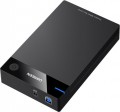 | 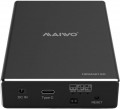 |
|---|---|---|
| Ugreen 50423 | Maiwo K25272C | |
| Outdated Product | Outdated Product | |
| User reviews | ||
| TOP sellers | ||
| Type | external | external |
| Features | stationary | stationary |
| Drive form factor | 2.5"/3.5" | 2.5" |
| Drive interface | SATA 3 | SATA 3 |
| Connectivity | USB-A 5Gbps | USB-C 10Gbps |
| RAID |  |  |
| Material | plastic | metal |
| Storage slots | 1 | 2 |
| Max. drive size | 16 TB | |
| Power source | pSU | pSU |
| Size | 193x117x35 mm | 130x83x25 mm |
| Color | ||
| Added to E-Catalog | november 2022 | july 2022 |


Compare Ugreen 50423 and Maiwo K25272C
You may be interested in
Ugreen 50423 often compared


Glossary
Drive form factor
Form factor of the drive for which the enclosure is designed.
These accessories are made for standard internal drive form factors: 3.5", 2.5" (often compatible with both simultaneously), as well as M.2 SSD. Here are the features of each of these options:
— HDD 3.5". The 3.5-inch form factor is the traditional form factor for internal drives in full-sized desktop PCs. Therefore, internal enclosures for this form factor are used exclusively in PCs or servers, being too bulky for laptops; moreover, most of these enclosures are chassis-"sleds" (see "Purpose"). External solutions are bulkier than models designed for 2.5", but due to the lack of strict size limitations, high-capacity drives for such enclosures are noticeably cheaper than miniature counterparts of the same capacity. It's also worth noting that most 3.5-inch drives are traditional hard disks (or hybrid SSHD devices), with SSD modules in this form factor being virtually nonexistent.
— SSD or HDD 2.5". The 2.5-inch form factor was initially created as a "laptop" form factor, and most drives in modern laptops correspond to it. Therefore, internal enclosures of this form factor are primarily intended for laptops; the classic version of such an accessory is an adapter for installing a drive in an optical drive slot. This variant hasn't gained much popularity in PC models — modern desktops...usually have not only 3.5-inch but also 2.5-inch bays for drives; for several reasons, 3.5" solutions are more convenient as quick-release "sleds" (see above). However, internal enclosures of this form factor are produced for servers, with multiple slots; they also usually represent chassis-"sleds." As for external models, 2.5" enclosures are significantly more miniature than 3.5" equivalents, but drives for them are more expensive per gigabyte of capacity (especially in large volumes).
— SSD or HDD 2.5"/3.5". Models that accommodate both form factors. The meaning of this marking depends on the specific type of enclosure. In external models and docking stations (see "Type"), it usually implies the ability to install a drive of either form factor into the enclosure, at the user's choice. Generally, the bays or slots in such models are initially designed for 3.5", with special brackets used to secure 2.5-inch drives in these slots (note that there may be fewer brackets in docks than slots). The same construction is applied in internal models for servers and in chassis for PCs resembling "sleds" (see "Purpose"). However, in PC models, there's another variant — adapters for placing HDD/SSD drives on 2.5" in 3.5" form factor slots; these accessories are also included in this category.
— SSD M.2. A form factor developed specifically for miniature internal components, including solid-state drives. M.2 peripherals range from 12 to 30 mm in width and from 16 to 110 mm in length, connecting through a namesake port. Enclosures of this form factor are characterized by compact sizes. In turn, internal models most commonly represent laptop solutions for installing SSDs in an optical drive slot. However, there's also a rather specific variant — devices for PCs that allow connecting M.2 drives into a PCI-E slot (similar to a separate sound card or another expansion board).
It's important to note that M.2 connections can be made either via PCI-E or SATA; for more details see "Drive Interface," here we note that this aspect and compatibility with a specific drive should be clarified separately.
These accessories are made for standard internal drive form factors: 3.5", 2.5" (often compatible with both simultaneously), as well as M.2 SSD. Here are the features of each of these options:
— HDD 3.5". The 3.5-inch form factor is the traditional form factor for internal drives in full-sized desktop PCs. Therefore, internal enclosures for this form factor are used exclusively in PCs or servers, being too bulky for laptops; moreover, most of these enclosures are chassis-"sleds" (see "Purpose"). External solutions are bulkier than models designed for 2.5", but due to the lack of strict size limitations, high-capacity drives for such enclosures are noticeably cheaper than miniature counterparts of the same capacity. It's also worth noting that most 3.5-inch drives are traditional hard disks (or hybrid SSHD devices), with SSD modules in this form factor being virtually nonexistent.
— SSD or HDD 2.5". The 2.5-inch form factor was initially created as a "laptop" form factor, and most drives in modern laptops correspond to it. Therefore, internal enclosures of this form factor are primarily intended for laptops; the classic version of such an accessory is an adapter for installing a drive in an optical drive slot. This variant hasn't gained much popularity in PC models — modern desktops...usually have not only 3.5-inch but also 2.5-inch bays for drives; for several reasons, 3.5" solutions are more convenient as quick-release "sleds" (see above). However, internal enclosures of this form factor are produced for servers, with multiple slots; they also usually represent chassis-"sleds." As for external models, 2.5" enclosures are significantly more miniature than 3.5" equivalents, but drives for them are more expensive per gigabyte of capacity (especially in large volumes).
— SSD or HDD 2.5"/3.5". Models that accommodate both form factors. The meaning of this marking depends on the specific type of enclosure. In external models and docking stations (see "Type"), it usually implies the ability to install a drive of either form factor into the enclosure, at the user's choice. Generally, the bays or slots in such models are initially designed for 3.5", with special brackets used to secure 2.5-inch drives in these slots (note that there may be fewer brackets in docks than slots). The same construction is applied in internal models for servers and in chassis for PCs resembling "sleds" (see "Purpose"). However, in PC models, there's another variant — adapters for placing HDD/SSD drives on 2.5" in 3.5" form factor slots; these accessories are also included in this category.
— SSD M.2. A form factor developed specifically for miniature internal components, including solid-state drives. M.2 peripherals range from 12 to 30 mm in width and from 16 to 110 mm in length, connecting through a namesake port. Enclosures of this form factor are characterized by compact sizes. In turn, internal models most commonly represent laptop solutions for installing SSDs in an optical drive slot. However, there's also a rather specific variant — devices for PCs that allow connecting M.2 drives into a PCI-E slot (similar to a separate sound card or another expansion board).
It's important to note that M.2 connections can be made either via PCI-E or SATA; for more details see "Drive Interface," here we note that this aspect and compatibility with a specific drive should be clarified separately.
Connectivity
The method of connecting a pocket with an installed drive to a computer as provided in the design.
Note that this parameter is specified only in cases where the interface for connecting differs from the interface of the drive (see above). This feature is typical for all external models and docks (see "Type"): nowadays they most frequently use USB-A 5Gbps, less often — USB-A 2.0 or USB-C of various versions (see below). In internal solutions, the drive's connector is very rarely different from the pocket's connector, although exceptions occur.
It is also worth mentioning that in external models the connection method is usually determined by the type of complete cable; such a cable is often made detachable, with the possibility to replace it with a "cord" with a different type of plug.
As for specific connection methods, here are their main features:
— USB-A 2.0. USB is used for connecting external peripherals, including pockets; this is the most popular modern interface for such purposes. Version 2.0 is the oldest USB standard still current today. The capabilities of such a connection are rather modest — for instance, the power capacity through the connector is 2.5 W, and the maximum data transfer speed does not exceed 480 Mbps. This is noticeably slower than even SATA 2 (3 Gbps), let alone SATA 3 (6 Gbps); thus this standard is gene...rally considered obsolete, and in pockets with this type of connection, the overall performance is limited to the capabilities of USB-A 2.0. Nevertheless, supporting this interface is inexpensive; for simple tasks that don't involve large amounts of data, it often proves to be quite enough; moreover, USB 2.0 devices are fully compatible with USB ports of newer versions. Thus, today you can still find pockets with this type of connection — mainly the simplest and cheapest models.
— USB-A 5Gbps. This version (previously known as USB 3.2 gen1 and USB 3.0) is the direct successor of USB-A 2.0, providing data transfer speeds 10 times higher — up to 4.8 Gbps — and higher power capacity. The mentioned speed practically matches the capabilities of the popular internal SATA 3 interface; therefore, pockets with this type of connection are extremely widespread today.
— USB-A 10Gbps. Connection to a computer through a full-size USB connector, supporting data transfer speeds up to 10 Gbps. This version is particularly useful for fast SSDs, where a higher-speed interface helps better utilize the drive's capabilities. Compared to USB-A 5Gbps, this variant is more attractive for copying large files, working with video archives, and backups, where not just compatibility but also higher data exchange speed is important. For regular HDDs, the difference may also be present, but the effect is often more modest because the hard drive is usually slower than an SSD.
— USB-C 5Gbps. Modern USB-C connector with data transfer up to 5 Gbps. This option is suitable for regular external SSDs and HDDs, when convenient connection and normal speed for daily tasks are important. Compared to USB-C 10Gbps, it's a more basic option, but for many drives, it is already quite sufficient.
— USB-C 10Gbps. High-speed USB-C interface with data transfer up to 10 Gbps. This option is especially interesting for fast SSDs, where a higher speed cap helps better leverage the drive's capabilities. Compared to USB-C 5Gbps, it is more suited for large video projects, massive archives, frequent copying of heavy files, and using the drive almost like an external working disk. For regular HDDs, the difference is often less noticeable because the hard drive is usually slower than an SSD.
— USB-C 20Gbps. The fastest USB-C option in this line, designed for data transfer up to 20 Gbps. This format is especially interesting for fast SSDs when the pocket is used not just as an external storage, but almost like a full-fledged working disk for large projects, editing, archives, and regular copying of heavy files. It is essential to ensure that a compatible port and cable are available for such speed. Thus, USB-C 20Gbps is an option for those who want to get the most out of an external SSD and not be limited by the interface too soon.
— PCI-E. Connection to a standard PCI-E slot on the motherboard. In other words, such pockets connect to the computer in the same way as video adapters, sound cards, and other expansion cards. This design is used in specific internal models for M.2 SSD form factor drives; such a pocket allows connecting a similar drive to a desktop PC even if the native M.2 ports on the motherboard are occupied, unavailable, incompatible for connection (for example, using the SATA interface while the drive is made for PCI-E), or completely absent.
Note that these pockets are usually compatible with SSD modules on M.2 PCI-E without issues, but compatibility with M.2 SATA should be clarified separately (though such functionality does exist). It should also be noted that PCI-E slots and devices under them can have a different number of lanes, and the general rule here is: the number of lanes of the slot on the motherboard should be at least as many as the card being connected. However, pockets with such connections usually provide no more than 4 lanes, so they can be connected to PCI-E slots starting from 4x.
— IDE. An outdated interface for connecting internal drives. It is extremely rarely encountered in modern pockets — only in certain models designed for installing modern HDDs/SSDs in outdated computers without SATA and other current connectors.
Note that this parameter is specified only in cases where the interface for connecting differs from the interface of the drive (see above). This feature is typical for all external models and docks (see "Type"): nowadays they most frequently use USB-A 5Gbps, less often — USB-A 2.0 or USB-C of various versions (see below). In internal solutions, the drive's connector is very rarely different from the pocket's connector, although exceptions occur.
It is also worth mentioning that in external models the connection method is usually determined by the type of complete cable; such a cable is often made detachable, with the possibility to replace it with a "cord" with a different type of plug.
As for specific connection methods, here are their main features:
— USB-A 2.0. USB is used for connecting external peripherals, including pockets; this is the most popular modern interface for such purposes. Version 2.0 is the oldest USB standard still current today. The capabilities of such a connection are rather modest — for instance, the power capacity through the connector is 2.5 W, and the maximum data transfer speed does not exceed 480 Mbps. This is noticeably slower than even SATA 2 (3 Gbps), let alone SATA 3 (6 Gbps); thus this standard is gene...rally considered obsolete, and in pockets with this type of connection, the overall performance is limited to the capabilities of USB-A 2.0. Nevertheless, supporting this interface is inexpensive; for simple tasks that don't involve large amounts of data, it often proves to be quite enough; moreover, USB 2.0 devices are fully compatible with USB ports of newer versions. Thus, today you can still find pockets with this type of connection — mainly the simplest and cheapest models.
— USB-A 5Gbps. This version (previously known as USB 3.2 gen1 and USB 3.0) is the direct successor of USB-A 2.0, providing data transfer speeds 10 times higher — up to 4.8 Gbps — and higher power capacity. The mentioned speed practically matches the capabilities of the popular internal SATA 3 interface; therefore, pockets with this type of connection are extremely widespread today.
— USB-A 10Gbps. Connection to a computer through a full-size USB connector, supporting data transfer speeds up to 10 Gbps. This version is particularly useful for fast SSDs, where a higher-speed interface helps better utilize the drive's capabilities. Compared to USB-A 5Gbps, this variant is more attractive for copying large files, working with video archives, and backups, where not just compatibility but also higher data exchange speed is important. For regular HDDs, the difference may also be present, but the effect is often more modest because the hard drive is usually slower than an SSD.
— USB-C 5Gbps. Modern USB-C connector with data transfer up to 5 Gbps. This option is suitable for regular external SSDs and HDDs, when convenient connection and normal speed for daily tasks are important. Compared to USB-C 10Gbps, it's a more basic option, but for many drives, it is already quite sufficient.
— USB-C 10Gbps. High-speed USB-C interface with data transfer up to 10 Gbps. This option is especially interesting for fast SSDs, where a higher speed cap helps better leverage the drive's capabilities. Compared to USB-C 5Gbps, it is more suited for large video projects, massive archives, frequent copying of heavy files, and using the drive almost like an external working disk. For regular HDDs, the difference is often less noticeable because the hard drive is usually slower than an SSD.
— USB-C 20Gbps. The fastest USB-C option in this line, designed for data transfer up to 20 Gbps. This format is especially interesting for fast SSDs when the pocket is used not just as an external storage, but almost like a full-fledged working disk for large projects, editing, archives, and regular copying of heavy files. It is essential to ensure that a compatible port and cable are available for such speed. Thus, USB-C 20Gbps is an option for those who want to get the most out of an external SSD and not be limited by the interface too soon.
— PCI-E. Connection to a standard PCI-E slot on the motherboard. In other words, such pockets connect to the computer in the same way as video adapters, sound cards, and other expansion cards. This design is used in specific internal models for M.2 SSD form factor drives; such a pocket allows connecting a similar drive to a desktop PC even if the native M.2 ports on the motherboard are occupied, unavailable, incompatible for connection (for example, using the SATA interface while the drive is made for PCI-E), or completely absent.
Note that these pockets are usually compatible with SSD modules on M.2 PCI-E without issues, but compatibility with M.2 SATA should be clarified separately (though such functionality does exist). It should also be noted that PCI-E slots and devices under them can have a different number of lanes, and the general rule here is: the number of lanes of the slot on the motherboard should be at least as many as the card being connected. However, pockets with such connections usually provide no more than 4 lanes, so they can be connected to PCI-E slots starting from 4x.
— IDE. An outdated interface for connecting internal drives. It is extremely rarely encountered in modern pockets — only in certain models designed for installing modern HDDs/SSDs in outdated computers without SATA and other current connectors.
RAID
Support for RAID arrays built into the pocket itself.
A RAID array, by definition, consists of multiple drives, so this feature is only available on models with more than one drive. At the same time, we note that in the case of internal installation of drives, it is more convenient to create arrays using the means of the PC itself or the server. So RAID support is found exclusively in external devices and docking stations (see "Type"); in terms of functionality, such solutions often come close to NAS servers, adjusted for the lack of network functions.
Usually, the meaning of an array is not just to combine the volumes of all drives, but also to increase the speed of access to data and/or increase the reliability of their storage. Specific specifics depend on the RAID level: for example, RAID 0 with “scattering” data blocks over individual disks increases access speed, RAID 1 with information mirroring allows you to save all data even if one drive fails, etc. There is also a simple mode combining the volumes of all disks — it is called JBOD and is used along with RAID. Different pocket models may support different RAID levels, this point should be clarified separately.
A RAID array, by definition, consists of multiple drives, so this feature is only available on models with more than one drive. At the same time, we note that in the case of internal installation of drives, it is more convenient to create arrays using the means of the PC itself or the server. So RAID support is found exclusively in external devices and docking stations (see "Type"); in terms of functionality, such solutions often come close to NAS servers, adjusted for the lack of network functions.
Usually, the meaning of an array is not just to combine the volumes of all drives, but also to increase the speed of access to data and/or increase the reliability of their storage. Specific specifics depend on the RAID level: for example, RAID 0 with “scattering” data blocks over individual disks increases access speed, RAID 1 with information mirroring allows you to save all data even if one drive fails, etc. There is also a simple mode combining the volumes of all disks — it is called JBOD and is used along with RAID. Different pocket models may support different RAID levels, this point should be clarified separately.
Material
The main material from which the body of the pocket is made.
— Plastic / rubber. This category includes models that use plastic and/or rubber in the construction of cases. The specific ratio and features of the use of these materials are different: the body can be all-plastic, have rubber lining at the ends to increase impact protection, be completely covered with rubber, etc. And in covers (see "Type"), these materials can also be supplemented with others — such as EVA, neoprene or even cloth. Anyway, plastic / rubber cases are found exclusively in external models, including docking stations. Such pockets are somewhat inferior to metal pockets in terms of strength and reliability, but they are cheaper, and in normal everyday use, the mentioned difference is not critical.
— Steel. Cases made of metal are most often made of steel, but there are other options (for example, aluminium alloys). In the inner pockets, only this option is found — this is due to a number of features of such accessories. As for external models in this design, they are much stronger and more reliable than plastic ones, besides, the metal case creates an additional feeling of solidity. The downside of these advantages is the higher price.
— Plastic / rubber. This category includes models that use plastic and/or rubber in the construction of cases. The specific ratio and features of the use of these materials are different: the body can be all-plastic, have rubber lining at the ends to increase impact protection, be completely covered with rubber, etc. And in covers (see "Type"), these materials can also be supplemented with others — such as EVA, neoprene or even cloth. Anyway, plastic / rubber cases are found exclusively in external models, including docking stations. Such pockets are somewhat inferior to metal pockets in terms of strength and reliability, but they are cheaper, and in normal everyday use, the mentioned difference is not critical.
— Steel. Cases made of metal are most often made of steel, but there are other options (for example, aluminium alloys). In the inner pockets, only this option is found — this is due to a number of features of such accessories. As for external models in this design, they are much stronger and more reliable than plastic ones, besides, the metal case creates an additional feeling of solidity. The downside of these advantages is the higher price.
Storage slots
The number of separate slots for drives provided in the design of the pocket, in other words, the number of drives for which this model is designed.
In addition to models for one slot, nowadays you can find more capacious solutions — for two drives, or even more. Such "multiplying" is found in three types of devices. The first is large-format pockets for stationary purposes (see above), operating in the format of separate storages for a large amount of data. Such models may support RAID arrays (see above) and other special features. The second type of devices with more than one slot are separate docking stations (see "Type") with similar functionality. The third type is server models (see "Purpose") with an internal installation; they again allow the organization of arrays, but by means of the server itself.
Note that external devices with one slot can be powered from the USB port, but several drives in this case inevitably require a separate PSU (see "Power").
In addition to models for one slot, nowadays you can find more capacious solutions — for two drives, or even more. Such "multiplying" is found in three types of devices. The first is large-format pockets for stationary purposes (see above), operating in the format of separate storages for a large amount of data. Such models may support RAID arrays (see above) and other special features. The second type of devices with more than one slot are separate docking stations (see "Type") with similar functionality. The third type is server models (see "Purpose") with an internal installation; they again allow the organization of arrays, but by means of the server itself.
Note that external devices with one slot can be powered from the USB port, but several drives in this case inevitably require a separate PSU (see "Power").
Max. drive size
The maximum storage capacity supported by the pocket. In models with multiple disks/SSDs (see "Drive Slots"), this item indicates the largest total volume supported by the device; by dividing this capacity by the number of slots, you can determine the maximum allowable capacity of each individual drive.
The limitation on the maximum volume is relevant mainly for external models, including docking stations (see "Type"). This is due to the fact that fundamentally different interfaces are used for the drive and for connecting the pocket itself in such models (most often SATA and USB, respectively, see above for details). For the normal interaction of such interfaces, an electronic controller is required; and the larger the volume of the installed drive (s) — the higher the requirements for the performance of such a controller.
Note that, other things being equal, supporting large volumes is more expensive, and capacious drives themselves are not cheap. Therefore, when choosing according to this indicator, it is worth considering real needs, and not chasing the maximum numbers.
The limitation on the maximum volume is relevant mainly for external models, including docking stations (see "Type"). This is due to the fact that fundamentally different interfaces are used for the drive and for connecting the pocket itself in such models (most often SATA and USB, respectively, see above for details). For the normal interaction of such interfaces, an electronic controller is required; and the larger the volume of the installed drive (s) — the higher the requirements for the performance of such a controller.
Note that, other things being equal, supporting large volumes is more expensive, and capacious drives themselves are not cheap. Therefore, when choosing according to this indicator, it is worth considering real needs, and not chasing the maximum numbers.