
Comparison MSI B450 TOMAHAWK MAX vs MSI B450-A PRO
Add to comparison | 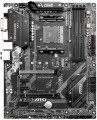 | 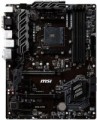 |
|---|---|---|
| MSI B450 TOMAHAWK MAX | MSI B450-A PRO | |
from $279.00 | Compare prices 2 | |
| User reviews | ||
| TOP sellers | ||
MSI MAX motherboards support Ryzen Matisse processors out of the box | MSI MAX motherboards support Ryzen Matisse processors out of the box B450-A PRO MAX | |
| Features | gaming for overclocking | gaming for overclocking |
| Socket | AM4 | AM4 |
| Form factor | ATX | ATX |
| Power phases | 6 | 6 |
| VRM heatsink |  | |
| LED lighting | |  |
| Lighting sync | MSI Mystic Light Sync | |
| Size (HxW) | 305x244 mm | 305x244 mm |
Chipset | ||
| Chipset | AMD B450 | AMD B450 |
| BIOS | Ami | Ami |
| UEFI BIOS | | |
RAM | ||
| DDR4 | 4 slot(s) | 4 slot(s) |
| Memory module | DIMM | DIMM |
| Operation mode | 2 channel | 2 channel |
| Max. clock frequency | 4133 MHz | 3466 MHz |
| Max. memory | 64 GB | 128 GB |
Drive interface | ||
| SATA 3 (6Gbps) | 6 | 6 |
| M.2 connector | 1 | 1 |
| M.2 | 1xSATA/PCIe 4x | 1xSATA/PCIe 4x |
| Integrated RAID controller | | |
Expansion slots | ||
| 1x PCIe slots | 3 pcs | 4 pcs |
| PCIe 16x slots | 2 pcs | 2 pcs |
| PCIe modes | 16x/4x | 16x/4x |
| PCIe support | 3.0 | 3.0 |
| CrossFire (AMD) | | |
| Steel PCIe connectors | | |
Internal connections | ||
| USB-A 2.0 | 2 pcs | 2 pcs |
| USB-A 5Gbps | 1 pcs | 1 pcs |
| RGB LED strip | 2 | |
| More features | Clear CMOS, Chassis Intrusion | |
Video outputs | ||
| D-Sub output (VGA) | | |
| DVI output | DVI-D | DVI-D |
| HDMI output | | |
| HDMI version | v1.4 | |
Integrated audio | ||
| Audiochip | Realtek ALC892 | Realtek ALC892 |
| Sound (channels) | 7.1 | 7.1 |
Network interfaces | ||
| LAN (RJ-45) | 1 Gbps | 1 Gbps |
| LAN ports | 1 | 1 |
| LAN controller | Realtek 8111H | Realtek 8111H |
External connections | ||
| USB-A 2.0 | 2 pcs | 2 pcs |
| USB-A 5Gbps | 2 pcs | 2 pcs |
| USB-A 10Gbps | 1 pcs | 2 pcs |
| USB-C 10Gbps | 1 pcs | |
| PS/2 | 1 | 1 |
| BIOS FlashBack | | |
Power connectors | ||
| Main power socket | 24-pin | 24-pin |
| CPU power | 8-pin | 8-pin |
| Fan power connectors | 6 | 6 |
| CPU Fan 4-pin | 1 | |
| CPU/Water Pump Fan 4-pin | 1 | |
| Chassis/Water Pump Fan 4-pin | 4 | |
| Added to E-Catalog | july 2019 | july 2018 |




Compare MSI B450 TOMAHAWK MAX and B450-A PRO
Price comparison
You may be interested in
My comparisons
MSI B450 TOMAHAWK MAX often compared


MSI B450-A PRO often compared

Glossary
LED lighting
The presence of its own LED backlight on the motherboard. This feature does not affect the functionality of the "motherboard", but gives it an unusual appearance. Therefore, it hardly makes sense for an ordinary user to specifically look for such a model (a motherboard without backlighting is enough for him), but for modding lovers, backlighting can be very useful.
LED backlighting can take the form of individual lights or LED strips, come in different colours (sometimes with a choice of colours) and support additional effects — flashing, flickering, synchronization with other components (see "Lightning synchronization"), etc. Specific features depend on the motherboard model.
LED backlighting can take the form of individual lights or LED strips, come in different colours (sometimes with a choice of colours) and support additional effects — flashing, flickering, synchronization with other components (see "Lightning synchronization"), etc. Specific features depend on the motherboard model.
Lighting sync
Synchronization technology provided in the board with LED backlight (see above).
Synchronization itself allows you to "match" the backlight of the motherboard with the backlight of other system components — cases, video cards, keyboards, mice, etc. Thanks to this matching, all components can change colour synchronously, turn on / off at the same time, etc. Specific features the operation of such backlighting depends on the synchronization technology used, and, usually, each manufacturer has its own (Mystic Light Sync for MSI, RGB Fusion for Gigabyte, etc.). The compatibility of the components also depends on this: they must all support the same technology. So the easiest way to achieve backlight compatibility is to collect components from the same manufacturer.
Synchronization itself allows you to "match" the backlight of the motherboard with the backlight of other system components — cases, video cards, keyboards, mice, etc. Thanks to this matching, all components can change colour synchronously, turn on / off at the same time, etc. Specific features the operation of such backlighting depends on the synchronization technology used, and, usually, each manufacturer has its own (Mystic Light Sync for MSI, RGB Fusion for Gigabyte, etc.). The compatibility of the components also depends on this: they must all support the same technology. So the easiest way to achieve backlight compatibility is to collect components from the same manufacturer.
Max. clock frequency
The maximum RAM clock speed supported by the motherboard. The actual clock frequency of the installed RAM modules should not exceed this indicator — otherwise, malfunctions are possible, and the capabilities of the “RAM” cannot be used to the fullest.
For modern PCs, a RAM frequency of 1500 – 2000 MHz or less is considered very low, 2000 – 2500 MHz is modest, 2500 – 3000 MHz is average, 3000 – 3500 MHz is above average, and the most advanced boards can support frequencies of 3500 – 4000 MHz and even more than 4000 MHz.
For modern PCs, a RAM frequency of 1500 – 2000 MHz or less is considered very low, 2000 – 2500 MHz is modest, 2500 – 3000 MHz is average, 3000 – 3500 MHz is above average, and the most advanced boards can support frequencies of 3500 – 4000 MHz and even more than 4000 MHz.
Max. memory
The maximum amount of RAM that can be installed on the motherboard.
When choosing according to this parameter, it is important to take into account the planned use of the PC and the real needs of the user. So, volumes up to 32 GB inclusive are quite enough to solve any basic problems and run games comfortably, but without a significant reserve for an upgrade. 64 GB is the optimal option for many professional use cases, and for the most resource-intensive tasks like 3D rendering, 96 GB or even 128 GB of memory will not be a limit. The most “capacious” motherboards are compatible with volumes of 192 GB or more - they are mainly top-end solutions for servers and HEDT (see “In the direction”).
You can choose this parameter with a reserve – taking into account a potential RAM upgrade, because installing additional RAM sticks is the simplest way to increase system performance. Taking this factor into account, many relatively simple motherboards support very significant amounts of RAM.
When choosing according to this parameter, it is important to take into account the planned use of the PC and the real needs of the user. So, volumes up to 32 GB inclusive are quite enough to solve any basic problems and run games comfortably, but without a significant reserve for an upgrade. 64 GB is the optimal option for many professional use cases, and for the most resource-intensive tasks like 3D rendering, 96 GB or even 128 GB of memory will not be a limit. The most “capacious” motherboards are compatible with volumes of 192 GB or more - they are mainly top-end solutions for servers and HEDT (see “In the direction”).
You can choose this parameter with a reserve – taking into account a potential RAM upgrade, because installing additional RAM sticks is the simplest way to increase system performance. Taking this factor into account, many relatively simple motherboards support very significant amounts of RAM.
1x PCIe slots
The number of PCIe (PCI Express) 1x slots installed on the motherboard. There are motherboards with 1 PCIe 1x slot, 2 PCIe 1x connectors, 3 PCIe 1x ports, and even more.
The PCI Express bus is used to connect various expansion cards—network and sound cards, video adapters, TV tuners, and even SSDs. The number in the name indicates the number of PCIe lanes (data transmission channels) supported by this slot; the more lanes, the higher the bandwidth. Accordingly, PCIe 1x is the basic, slowest variety of this interface. The data transfer rate for such slots depends on the PCIe version (see "PCI Express Support"): specifically, it's just under 1 GB/s for version 3.0 and just under 2 GB/s for version 4.0.
It is worth noting that the general rule for PCIe is this: the card should be connected to a slot with the same or greater number of lanes. Thus, only single-lane cards will be guaranteed to be compatible with PCIe 1x.
The PCI Express bus is used to connect various expansion cards—network and sound cards, video adapters, TV tuners, and even SSDs. The number in the name indicates the number of PCIe lanes (data transmission channels) supported by this slot; the more lanes, the higher the bandwidth. Accordingly, PCIe 1x is the basic, slowest variety of this interface. The data transfer rate for such slots depends on the PCIe version (see "PCI Express Support"): specifically, it's just under 1 GB/s for version 3.0 and just under 2 GB/s for version 4.0.
It is worth noting that the general rule for PCIe is this: the card should be connected to a slot with the same or greater number of lanes. Thus, only single-lane cards will be guaranteed to be compatible with PCIe 1x.
RGB LED strip
Connector for connecting a decorative LED strip and other devices with LED indication. Allows you to control the backlight of the case through the motherboard and customize the glow for your tasks, including synchronize it with other components.
D-Sub output (VGA)
The motherboard has its own D-Sub (VGA) output.
Such an output is intended for transmitting video from an integrated graphics card (see above) or a processor with integrated graphics (we emphasize that it is impossible to output a signal from a discrete graphics card through the motherboard chipset). As for VGA specifically, it is an analogue standard originally created for CRT monitors. It does not differ in image quality, is practically not suitable for resolutions above 1280x1024 and does not provide sound transmission, and therefore is generally considered obsolete. However, this type of input continues to be used in some monitors, TVs, projectors, etc.; so among motherboards you can find models with such outputs.
Such an output is intended for transmitting video from an integrated graphics card (see above) or a processor with integrated graphics (we emphasize that it is impossible to output a signal from a discrete graphics card through the motherboard chipset). As for VGA specifically, it is an analogue standard originally created for CRT monitors. It does not differ in image quality, is practically not suitable for resolutions above 1280x1024 and does not provide sound transmission, and therefore is generally considered obsolete. However, this type of input continues to be used in some monitors, TVs, projectors, etc.; so among motherboards you can find models with such outputs.
HDMI version
HDMI connector version (see above) installed in the motherboard.
— v.1.4. The earliest of the standards found nowadays, which appeared back in 2009. Supports resolutions up to 4096x2160 inclusive and allows you to play Full HD video with a frame rate of up to 120 fps — this is enough even for 3D playback.
— v.1.4b. A modified version of v.1.4 described above, which introduced a number of minor updates and improvements — in particular, support for two additional 3D formats.
— v.2.0. Also known as HDMI UHD, this version introduced full 4K support, with frame rates up to 60 fps, as well as the ability to work with 21:9 ultra-widescreen video. In addition, thanks to the increased bandwidth, the number of simultaneously reproduced audio channels has grown to 32, and audio streams to 4. And in the v.2.0a improvement, HDR support has also been added to all this.
— v.2.1. Another name is HDMI Ultra High Speed. Compared to the previous version, the interface bandwidth has really increased significantly — it is enough to transmit video at resolutions up to 10K at 120 frames per second, as well as to work with the extended BT.2020 colour space (the latter may be useful for some professional tasks). HDMI Ultra High Speed cables are required to use the full capabilities of HDMI v2.1, but older standard features are available with regular cables.
— v.1.4. The earliest of the standards found nowadays, which appeared back in 2009. Supports resolutions up to 4096x2160 inclusive and allows you to play Full HD video with a frame rate of up to 120 fps — this is enough even for 3D playback.
— v.1.4b. A modified version of v.1.4 described above, which introduced a number of minor updates and improvements — in particular, support for two additional 3D formats.
— v.2.0. Also known as HDMI UHD, this version introduced full 4K support, with frame rates up to 60 fps, as well as the ability to work with 21:9 ultra-widescreen video. In addition, thanks to the increased bandwidth, the number of simultaneously reproduced audio channels has grown to 32, and audio streams to 4. And in the v.2.0a improvement, HDR support has also been added to all this.
— v.2.1. Another name is HDMI Ultra High Speed. Compared to the previous version, the interface bandwidth has really increased significantly — it is enough to transmit video at resolutions up to 10K at 120 frames per second, as well as to work with the extended BT.2020 colour space (the latter may be useful for some professional tasks). HDMI Ultra High Speed cables are required to use the full capabilities of HDMI v2.1, but older standard features are available with regular cables.
USB-A 10Gbps
The number of proprietary USB-A 10Gbps connectors provided on the back panel of the motherboard. In this case, traditional, full-sized USB-A type ports are implied.
The version USB-A 10Gbps (previously known as USB 3.2 gen2 and simply USB 3.1) is a further development of the USB-A 5Gbps version. This standard provides a connection speed of up to 10 Gbps, and can support the USB Power Delivery technology (see below) for powering external devices in such connectors, allowing up to 100 W per device (however, Power Delivery support is not mandatory; its presence should be verified separately). Traditionally for the USB standard, this interface is backward compatible with previous versions—in simple terms, you can easily connect a device supporting USB-A 2.0 or USB-A 5Gbps to such a port (though the operating speed will be limited by the capabilities of the slower version).
The more connectors provided in the construction, the more peripheral devices can be connected to the motherboard without using additional equipment (USB hubs). In certain models of motherboards, the number of such ports is 5 or even more. Note that in addition to the connectors on the back panel, USB connection can also be provided through connectors on the motherboard itself (more precisely, ports on the case connected to such connectors). For more details, see below.
The version USB-A 10Gbps (previously known as USB 3.2 gen2 and simply USB 3.1) is a further development of the USB-A 5Gbps version. This standard provides a connection speed of up to 10 Gbps, and can support the USB Power Delivery technology (see below) for powering external devices in such connectors, allowing up to 100 W per device (however, Power Delivery support is not mandatory; its presence should be verified separately). Traditionally for the USB standard, this interface is backward compatible with previous versions—in simple terms, you can easily connect a device supporting USB-A 2.0 or USB-A 5Gbps to such a port (though the operating speed will be limited by the capabilities of the slower version).
The more connectors provided in the construction, the more peripheral devices can be connected to the motherboard without using additional equipment (USB hubs). In certain models of motherboards, the number of such ports is 5 or even more. Note that in addition to the connectors on the back panel, USB connection can also be provided through connectors on the motherboard itself (more precisely, ports on the case connected to such connectors). For more details, see below.