
Comparison Razer Atheris vs Razer Orochi
Add to comparison | 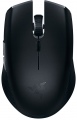 | 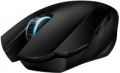 |
|---|---|---|
| Razer Atheris | Razer Orochi | |
| Compare prices 1 | Compare prices 1 | |
| User reviews | ||
| TOP sellers | ||
| Product type | mouse | mouse |
| Connection | Bluetooth/radio | Bluetooth / wired |
| Multi-Device |  |  |
| Sensor | optical | laser |
| Type | for game | for game |
Sensor and control | ||
| Sensor resolution | 7200 DPI | 2000 DPI |
| Number of buttons | 5 | 7 |
| Side buttons | | |
| DPI-button | | |
| Scroll wheels | 1 | 1 |
Additional features | ||
| Programmable buttons | | |
Connection and power supply | ||
| Cable | USB-A removable braided | |
| Power source | 2xAA | 2xAA |
General | ||
| Suitable for left-handers | | |
| Left handed | | |
| Size (LxWxH) | 100x63x34 mm | |
| Weight | 66 g | |
| Color | ||
| Added to E-Catalog | january 2018 | july 2010 |


Compare Razer Atheris and Orochi
Price comparison
You may be interested in
Razer Atheris often compared

Razer Orochi often compared

Glossary
Connection
The type of connection used by the mouse.
All types of mouse connection can be divided into wired and wireless. There are also combined models that allow both methods; however, for a number of reasons, they have not received much distribution.
Wired mice can vary in connector type; however, the universal standard nowadays is USB, other options are much less common (see "Cable" for them). Anyway, such mice are much cheaper than wireless counterparts, moreover, they do not require batteries / accumulators and have an almost unlimited lifespan. On the other hand, the wire restricts mobility and can be inconvenient when connecting, especially if the computer is located far away or in a hard-to-reach place.
Wireless devices, in turn, can connect via radio, Bluetooth, or Wi-Fi ; in some models, two options are combined — at the user's choice, (usually radio and Bluetooth). Regardless of the interface used, all such models are more convenient than wired ones due, in fact, to the absence of a cable; and their range is at least a few metres, so a wireless mouse can also work as a kind of remote control. At the same time, a wireless connection is more expensive than a wired connection, and besides, it requires autonomous power supply — as a result, the per...iod of continuous operation of the mouse is limited.
As for the different types of wireless connection, here are their features:
— Radio. To connect over the air, usually, a wireless adapter is used, which is connected to the USB port of the computer. This method is convenient in that it can be used with any computer, including systems that do not have built-in Bluetooth or Wi-Fi modules. The disadvantages of this option include the fact that the adapter requires a free connector; as a result, with a small number of USB ports, difficulties can arise. However, this moment, if necessary, can be easily corrected by connecting a USB hub; so it is this connection method that is most popular among modern wireless mice.
— Bluetooth. The main advantage of this connection method is that many modern devices — laptops, most monoblock computers, smart TVs, etc. — have built-in Bluetooth modules. Thus, you can connect the mouse to such equipment directly, without occupying hardware connectors. And for PCs not equipped with internal Bluetooth modules, appropriate adapters are available (which may even be included with the mouse). In addition, some advanced models with such a connection are able to remember several Bluetooth devices at the same time and switch between them literally “with the touch of a button”. The Bluetooth communication range is at least 10 m with line of sight.
— Wi-Fi. A rather specific option, which is extremely rare — in certain models of laptop mice (see "In the direction"). In many respects it is similar to Bluetooth — in particular, it is designed mainly to work with built-in modules and allows you to use a mouse without occupying hardware connectors. At the same time, the range of communication via Wi-Fi is much greater. On the other hand, this advantage is not of fundamental importance, and on the technical side, the creation of Wi-Fi mice is associated with certain difficulties. That is why this type of connection has not received distribution.
All types of mouse connection can be divided into wired and wireless. There are also combined models that allow both methods; however, for a number of reasons, they have not received much distribution.
Wired mice can vary in connector type; however, the universal standard nowadays is USB, other options are much less common (see "Cable" for them). Anyway, such mice are much cheaper than wireless counterparts, moreover, they do not require batteries / accumulators and have an almost unlimited lifespan. On the other hand, the wire restricts mobility and can be inconvenient when connecting, especially if the computer is located far away or in a hard-to-reach place.
Wireless devices, in turn, can connect via radio, Bluetooth, or Wi-Fi ; in some models, two options are combined — at the user's choice, (usually radio and Bluetooth). Regardless of the interface used, all such models are more convenient than wired ones due, in fact, to the absence of a cable; and their range is at least a few metres, so a wireless mouse can also work as a kind of remote control. At the same time, a wireless connection is more expensive than a wired connection, and besides, it requires autonomous power supply — as a result, the per...iod of continuous operation of the mouse is limited.
As for the different types of wireless connection, here are their features:
— Radio. To connect over the air, usually, a wireless adapter is used, which is connected to the USB port of the computer. This method is convenient in that it can be used with any computer, including systems that do not have built-in Bluetooth or Wi-Fi modules. The disadvantages of this option include the fact that the adapter requires a free connector; as a result, with a small number of USB ports, difficulties can arise. However, this moment, if necessary, can be easily corrected by connecting a USB hub; so it is this connection method that is most popular among modern wireless mice.
— Bluetooth. The main advantage of this connection method is that many modern devices — laptops, most monoblock computers, smart TVs, etc. — have built-in Bluetooth modules. Thus, you can connect the mouse to such equipment directly, without occupying hardware connectors. And for PCs not equipped with internal Bluetooth modules, appropriate adapters are available (which may even be included with the mouse). In addition, some advanced models with such a connection are able to remember several Bluetooth devices at the same time and switch between them literally “with the touch of a button”. The Bluetooth communication range is at least 10 m with line of sight.
— Wi-Fi. A rather specific option, which is extremely rare — in certain models of laptop mice (see "In the direction"). In many respects it is similar to Bluetooth — in particular, it is designed mainly to work with built-in modules and allows you to use a mouse without occupying hardware connectors. At the same time, the range of communication via Wi-Fi is much greater. On the other hand, this advantage is not of fundamental importance, and on the technical side, the creation of Wi-Fi mice is associated with certain difficulties. That is why this type of connection has not received distribution.
Multi-Device
Mouse support for Multi-Device technology.
This technology is found exclusively in models with wireless connectivity (see “Connection type”). It allows you to pair the mouse with several devices simultaneously and quickly switch between them without fiddling with the settings every time; in many models, such switching is carried out literally at the touch of a button. Thanks to this, you can, for example, easily use the mouse with both your home computer and a TV running Android TV, connecting to one or another device as needed.
Note that it would not hurt to clarify the specific features of the Multi-device separately. First of all, this concerns the number of simultaneously supported devices.
This technology is found exclusively in models with wireless connectivity (see “Connection type”). It allows you to pair the mouse with several devices simultaneously and quickly switch between them without fiddling with the settings every time; in many models, such switching is carried out literally at the touch of a button. Thanks to this, you can, for example, easily use the mouse with both your home computer and a TV running Android TV, connecting to one or another device as needed.
Note that it would not hurt to clarify the specific features of the Multi-device separately. First of all, this concerns the number of simultaneously supported devices.
Sensor
— Optical. The working element of an optical mouse consists of an LED that illuminates the underlying surface and an optical sensor that photographs this surface at high frequency. On the basis of a number of received images, the mouse electronics concludes about the direction and speed of movement of the manipulator and outputs the corresponding data to the computer. Optical mice are inexpensive, reliable enough and not too demanding on the working surface. Initially, they were poorly compatible with certain types of surfaces — mirror, fur, leather, etc.; however, in most modern optical sensors, this drawback is eliminated, and mice of this type are often quite "omnivorous".
— Laser. According to the principle of operation, laser mice are similar to optical ones (see above). The main difference is that they do not use an LED, but a laser, to illuminate the image. Thus, a narrower beam directivity is provided, and as a result, more accurate cursor positioning, which is especially important when working with complex detailed graphics, in games, etc. Theoretically, the laser is less versatile and not compatible with such an abundance of surfaces as optics, but this difference is noticeable only on specific surfaces like fur, polished metal, etc. But the unequivocal disadvantage of this technology is the higher cost.
— Optical, Bluetrack. Optical models (see a...bove) using a sensor with BlueTrack technology. This technology was originally developed by Microsoft, but nowadays it is also found in other manufacturers. The most noticeable difference between such sensors and conventional optical ones is the blue colour of the LED (hence the name). In addition, the design provides for a number of improvements: an increased area of illumination of the surface under the mouse, high resolution of the matrix, coated optics. Thanks to this, BlueTrack mice have high accuracy and are able to function even on “difficult” surfaces such as glass, polished stone, carpet pile, etc.
— Optical, V-Track. Optical sensor using V-Track technology. This technology was developed by A4Tech and is used primarily in mice of this brand. One of the key features of V-Track is that the beam of light in such sensors falls on the work surface vertically (rather than obliquely, as in conventional optics). In addition, the light spot size is very small, the light density is high, and the photodetector lens has a very narrow aperture, which gives a large depth of field. Thanks to these improvements, V-Track provides very high accuracy and (according to the creators) is able to work even on volumetric mechs, where other types of sensors are useless. However, mice with this feature are not cheap.
— Laser, V-Track. Laser sensor using V-Track technology. For more information about this technology, see above, but here we note that the use of V-Track in laser mice allows you to get rid of the main drawback of such devices — sensitivity to non-standard surfaces. At the same time, the positioning accuracy characteristic of laser sensors is further increased by V-Track. On the other hand, the price of such devices is high. Therefore, the combination of a laser sensor and V-Track is extremely rare, mainly in premium gaming mice from the same A4Tech.
— Hybrid. The combination of two sensors in the mouse at once — optical and laser. Such a combination allows you to combine the advantages of both technologies and partially compensate for the shortcomings: in terms of accuracy, hybrid mice are not inferior to laser ones, while they are not so sensitive to non-standard surfaces. At the same time, the presence of two sensors significantly affects the price of the device, while it is possible to achieve similar characteristics with one sensor — due to the BlueTrack or V-Track technologies described above. Therefore, hybrid systems have not received distribution.
— Laser. According to the principle of operation, laser mice are similar to optical ones (see above). The main difference is that they do not use an LED, but a laser, to illuminate the image. Thus, a narrower beam directivity is provided, and as a result, more accurate cursor positioning, which is especially important when working with complex detailed graphics, in games, etc. Theoretically, the laser is less versatile and not compatible with such an abundance of surfaces as optics, but this difference is noticeable only on specific surfaces like fur, polished metal, etc. But the unequivocal disadvantage of this technology is the higher cost.
— Optical, Bluetrack. Optical models (see a...bove) using a sensor with BlueTrack technology. This technology was originally developed by Microsoft, but nowadays it is also found in other manufacturers. The most noticeable difference between such sensors and conventional optical ones is the blue colour of the LED (hence the name). In addition, the design provides for a number of improvements: an increased area of illumination of the surface under the mouse, high resolution of the matrix, coated optics. Thanks to this, BlueTrack mice have high accuracy and are able to function even on “difficult” surfaces such as glass, polished stone, carpet pile, etc.
— Optical, V-Track. Optical sensor using V-Track technology. This technology was developed by A4Tech and is used primarily in mice of this brand. One of the key features of V-Track is that the beam of light in such sensors falls on the work surface vertically (rather than obliquely, as in conventional optics). In addition, the light spot size is very small, the light density is high, and the photodetector lens has a very narrow aperture, which gives a large depth of field. Thanks to these improvements, V-Track provides very high accuracy and (according to the creators) is able to work even on volumetric mechs, where other types of sensors are useless. However, mice with this feature are not cheap.
— Laser, V-Track. Laser sensor using V-Track technology. For more information about this technology, see above, but here we note that the use of V-Track in laser mice allows you to get rid of the main drawback of such devices — sensitivity to non-standard surfaces. At the same time, the positioning accuracy characteristic of laser sensors is further increased by V-Track. On the other hand, the price of such devices is high. Therefore, the combination of a laser sensor and V-Track is extremely rare, mainly in premium gaming mice from the same A4Tech.
— Hybrid. The combination of two sensors in the mouse at once — optical and laser. Such a combination allows you to combine the advantages of both technologies and partially compensate for the shortcomings: in terms of accuracy, hybrid mice are not inferior to laser ones, while they are not so sensitive to non-standard surfaces. At the same time, the presence of two sensors significantly affects the price of the device, while it is possible to achieve similar characteristics with one sensor — due to the BlueTrack or V-Track technologies described above. Therefore, hybrid systems have not received distribution.
Sensor resolution
Resolution of the sensor responsible for tracking mouse movements on the work surface. Specified in DPI — dots per inch.
The physical meaning of DPI as a whole is as follows. The sensor of a modern mouse works on the same principle as the camera matrix, and consists of pixels. And DPI is the number of pixels that fall on 1 inch of the underlying surface (length or width), "visible" by the sensor.
It is believed that more DPI means a more advanced sensor and mouse in general; nowadays, models for 3500 – 5000 DPI, 12000 DPI, 16000 DPI even more are not uncommon. In a way, it is — high resolution contributes to accuracy. However, the only thing that is directly determined by this indicator is the speed at which the cursor moves across the screen: the higher the resolution of the sensor, the greater the number of pixels that the cursor will move when the mouse itself moves a certain distance. At the same time, it is worth recalling that too high a speed is even more undesirable than too low. So the real need for high DPI ( 1000 and above) arises mainly when working on large screens (4K resolution and more); for more modest displays (HD and Full HD), smaller values are often enough.
The physical meaning of DPI as a whole is as follows. The sensor of a modern mouse works on the same principle as the camera matrix, and consists of pixels. And DPI is the number of pixels that fall on 1 inch of the underlying surface (length or width), "visible" by the sensor.
It is believed that more DPI means a more advanced sensor and mouse in general; nowadays, models for 3500 – 5000 DPI, 12000 DPI, 16000 DPI even more are not uncommon. In a way, it is — high resolution contributes to accuracy. However, the only thing that is directly determined by this indicator is the speed at which the cursor moves across the screen: the higher the resolution of the sensor, the greater the number of pixels that the cursor will move when the mouse itself moves a certain distance. At the same time, it is worth recalling that too high a speed is even more undesirable than too low. So the real need for high DPI ( 1000 and above) arises mainly when working on large screens (4K resolution and more); for more modest displays (HD and Full HD), smaller values are often enough.
Number of buttons
The number of buttons provided in the design of the mouse. However, the term "buttons" can also refer to specific hardware solutions — for example, a solid touch area used in many Apple mice counts as two buttons, because. it is divided into two working areas. But the clickable wheels, as well as the power button, are not taken into account in this calculation.
The minimum number of buttons for modern mice and other similar manipulators is two : this is the number that is necessary for comfortable work in most modern operating systems. If there are more than two keys, this means that there are additional buttons responsible for specific actions. So, even relatively inexpensive devices can be equipped with 3 – 4 buttons ; in addition to the 2 main buttons, they can have, for example, 2 side thumb keys, or 1 double/triple click button (see below). Solutions for 5 – 6 buttons are extremely popular nowadays; among them are many gaming mice, where the mentioned thumb buttons are supplemented with a double / triple click, a sniper button and/or a DPI switch (see also below about these functions). And in the most multifunctional models, 7 – 8 buttons and even more can be installed. In some cases, this number exceeds a dozen and a half; such mice are usually gaming devices designed for RPGs and other simil...ar genres where it is important to have a wide range of actions at your fingertips.
The minimum number of buttons for modern mice and other similar manipulators is two : this is the number that is necessary for comfortable work in most modern operating systems. If there are more than two keys, this means that there are additional buttons responsible for specific actions. So, even relatively inexpensive devices can be equipped with 3 – 4 buttons ; in addition to the 2 main buttons, they can have, for example, 2 side thumb keys, or 1 double/triple click button (see below). Solutions for 5 – 6 buttons are extremely popular nowadays; among them are many gaming mice, where the mentioned thumb buttons are supplemented with a double / triple click, a sniper button and/or a DPI switch (see also below about these functions). And in the most multifunctional models, 7 – 8 buttons and even more can be installed. In some cases, this number exceeds a dozen and a half; such mice are usually gaming devices designed for RPGs and other simil...ar genres where it is important to have a wide range of actions at your fingertips.
Side buttons
The presence of the mouse side buttons — under the user's thumb.
The traditional, most popular option is two buttons, which by default are responsible for the “Back” and “Forward” commands in the browser, system file explorer, etc. There are more of these buttons in gaming mice; some of these models even have an interchangeable side panel that allows you to install a different number of side keys, as desired.
Anyway, the side mouse buttons provide additional convenience and expand the list of features available from the device. At the same time, the buttons are always at hand, in fact, in instant access. This is especially handy in games: some frequently used actions can be tied to the side keys, such as reloading or a special attack. However, even in everyday use, it is much easier to press a button on the mouse than to move the cursor to the Back or Forward icon every time in the same browser.
The traditional, most popular option is two buttons, which by default are responsible for the “Back” and “Forward” commands in the browser, system file explorer, etc. There are more of these buttons in gaming mice; some of these models even have an interchangeable side panel that allows you to install a different number of side keys, as desired.
Anyway, the side mouse buttons provide additional convenience and expand the list of features available from the device. At the same time, the buttons are always at hand, in fact, in instant access. This is especially handy in games: some frequently used actions can be tied to the side keys, such as reloading or a special attack. However, even in everyday use, it is much easier to press a button on the mouse than to move the cursor to the Back or Forward icon every time in the same browser.
DPI-button
A separate button that allows you to change the working resolution of the sensor on the fly without going into the software settings.
Recall that the sensitivity of the mouse and the speed of moving the cursor around the screen depend on the set DPI. For different tasks, the optimal DPI values \u200b\u200bcan also be different: for example, when working with graphic materials or maps on a large screen, high sensitivity is often convenient, and in a shooting game you may need to reduce it — for accurate aiming. Setting the sensitivity using the DPI switch button is as simple and convenient as possible: it is available regardless of the currently running programme, including in situations where it is difficult or impossible to enter the software settings of the mouse (the same games can be used as an example). Also note that the DPI level indicator can be built into this button (see below).
Recall that the sensitivity of the mouse and the speed of moving the cursor around the screen depend on the set DPI. For different tasks, the optimal DPI values \u200b\u200bcan also be different: for example, when working with graphic materials or maps on a large screen, high sensitivity is often convenient, and in a shooting game you may need to reduce it — for accurate aiming. Setting the sensitivity using the DPI switch button is as simple and convenient as possible: it is available regardless of the currently running programme, including in situations where it is difficult or impossible to enter the software settings of the mouse (the same games can be used as an example). Also note that the DPI level indicator can be built into this button (see below).
Cable
Additional features of the cable that the mouse is equipped with.
These features may include a winding system, a detachable wire, and a braided wire(however, most modern mice still have a cable without a braid). Here is a more detailed description of all these features.
— Retractable. Wire equipped with a special coil for winding. This feature greatly simplifies transportation: during off-hours, the wire is as compact as possible and does not get tangled, and when used, it can be unwound to the desired length (usually the coil allows this possibility). All this is especially important for laptop mice (see "In direction") — in fact, most models with a wire reel fall into this category.
— Removable. Wire that can be detached from the mouse. Almost all mice with two connection options have this feature — wired and wireless: when working in a wireless format, the cable can be removed so that it does not interfere. However, there are also purely wired devices with such a cable — mostly laptop devices, where the wire is removed for ease of transportation. Also note that most often a universal connector like microUSB is used to connect the cable, so if necessary, the wire can be replaced with another one — for example, a longer one.
— In a braid. The presence of an additional braid on the mouse cable. This feature makes the wire more d...urable, reliable and resistant to bending. On the other hand, braid tends to accumulate dirt and fray when worn; because of this, the wire sheath loses its presentation faster than in mice without a braid. Yes, and such a wire is more expensive than a regular smooth one.
These features may include a winding system, a detachable wire, and a braided wire(however, most modern mice still have a cable without a braid). Here is a more detailed description of all these features.
— Retractable. Wire equipped with a special coil for winding. This feature greatly simplifies transportation: during off-hours, the wire is as compact as possible and does not get tangled, and when used, it can be unwound to the desired length (usually the coil allows this possibility). All this is especially important for laptop mice (see "In direction") — in fact, most models with a wire reel fall into this category.
— Removable. Wire that can be detached from the mouse. Almost all mice with two connection options have this feature — wired and wireless: when working in a wireless format, the cable can be removed so that it does not interfere. However, there are also purely wired devices with such a cable — mostly laptop devices, where the wire is removed for ease of transportation. Also note that most often a universal connector like microUSB is used to connect the cable, so if necessary, the wire can be replaced with another one — for example, a longer one.
— In a braid. The presence of an additional braid on the mouse cable. This feature makes the wire more d...urable, reliable and resistant to bending. On the other hand, braid tends to accumulate dirt and fray when worn; because of this, the wire sheath loses its presentation faster than in mice without a braid. Yes, and such a wire is more expensive than a regular smooth one.
Left handed
The Left-Handed filter helps quickly find mice that don't force left-handed users to adapt to non-ergonomic designs: these models have the right body geometry and logical button placement, making handling as natural as it is for right-handed users with standard models. This category includes several different designs. Firstly, there are models made exclusively for the left hand, where the body and side buttons are mirrored, so everything presses naturally. Secondly, it includes symmetrical mice without additional side buttons: they are universal, do not press on the fingers, and are ideal for those who value simplicity and comfort without extra elements. Thirdly, there are symmetrical options without side buttons but with additional buttons on top — a compromise when extra buttons are needed without anchoring to the right side of the body. Lastly, symmetrical mice with buttons on both sides fall here: a left-hander gets the same quick actions as a right-hander, but it's worth remembering that different models have different implementations of button deactivation/remapping, which affects convenience.