
Comparison Razer Ornata Chroma vs Cougar 700K
Add to comparison | 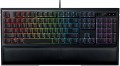 | 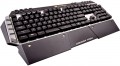 |
|---|---|---|
| Razer Ornata Chroma | Cougar 700K | |
| Compare prices 2 | Compare prices 4 | |
| User reviews | ||
| TOP sellers | ||
| Connection | wired | wired |
| Cable length | 1.8 m | |
| Type | for game | for game |
| Form factor | 100% (full size) | 100% (full size) |
| Layout | ANSI | ANSI |
Keyboard | ||
| Key profile | high | high |
| Key type | classic type | classic type |
| Switch technology | mechanical-membrane | mechanical |
| Additional keys | 18 | |
| Programmable keys | 6 | |
| Anti-Ghosting |  | |
| #KRO | 10-KRO | N-KRO |
| Fn key | | |
Features | ||
| Cyrillic colour | transparent | white |
| Volume control | fn | add. keys |
| Palm rest | removable | removable |
| Built-in memory |  | |
| Game mode | | |
| USB hub | 1xUSB-A | |
| Audio jack | mini-Jack (2x3.5mm) | |
| Lighting | RGB | red |
| Lighting effects | + | + |
Connection and power supply | ||
| Cable | USB-A braided | USB-A braided |
General | ||
| Skeleton keyboard | | |
| Size | 463x154x31 mm | 487x230x40 mm |
| Weight | 1260 g | 1200 g |
| Color | ||
| Added to E-Catalog | september 2016 | may 2016 |



Compare Razer Ornata Chroma and Cougar 700K
Price comparison
You may be interested in
My comparisons
Razer Ornata Chroma often compared


Cougar 700K often compared

Glossary
Cable length
The length of the cable that the keyboard is equipped with for wired connection (see "Connection type").
When choosing this parameter, you should first of all take into account the distance from the device to the connection port: a cable that is too short may simply not reach the connector, and a cable that is too long may get confused at hand and create inconvenience. As for specific values, the reference length is 1.8 m. However, there are cables both shorter and longer.
When choosing this parameter, you should first of all take into account the distance from the device to the connection port: a cable that is too short may simply not reach the connector, and a cable that is too long may get confused at hand and create inconvenience. As for specific values, the reference length is 1.8 m. However, there are cables both shorter and longer.
Switch technology
— Membrane. The name of this type is due to the fact that the contacts under each key are made in the form of two membranes — conductive disks on a flexible film. The return of the keys to their original position after pressing is ensured by the elasticity of the membranes. This design is characterized by low cost and low noise level; in addition, such keyboards are quite resistant to liquid spills (although this is still not recommended). Of the shortcomings, it is worth noting the relatively low durability — 3-4 times lower than that of mechanical ones. In addition, as the keys of this type wear out, the force required to press decreases, they begin to “fall through” under the fingers (“fatigue effect”).
— Mechanical. In this design, springs are used to return the key to its original position after being pressed. Mechanical keyboards are considered more advanced than membrane keyboards: they are more reliable and durable, almost do not lose properties as they wear out, and give a clear tactile feedback. The overall noise level is often higher than that of membrane ones, however, many attribute a characteristic click with each press to the advantages of such models; in addition, completely silent mechanical switches are also available. But of the unequivocal disadvantages, one can name the high cost and sensitivity to spilling liquid (although a mechanical keyboard can also be made waterproof).
...
— Optical-mechanical. A variation of the mechanical keyboards described above, in which each key is equipped not with a traditional pair of contacts, but with an optical switch in the form of a sensor that receives an infrared beam; when you press the key, this beam is blocked, which serves as a signal for operation. One of the key advantages of such switches is a very high response speed (fractions of a millisecond); this moment is not critical for domestic use, but it can be fundamental for gamers-enthusiasts and e-sportsmen. In addition, the absence of electrical contacts that are prone to wear and oxidize has a positive effect on durability. And although initially the “optics” are more complicated than classic systems with contacts, however, in gaming keyboards, optical-mechanical switches are often even cheaper than pure “mechanics”. And the fact that this option is relatively rare is primarily due to the fact that optical technology appeared not so long ago and is only gaining popularity.
— Membrane + mechanical. A layout in which most of the keys have a membrane design, and some, the most "responsible" ones, are mechanical. About the features of both options, see above, and a similar combination of them is found mainly in gaming keyboards. In this case, the "mechanics" are usually used on the traditional combination of WASD plus on the surrounding keys Q, E, R and F.
— Mechanical-membrane. A hybrid design that combines elements of mechanical and membrane keyboards (see above for more on both). In this case, these features are combined in each individual key. Usually, under each button in such keyboards there is a membrane, however, inside this membrane is not just a pair of contacts, but a mechanical spring system. Thus, this design combines the advantages of both options. At the same time, mechanical-membrane systems are very expensive. Therefore, their main scope is high-end gaming keyboards, and even among such devices this option is quite rare.
— Scissor. A slightly modified version of membrane keyboards (see the relevant paragraph), in which the flexible membrane on each key is supplemented by a two-piece mechanism fastened together in the form of scissors. One of the main features of scissor keyboards is the low key travel (noticeably lower than that of membrane keyboards). Also, this design is less demanding on accuracy, it allows you to achieve a clear pressing regardless of where the finger hit — in the centre or on the edge of the key. The service life of the "scissors" is large; they are more difficult to clean, however, they become dirty much more slowly than "membranes". Among the disadvantages of this option, a slightly increased noise level during operation can be noted — due to the clicking of scissor mechanisms.
— Mechanical. In this design, springs are used to return the key to its original position after being pressed. Mechanical keyboards are considered more advanced than membrane keyboards: they are more reliable and durable, almost do not lose properties as they wear out, and give a clear tactile feedback. The overall noise level is often higher than that of membrane ones, however, many attribute a characteristic click with each press to the advantages of such models; in addition, completely silent mechanical switches are also available. But of the unequivocal disadvantages, one can name the high cost and sensitivity to spilling liquid (although a mechanical keyboard can also be made waterproof).
...
— Optical-mechanical. A variation of the mechanical keyboards described above, in which each key is equipped not with a traditional pair of contacts, but with an optical switch in the form of a sensor that receives an infrared beam; when you press the key, this beam is blocked, which serves as a signal for operation. One of the key advantages of such switches is a very high response speed (fractions of a millisecond); this moment is not critical for domestic use, but it can be fundamental for gamers-enthusiasts and e-sportsmen. In addition, the absence of electrical contacts that are prone to wear and oxidize has a positive effect on durability. And although initially the “optics” are more complicated than classic systems with contacts, however, in gaming keyboards, optical-mechanical switches are often even cheaper than pure “mechanics”. And the fact that this option is relatively rare is primarily due to the fact that optical technology appeared not so long ago and is only gaining popularity.
— Membrane + mechanical. A layout in which most of the keys have a membrane design, and some, the most "responsible" ones, are mechanical. About the features of both options, see above, and a similar combination of them is found mainly in gaming keyboards. In this case, the "mechanics" are usually used on the traditional combination of WASD plus on the surrounding keys Q, E, R and F.
— Mechanical-membrane. A hybrid design that combines elements of mechanical and membrane keyboards (see above for more on both). In this case, these features are combined in each individual key. Usually, under each button in such keyboards there is a membrane, however, inside this membrane is not just a pair of contacts, but a mechanical spring system. Thus, this design combines the advantages of both options. At the same time, mechanical-membrane systems are very expensive. Therefore, their main scope is high-end gaming keyboards, and even among such devices this option is quite rare.
— Scissor. A slightly modified version of membrane keyboards (see the relevant paragraph), in which the flexible membrane on each key is supplemented by a two-piece mechanism fastened together in the form of scissors. One of the main features of scissor keyboards is the low key travel (noticeably lower than that of membrane keyboards). Also, this design is less demanding on accuracy, it allows you to achieve a clear pressing regardless of where the finger hit — in the centre or on the edge of the key. The service life of the "scissors" is large; they are more difficult to clean, however, they become dirty much more slowly than "membranes". Among the disadvantages of this option, a slightly increased noise level during operation can be noted — due to the clicking of scissor mechanisms.
Additional keys
The number of additional keys provided in the design of the keyboard.
Such keys do not belong to the standard layout and are intended for quick access to specific functions or individual applications — for example, to control the media player or open mail with one click. This function is convenient because commands from additional keys are usually recognized by the system regardless of what is on the screen — thanks to this, for example, you do not have to close the text editor to switch tracks in the player.
Note that in this case we are talking about individual keys that have a strictly defined purpose and corresponding markings. Programmable buttons, the Fn key (see below) and the functions of the main keys implemented through Fn are not taken into account in this paragraph.
Such keys do not belong to the standard layout and are intended for quick access to specific functions or individual applications — for example, to control the media player or open mail with one click. This function is convenient because commands from additional keys are usually recognized by the system regardless of what is on the screen — thanks to this, for example, you do not have to close the text editor to switch tracks in the player.
Note that in this case we are talking about individual keys that have a strictly defined purpose and corresponding markings. Programmable buttons, the Fn key (see below) and the functions of the main keys implemented through Fn are not taken into account in this paragraph.
Programmable keys
The number of programmable keys provided in the design of the keyboard. Like the additional ones described above, such keys are located outside the standard layout. At the same time, they do not have a rigidly defined purpose — each individual function can be set by the user himself, hence the name. Some manufacturers, however, can initially programme these keys, but this programme can still be changed if desired.
The advantage of such equipment is obvious: additional features of the keyboard can be easily customized. Gamers especially appreciate this feature, so programmable keys are often found in gaming models. On the other hand, the keys themselves usually have neutral markings (for example, P1, P2 ...), and the user has to remember which function is “linked” to where; this can cause confusion.
The advantage of such equipment is obvious: additional features of the keyboard can be easily customized. Gamers especially appreciate this feature, so programmable keys are often found in gaming models. On the other hand, the keys themselves usually have neutral markings (for example, P1, P2 ...), and the user has to remember which function is “linked” to where; this can cause confusion.
#KRO
A parameter that determines the maximum number of simultaneously pressed keys, the signal from which the keyboard is able to process and transmit to the computer. Instead of the "lattice" symbol in the abbreviation KRO, a number is indicated showing the allowable number of simultaneously pressed buttons. Most membrane keyboards come in the 2KRO and 3KRO grades, mechanical models usually start at 6KRO. The NKRO marking says that it is possible to issue a signal from an unlimited number of keys in one sitting.
Cyrillic colour
The colour of the Cyrillic letters printed on the keyboard.
This colour is usually chosen so that the letters are clearly visible. This point does not affect the functionality of the keyboard, and the choice in this case depends mainly on personal preferences. However, there is also a practical point: for inexperienced users who have not mastered touch typing, it is desirable that the letters stand out as much as possible against the background of the keys.
Transparent letters are a separate case — they are used in keyboards equipped with a backlight (see below), due to which such characters, when the backlight is on, are visible even in the dark.
This colour is usually chosen so that the letters are clearly visible. This point does not affect the functionality of the keyboard, and the choice in this case depends mainly on personal preferences. However, there is also a practical point: for inexperienced users who have not mastered touch typing, it is desirable that the letters stand out as much as possible against the background of the keys.
Transparent letters are a separate case — they are used in keyboards equipped with a backlight (see below), due to which such characters, when the backlight is on, are visible even in the dark.
Volume control
Volume control methodprovided in the keyboard (if such a possibility is provided at all).
— Through Fn. Adjustment using the Fn key (see above): increasing and decreasing the volume is carried out by simultaneously pressing Fn and one of the main keys of the keyboard (usually from the F1 — F12 row), The main advantage of this control is that it allows you not to overload the keyboard with additional controls — this, in turn, has a positive effect on the dimensions and cost. The disadvantage is the need to simultaneously press two keys, which is not always convenient.
— Additional keys. Control with additional keys specially designed for working with volume. A very convenient and practical option: additional keys are usually clearly labeled, while they take up less space and are cheaper than a wheel or a touch slider (see below).
— Wheel. Control by means of a mechanical wheel, the rotation of which up and down or left and right provides a change in volume. A fairly user-friendly option — visual, intuitive and accessible even blindly. At the same time, the wheel can take up quite a lot of space, and it significantly affects the cost of the keyboard.
— Touch slider. Management using a touch surface, the movement of a finger in one direction or another. The sensor takes up minimal space, looks neat...and generally fits well with the overall design of the keyboard, but it is not cheap. Therefore, this option is extremely rare, mainly in high-end gaming or multimedia keyboards.
— Through Fn. Adjustment using the Fn key (see above): increasing and decreasing the volume is carried out by simultaneously pressing Fn and one of the main keys of the keyboard (usually from the F1 — F12 row), The main advantage of this control is that it allows you not to overload the keyboard with additional controls — this, in turn, has a positive effect on the dimensions and cost. The disadvantage is the need to simultaneously press two keys, which is not always convenient.
— Additional keys. Control with additional keys specially designed for working with volume. A very convenient and practical option: additional keys are usually clearly labeled, while they take up less space and are cheaper than a wheel or a touch slider (see below).
— Wheel. Control by means of a mechanical wheel, the rotation of which up and down or left and right provides a change in volume. A fairly user-friendly option — visual, intuitive and accessible even blindly. At the same time, the wheel can take up quite a lot of space, and it significantly affects the cost of the keyboard.
— Touch slider. Management using a touch surface, the movement of a finger in one direction or another. The sensor takes up minimal space, looks neat...and generally fits well with the overall design of the keyboard, but it is not cheap. Therefore, this option is extremely rare, mainly in high-end gaming or multimedia keyboards.
Built-in memory
The presence in the keyboard of its own built-in memory.
This feature is found mainly in high-end models of game specialization(see "Intended use"). The built-in memory in such keyboards is mainly used to store user settings — for example, the set functions of programmable keys — as well as macros (sequences of commands that are activated by pressing one or two buttons). Anyway, the presence of its own memory means extended options for customizing the keyboard.
This feature is found mainly in high-end models of game specialization(see "Intended use"). The built-in memory in such keyboards is mainly used to store user settings — for example, the set functions of programmable keys — as well as macros (sequences of commands that are activated by pressing one or two buttons). Anyway, the presence of its own memory means extended options for customizing the keyboard.
USB hub
Built-in connectors in the case allow you to connect a flash drive, a mouse, a 2.4 GHz receiver, or a cable for charging gadgets to the PC without running a wire to the main unit. Such a USB hub saves laptop ports, simplifies cable management, and is often called USB pass-through, although technically it's the same mini-hub with 1-2 ports. In most models, the speed corresponds to USB 2.0, and power is limited: connecting external SSDs and "power-hungry" accessories is not always correct; for stability, some keyboards require a second plug or USB-C with increased current. Compared to keyboards without a hub, convenience is higher, compared to a separate desktop hub, it's more compact but has more modest functionality. A practical example: a gaming laptop with two ports works with a mouse and flash drive through the keyboard's USB hub, while the keyboard itself remains connected to the PC with a single cable.