
Comparison Toshiba Canvio Basics 2022 HDTB520EK3AA 2 TB vs WD Blue 2.5" WD5000LPVX 500 GB 8/5400 CMR
Add to comparison | 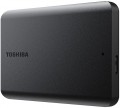 |  |
|---|---|---|
| Toshiba Canvio Basics 2022 HDTB520EK3AA 2 TB | WD Blue 2.5" WD5000LPVX 500 GB 8/5400 CMR | |
| Compare prices 1 | Compare prices 22 | |
| User reviews | ||
| TOP sellers | ||
| Placement | external | built-in |
| Type | HDD | HDD |
| Features | for PC | for PC |
| Volume | 2 TB | 500 GB |
| Form factor | 2.5 " | 2.5 " |
| Connection | USB-A 5Gbps | SATA3 |
| Manufacturer's warranty | 2 years | 2 years |
Technical specs | ||
| Cache memory | 8 MB | |
| Record technology | CMR | |
| RPM | 5400 rpm | |
| Average search time | 6 ms | |
| Operation power consumption | 1.4 W | |
| Standby power consumption | 0.55 W | |
| MTBF (on/off) | 600 K | |
General | ||
| Power source (external) | USB port | |
| Material | plastic | |
| Size | 109x78x14 mm | 100x70x7 mm |
| Weight | 149 g | 90 g |
| Color | ||
| Added to E-Catalog | march 2023 | november 2015 |


Compare Toshiba Canvio Basics 2022 HDTB520EK3AA and WD Blue 2.5" WD5000LPVX
You may be interested in
Toshiba Canvio Basics 2022 often compared


WD Blue 2.5" often compared

Glossary
Placement
— External. Hard drives designed to be used as external removable devices. They are carried out in separate protected cases, often they are powered from an external source; are designed to be plugged in and out regularly and are well suited for transporting large amounts of information between computers. The most popular way to connect such drives is USB, but there are other options (for more details, see "Connection interfaces")
— Internal. Hard drives designed to be installed inside a computer or laptop case and permanently function as an element of a computer system. They do not involve frequent reconnection — technically it is possible, but much more problematic than in the case of external drives. Most often they are connected via the SATA interface of one version or another (see "Connection interfaces"), other options are relatively rare, mainly among professional models.
— Internal. Hard drives designed to be installed inside a computer or laptop case and permanently function as an element of a computer system. They do not involve frequent reconnection — technically it is possible, but much more problematic than in the case of external drives. Most often they are connected via the SATA interface of one version or another (see "Connection interfaces"), other options are relatively rare, mainly among professional models.
Volume
The capacity of a hard disk drive shows how much data the HDD can store—from documents and photos to games, movies, backups, and large work archives. This parameter determines whether the drive is suitable for a simple home system, file storage, or, for example, for long-term accumulation of video recordings from surveillance cameras.
Models small by modern standards are more often chosen for documents, music, and basic files, whereas drives of 4 – 8 TB and larger are already interesting for large media libraries, backups, and NAS systems. Compared to SSDs, high-capacity HDDs are usually more cost-effective per gigabyte, so they are often chosen particularly when the maximum space is more important than record-breaking speed. For example, a drive of 1 or 2 TB might be enough for a regular PC, while 6 – 10 TB could be suitable for a movie collection, family archive, or constant video recording.
Models small by modern standards are more often chosen for documents, music, and basic files, whereas drives of 4 – 8 TB and larger are already interesting for large media libraries, backups, and NAS systems. Compared to SSDs, high-capacity HDDs are usually more cost-effective per gigabyte, so they are often chosen particularly when the maximum space is more important than record-breaking speed. For example, a drive of 1 or 2 TB might be enough for a regular PC, while 6 – 10 TB could be suitable for a movie collection, family archive, or constant video recording.
Connection
— SATA. Nowadays, it is the most popular interface for connecting internal hard drives. The first version of SATA provides a data transfer rate of about 1.2 Gbps, SATA 2 has a practical data transfer rate of about 2.4 Gbps (300 MB/s), and the most advanced generation SATA 3 offers a speed of 4.8 Gbps (600 MB/s).
— eSATA. A modification of the SATA interface designed for connecting external hard drives; it is not compatible with internal SATA. The practical data transfer rate is similar to SATA 2 and amounts to about 2.4 Gbps (300 MB/s).
— SAS. A modification of the SCSI interface, provides data transfer speeds up to 6 Gbps (750 MB/s). It is predominantly used in servers, and is practically not used in desktop PCs and laptops.
— USB-A 2.0. The earliest of the USB standards found in modern hard drives, exclusively external ones (see "Design"). It involves connecting to a traditional full-sized USB-A port, allows data transfer speeds up to 480 Mbps, and has fairly low power supply, which often requires additional power for drives with this type of connection. In light of all this and the emergence of more advanced standards like USB 5Gbps / 10 Gbps, USB 2.0 is considered outdated today and is found very rarely, mainly in inexpensive and early models of drives. However, a drive with this interface can also be connected...to a newer USB-A port—provided the connectors match.
— USB-A 5Gbps (previously known as USB 3.2 gen1 and USB 3.0). The standard for connecting external HDDs, which replaced the aforementioned USB 2.0. It uses the traditional full-sized USB-A connector, provides data transfer speeds up to 4.8 Gbps (600 MB/s), and has higher power supply, which makes it easier for such drives to manage without external power. However, for the same reason, attention is needed when connecting USB 5Gbps drives to older USB 2.0 connectors—as such a connector may not have enough power to supply the newer drive.
— USB-A 10Gbps. A further development of the USB 5Gbps standard (formerly known as USB 3.2 gen2 and USB 3.1). In this version, the maximum data transfer speed has been increased to 10 Gbps, and the power supply can reach up to 100W (with USB Power Delivery support). Meanwhile, drives with this type of connection can work with older versions of full-sized USB-A connectors—provided there is enough power supply.
— USB-C 5Gbps (previously known as USB-C 3.2 gen1 and USB-C 3.0). Connection through a USB-C type connector, corresponding to the capabilities of USB 5Gbps. The possibilities are described above, and the difference from USB-A 5Gbps in this case lies only in the type of connector: it is a relatively small (slightly larger than microUSB) socket with a reversible design. Due to its compact size, USB-C is found in both full-sized PCs and laptops, as well as compact gadgets such as smartphones and tablets; some drives with this connection initially allow "mobile" use.
— USB-C 10Gbps (previously known as USB-C 3.2 gen2 and USB-C 3.1). An update and improvement of the above-mentioned USB-C 5Gbps—the same USB-C connector and an increased data transfer speed up to 10 Gbps (as in "regular" USB-A 10Gbps).
— Thunderbolt. A high-speed interface for connecting external peripherals. It is primarily used in Apple computers and laptops, although it is also found in technologies from other manufacturers. Note that in modern HDDs, two versions of Thunderbolt are mainly encountered, differing in not only speed but also connector: Thunderbolt v2 (up to 20 Gbps) uses a miniDisplayPort type plug, and Thunderbolt v3 (up to 40 Gbps) uses a USB-C type plug (see above). In light of this, in some hard drives, USB-C and Thunderbolt connections are implemented through a single hardware connector that automatically determines which computer input the device is connected to.
— eSATA. A modification of the SATA interface designed for connecting external hard drives; it is not compatible with internal SATA. The practical data transfer rate is similar to SATA 2 and amounts to about 2.4 Gbps (300 MB/s).
— SAS. A modification of the SCSI interface, provides data transfer speeds up to 6 Gbps (750 MB/s). It is predominantly used in servers, and is practically not used in desktop PCs and laptops.
— USB-A 2.0. The earliest of the USB standards found in modern hard drives, exclusively external ones (see "Design"). It involves connecting to a traditional full-sized USB-A port, allows data transfer speeds up to 480 Mbps, and has fairly low power supply, which often requires additional power for drives with this type of connection. In light of all this and the emergence of more advanced standards like USB 5Gbps / 10 Gbps, USB 2.0 is considered outdated today and is found very rarely, mainly in inexpensive and early models of drives. However, a drive with this interface can also be connected...to a newer USB-A port—provided the connectors match.
— USB-A 5Gbps (previously known as USB 3.2 gen1 and USB 3.0). The standard for connecting external HDDs, which replaced the aforementioned USB 2.0. It uses the traditional full-sized USB-A connector, provides data transfer speeds up to 4.8 Gbps (600 MB/s), and has higher power supply, which makes it easier for such drives to manage without external power. However, for the same reason, attention is needed when connecting USB 5Gbps drives to older USB 2.0 connectors—as such a connector may not have enough power to supply the newer drive.
— USB-A 10Gbps. A further development of the USB 5Gbps standard (formerly known as USB 3.2 gen2 and USB 3.1). In this version, the maximum data transfer speed has been increased to 10 Gbps, and the power supply can reach up to 100W (with USB Power Delivery support). Meanwhile, drives with this type of connection can work with older versions of full-sized USB-A connectors—provided there is enough power supply.
— USB-C 5Gbps (previously known as USB-C 3.2 gen1 and USB-C 3.0). Connection through a USB-C type connector, corresponding to the capabilities of USB 5Gbps. The possibilities are described above, and the difference from USB-A 5Gbps in this case lies only in the type of connector: it is a relatively small (slightly larger than microUSB) socket with a reversible design. Due to its compact size, USB-C is found in both full-sized PCs and laptops, as well as compact gadgets such as smartphones and tablets; some drives with this connection initially allow "mobile" use.
— USB-C 10Gbps (previously known as USB-C 3.2 gen2 and USB-C 3.1). An update and improvement of the above-mentioned USB-C 5Gbps—the same USB-C connector and an increased data transfer speed up to 10 Gbps (as in "regular" USB-A 10Gbps).
— Thunderbolt. A high-speed interface for connecting external peripherals. It is primarily used in Apple computers and laptops, although it is also found in technologies from other manufacturers. Note that in modern HDDs, two versions of Thunderbolt are mainly encountered, differing in not only speed but also connector: Thunderbolt v2 (up to 20 Gbps) uses a miniDisplayPort type plug, and Thunderbolt v3 (up to 40 Gbps) uses a USB-C type plug (see above). In light of this, in some hard drives, USB-C and Thunderbolt connections are implemented through a single hardware connector that automatically determines which computer input the device is connected to.
Cache memory
The amount of internal hard drive memory. This memory is an intermediate link between the high-speed computer RAM and the relatively slow mechanics responsible for reading and writing information on disk platters. In particular, the buffer is used to store the most frequently requested data from the disk — thus, the access time to them is reduced.
Technically, the size of the buffer affects the speed of the hard drive — the larger the buffer, the faster the drive. However, this influence is rather insignificant, and at the level of human perception, a significant difference in performance is noticeable only when the buffer size of the two drives differs many times — for example, 8 MB and 64 MB.
Technically, the size of the buffer affects the speed of the hard drive — the larger the buffer, the faster the drive. However, this influence is rather insignificant, and at the level of human perception, a significant difference in performance is noticeable only when the buffer size of the two drives differs many times — for example, 8 MB and 64 MB.
Record technology
— CMR(Conventional Magnetic Recording) is a classic method of magnetic recording, characterized by high data access speed. CMR hard drives are used in systems where it is important to provide high (as far as possible) data read/write speed. These are user computers, security video surveillance systems, etc. The main disadvantage of CMR hard drives is the high complexity of creating volume drives, which is reflected in their price. Additionally, HDDs with CMR technology are quite “gluttonous” in terms of power supply.
— SMR(Shingled Magnetic Recording) — a promising technology for magnetic recording, which is called "tiled". SMR allows to achieve high data density, which in turn increases the capacity of memory drives and lowers their market value. SMR hard drives have slow rewriting speed, which makes such memory drives poorly suited for use in client computer systems. But they have proven themselves well when working as part of data processing centers, archives and similar systems for which low write / rewrite speed is not critical. However, some companies still produce SMR solutions for personal and even mobile systems. These HDDs use an optimized write/rewrite technology called Drive-Managed SMR (DM-SMR).
RPM
For drives used in a PC (see "Intended use"), 5400 rpm(normal) and 7200 rpm(high) are considered standard speeds. There are also more specific options, including models with the ability to adjust the speed depending on the load. In server HDDs, in turn, higher speeds can be used — 10,000 rpm and even 15,000 rpm.
Average search time
The time it takes for the hard disk mechanics to find random requested data to read. For each specific case, the search time is different, as it depends on the location of the data on the surface of the disk and the position of the read head, therefore, the average value is indicated in the characteristics of hard drives. The lower the average seek time, the faster the disk works, all other things being equal.
Operation power consumption
The amount of power consumed by the disk when reading and writing information. In fact, this is the peak power consumption, it is in these modes that the drive consumes the most energy.
HDD power consumption data is needed primarily to calculate the overall system power consumption and power supply requirements for the system. In addition, for laptops that are planned to be used often "in isolation from outlets", it is advisable to choose more economical drives.
HDD power consumption data is needed primarily to calculate the overall system power consumption and power supply requirements for the system. In addition, for laptops that are planned to be used often "in isolation from outlets", it is advisable to choose more economical drives.
Standby power consumption
The amount of power consumed by the disk "idle". In the on state, the disk platters rotate regardless of whether information is being written or read or not — maintaining this rotation takes the energy consumed while waiting.
The lower the power consumption while waiting, the more economical the disk is, the less energy it consumes. At the same time, we note that in fact this parameter is relevant mainly when choosing a drive for a laptop, when energy efficiency is crucial. For stationary PCs, “idle” power consumption does not play a special role, and when calculating the requirements for a power supply, it is necessary to take into account not this indicator, but the power consumption during operation (see above).
The lower the power consumption while waiting, the more economical the disk is, the less energy it consumes. At the same time, we note that in fact this parameter is relevant mainly when choosing a drive for a laptop, when energy efficiency is crucial. For stationary PCs, “idle” power consumption does not play a special role, and when calculating the requirements for a power supply, it is necessary to take into account not this indicator, but the power consumption during operation (see above).