
Comparison A4Tech Fstyler FBK11 vs A4Tech 4200N
Add to comparison | 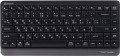 |  |
|---|---|---|
| A4Tech Fstyler FBK11 | A4Tech 4200N | |
| Outdated Product | Outdated Product | |
| TOP sellers | ||
| In box | keyboard and mouse | |
| Connection | Bluetooth / radio | radio |
| Multi-Device |  |  |
| Form factor | 65% (ultra-compact, without F-series) | 100% (full size) |
| Layout | ANSI | JIS |
Keyboard | ||
| Key profile | low | high |
| Key type | island type | classic type |
| Switch technology | membrane | membrane |
| Fn key | | |
| CMD / OPT keys | | |
Features | ||
| Cyrillic colour | white | white |
| Volume control | fn | |
Connection and power supply | ||
| Power source | 1xAAA | 2xAAA |
| Battery time | 12 months | |
| Receiver (dongle) | USB A | USB A |
General | ||
| Waterproof | | |
| Size | 456x150x28 mm | |
| Weight | 564 g | |
Mouse | ||
| Sensor | optical | |
| Number of buttons | 2 | |
| Scroll wheels | 1 | |
| Sensor resolution | 2000 DPI | |
| Power supply (wireless) | 1xAA | |
| Size (LxWxH) | 107x61x39 mm | |
| Weight | 90 g | |
| Color | ||
| Added to E-Catalog | may 2022 | april 2019 |


Compare A4Tech Fstyler FBK11 and 4200N
You may be interested in
A4Tech Fstyler FBK11 often compared


Glossary
In box
In addition to pure keyboards, there are keyboard + mouse sets on the modern market. Usually, these are wireless devices with a radio channel connection (see "Connection type"), but there are also wired sets. Anyway, buying a set may be more convenient than buying each item separately: for example, when connected via radio, the keyboard and mouse from one set will use one adapter to work. On the other hand, a complete mouse may not be suitable, and sometimes it's easier to choose a "rodent" separately.
Connection
— Wired. Connection using a cable with one or another type of connector — most often USB, less often PS/2 or a proprietary plug (see "Connection interface"). Wired keyboards are notable for their low cost and overall convenience — in the sense that they do not require batteries and the operating time is unlimited. However the wire limits mobility; however, given that most often the keyboard is used in close proximity to the computer, this shortcoming cannot be called critical.
— Radio. Wireless connection over the air, usually through a wireless adapter connected to a computer via a USB port. The main advantage of this option can be called the actual absence of a wire; while the communication range is usually several metres, which gives freedom of movement and even allows you to use the keyboard as a "computer remote control". On the other hand, wireless models are much more expensive than wired ones, and their operation requires separate power supply from batteries or a rechargeable battery, the charge of which is limited — accordingly, the continuous operation time is limited. Separately, we note that this option is designed mainly for stationary PCs; if a wireless keyboard is needed for a laptop, it is better to pay attention to Bluetooth models (see below).
— Bluetooth. Another way to wir...elessly connect keyboards. Technically, Bluetooth is based on radio waves, but this technology has its own characteristics, so it is listed separately from the "normal" radio connection (see above). The main one of these features is that many models of modern electronics (almost all laptops and tablets, some PCs, etc.) are equipped with built-in Bluetooth modules, which allows you to connect such keyboards without using additional adapters. In addition, the range of such a connection is officially at least 10 m (in fact, of course, it depends on obstacles, interference, etc.). It is this option that will be optimal if you need a wireless keyboard for a Bluetooth-enabled device.
— Bluetooth / radio. Wireless keyboards that can connect both via Bluetooth and radio. See above for more details on each of these options. Also note here that such a keyboard is usually connected directly to a Bluetooth device (for example, a laptop), and if the computer does not support Bluetooth, you can connect a USB adapter to it and use a radio connection. Thus, the keyboard is as versatile as possible in connection. However, such versatility significantly affects the cost, and is required not so often; so this option is not widely used.
— Bluetooth / radio / wired. Keyboards that support all three connection methods described above. This is the most versatile option, giving the user the freedom to choose for different situations. For example, while playing a game or watching a movie, you can sit in a comfortable chair away from the screen by connecting the device wirelessly, and when typing or surfing the Internet, you can move to the table and use the wire, saving battery power. At the same time, such versatility is not often required and is expensive, so models with this type of connection are not popular either.
— Radio. Wireless connection over the air, usually through a wireless adapter connected to a computer via a USB port. The main advantage of this option can be called the actual absence of a wire; while the communication range is usually several metres, which gives freedom of movement and even allows you to use the keyboard as a "computer remote control". On the other hand, wireless models are much more expensive than wired ones, and their operation requires separate power supply from batteries or a rechargeable battery, the charge of which is limited — accordingly, the continuous operation time is limited. Separately, we note that this option is designed mainly for stationary PCs; if a wireless keyboard is needed for a laptop, it is better to pay attention to Bluetooth models (see below).
— Bluetooth. Another way to wir...elessly connect keyboards. Technically, Bluetooth is based on radio waves, but this technology has its own characteristics, so it is listed separately from the "normal" radio connection (see above). The main one of these features is that many models of modern electronics (almost all laptops and tablets, some PCs, etc.) are equipped with built-in Bluetooth modules, which allows you to connect such keyboards without using additional adapters. In addition, the range of such a connection is officially at least 10 m (in fact, of course, it depends on obstacles, interference, etc.). It is this option that will be optimal if you need a wireless keyboard for a Bluetooth-enabled device.
— Bluetooth / radio. Wireless keyboards that can connect both via Bluetooth and radio. See above for more details on each of these options. Also note here that such a keyboard is usually connected directly to a Bluetooth device (for example, a laptop), and if the computer does not support Bluetooth, you can connect a USB adapter to it and use a radio connection. Thus, the keyboard is as versatile as possible in connection. However, such versatility significantly affects the cost, and is required not so often; so this option is not widely used.
— Bluetooth / radio / wired. Keyboards that support all three connection methods described above. This is the most versatile option, giving the user the freedom to choose for different situations. For example, while playing a game or watching a movie, you can sit in a comfortable chair away from the screen by connecting the device wirelessly, and when typing or surfing the Internet, you can move to the table and use the wire, saving battery power. At the same time, such versatility is not often required and is expensive, so models with this type of connection are not popular either.
Multi-Device
The keyboard's ability to quickly switch between multiple devices. Multi-Device allows you to simultaneously work with a tablet, TV, and other devices with one keyboard.
Form factor
— 100% (full-sized). Classic layout with 104/105 keys featuring a full NumPad, dedicated F1–F12 row, and navigation cluster including Insert/Delete, Home/End, PgUp/PgDn; this version is valued for its familiar geometry, typing speed, and ease of frequent number entry, making it optimal for work in Excel, accounting, IDEs, and editing programs, while in games, the NumPad is often used for binds and macros; compared to TKL/80% without a numeric block, as well as 96% and 1800-compact, the 100% format offers maximum comfort and requires less retraining, but takes up more desk space and pushes the mouse further away, so for compact workplaces, it might be wiser to consider smaller formats.
— 1800 (compact full-sized). A full-featured layout with a numeric block but in a narrower body: the NumPad is shifted closer to the main field, and navigation is often placed above it or compacted next to the arrow keys. It feels like "100%", but is shorter by a few centimeters, so the mouse is closer to the center, offering more comfort for wrists. Compared to TKL, you retain fast number entry, and against 96%, you gain a slightly more "airy" geometry with clear orientation. Note the non-standard sizes of some keys and the right block, which sometimes require special keycap sets. This format is convenient for Excel, accounting, IDEs, and editing, while offering gamers the NumPad for macros while saving desk space.
...r>
— 96% (compact full-sized). Keyboards that preserve all key zones of 100% (F1–F12 row, arrow keys, navigation, and NumPad) but place them in a tight "grid" layout, almost like TKL in width. The numeric block is shifted closer to the main area, while Insert/Home/End and PgUp/PgDn are often reduced to 1u and grouped above the arrows or next to the NumPad. Compared to the 1800 format, 96% is even more compact and visually "smoother," and against TKL, you do not lose the speed of number entry. Note the possible non-standard sizes of the right shift, zeros, and plus on the NumPad, requiring a more selective keycap choice. This format is chosen for Excel and accounting, editing and coding, while gamers use the NumPad for macros, gaining maximum functions with minimal table width.
— 80% (TKL, without Num-block). A full-featured keyboard without a numeric block: retains the F1–F12 row, arrow keys, and navigation Insert/Delete, Home/End, PgUp/PgDn, but is considerably narrower, bringing the mouse closer to the center, which is easier on the shoulders and wrists. Gamers and developers favor this format: there’s more desk space, while familiar keys and hotkeys remain in place. Compared to 100%, you only lose quick number entry, which can be supplemented with a separate wireless NumPad. In comparison to 75%, TKL is more readable and "airy" thanks to its separate navigation block; unlike 96%, it is more compact for mouse grip, though lacking a NumPad. The 80% (TKL) format is optimal for FPS, work in IDEs, editing, and everyday office tasks where numbers aren’t entered continuously.
— 75% (compact TKL, without Num-block). "Almost TKL," where all main keys are within reach, but the body is shorter by several centimeters due to a tight "staircase" arrangement of arrows and navigation. Compared to 80%, it decreases the distance between hands and mouse, enhancing ergonomics for prolonged use, and relative to 100% and 96%, you lose only the numeric block, gaining space for the mouse and a more neutral shoulder posture. This format is chosen for IDEs and design packages, FPS and MOBA, mobile setups with narrow desks, when numbers are entered infrequently or supplemented with an external NumPad. Note: 75% may have non-standard sizes in the right block and individual keys, which is important when selecting keycaps and stabilizers.
— 65% (ultra-compact, without F-row). "Condensed TKL": the alphanumeric block, arrow keys, and a pair of navigation keys remain in place, while the NumPad and the top F1–F12 row are accessed via Fn. This layout is significantly narrower in width, moving the mouse closer to the center, which reduces the spread of arms — ideal for narrow desks, when working on a laptop, and for travel. Compared to 60%, the 65% format is more practical thanks to dedicated arrows and Delete; against 75% and 80%, it is more compact but often requires getting accustomed to layers. Possible non-standard sizes of the right shift and navigation keys are important when choosing keycaps. In real-world scenarios, the 65% format is excellent for IDEs, streaming, and FPS/MOBA games, while regular number entry is complemented by an external wireless NumPad.
— 60% (mini). Classic "trimmed" layout with ~61/62 keys without NumPad, no F1–F12 top row, and no separate navigation cluster: all accessed through the Fn layer, with arrows usually assigned to combinations. Compared to 65%, this format is even more compact but often requires acclimatization to layers; against 75%/80%, you save desk width and achieve a more neutral shoulder posture, at the cost of losing "quick" F-keys. The strong points of 60% are portability, free space for the mouse and mat, and reduced arm movement between keyboard and mouse, making it popular with FPS gamers, streamers, and those working on laptops at narrow desks or traveling. If active number entry or "hot" F-keys are needed, an external wireless NumPad and well-thought-out layer layout help.
— 40% (ultra-mini). Radically compact layout with about 40–50 keys, lacking a number row, arrows, and F-keys: all are accessed via Fn layers, combined presses, and macros, often with an ortholinear matrix. Due to the minimal width, the mouse is closer to the center, reducing hand spread and freeing up desk space, appreciated by mobile users and minimalists. Compared to 60% and 65%, the 40% format requires more serious adaptation and thoughtful firmware (QMK/VIA, home-row mods, tap-dance), and keycap selection is more challenging due to non-standard sizes. The strong point is portability and speed after getting used to it; weakness — reliance on layers and inconvenience of frequent number entry and arrow navigation. The 40% format is practical for travel, work on laptops with docking stations, text editing with hotkeys, and streaming, while numbers are usually supplemented with an external NumPad.
— 1800 (compact full-sized). A full-featured layout with a numeric block but in a narrower body: the NumPad is shifted closer to the main field, and navigation is often placed above it or compacted next to the arrow keys. It feels like "100%", but is shorter by a few centimeters, so the mouse is closer to the center, offering more comfort for wrists. Compared to TKL, you retain fast number entry, and against 96%, you gain a slightly more "airy" geometry with clear orientation. Note the non-standard sizes of some keys and the right block, which sometimes require special keycap sets. This format is convenient for Excel, accounting, IDEs, and editing, while offering gamers the NumPad for macros while saving desk space.
— 80% (TKL, without Num-block). A full-featured keyboard without a numeric block: retains the F1–F12 row, arrow keys, and navigation Insert/Delete, Home/End, PgUp/PgDn, but is considerably narrower, bringing the mouse closer to the center, which is easier on the shoulders and wrists. Gamers and developers favor this format: there’s more desk space, while familiar keys and hotkeys remain in place. Compared to 100%, you only lose quick number entry, which can be supplemented with a separate wireless NumPad. In comparison to 75%, TKL is more readable and "airy" thanks to its separate navigation block; unlike 96%, it is more compact for mouse grip, though lacking a NumPad. The 80% (TKL) format is optimal for FPS, work in IDEs, editing, and everyday office tasks where numbers aren’t entered continuously.
— 75% (compact TKL, without Num-block). "Almost TKL," where all main keys are within reach, but the body is shorter by several centimeters due to a tight "staircase" arrangement of arrows and navigation. Compared to 80%, it decreases the distance between hands and mouse, enhancing ergonomics for prolonged use, and relative to 100% and 96%, you lose only the numeric block, gaining space for the mouse and a more neutral shoulder posture. This format is chosen for IDEs and design packages, FPS and MOBA, mobile setups with narrow desks, when numbers are entered infrequently or supplemented with an external NumPad. Note: 75% may have non-standard sizes in the right block and individual keys, which is important when selecting keycaps and stabilizers.
— 65% (ultra-compact, without F-row). "Condensed TKL": the alphanumeric block, arrow keys, and a pair of navigation keys remain in place, while the NumPad and the top F1–F12 row are accessed via Fn. This layout is significantly narrower in width, moving the mouse closer to the center, which reduces the spread of arms — ideal for narrow desks, when working on a laptop, and for travel. Compared to 60%, the 65% format is more practical thanks to dedicated arrows and Delete; against 75% and 80%, it is more compact but often requires getting accustomed to layers. Possible non-standard sizes of the right shift and navigation keys are important when choosing keycaps. In real-world scenarios, the 65% format is excellent for IDEs, streaming, and FPS/MOBA games, while regular number entry is complemented by an external wireless NumPad.
— 60% (mini). Classic "trimmed" layout with ~61/62 keys without NumPad, no F1–F12 top row, and no separate navigation cluster: all accessed through the Fn layer, with arrows usually assigned to combinations. Compared to 65%, this format is even more compact but often requires acclimatization to layers; against 75%/80%, you save desk width and achieve a more neutral shoulder posture, at the cost of losing "quick" F-keys. The strong points of 60% are portability, free space for the mouse and mat, and reduced arm movement between keyboard and mouse, making it popular with FPS gamers, streamers, and those working on laptops at narrow desks or traveling. If active number entry or "hot" F-keys are needed, an external wireless NumPad and well-thought-out layer layout help.
— 40% (ultra-mini). Radically compact layout with about 40–50 keys, lacking a number row, arrows, and F-keys: all are accessed via Fn layers, combined presses, and macros, often with an ortholinear matrix. Due to the minimal width, the mouse is closer to the center, reducing hand spread and freeing up desk space, appreciated by mobile users and minimalists. Compared to 60% and 65%, the 40% format requires more serious adaptation and thoughtful firmware (QMK/VIA, home-row mods, tap-dance), and keycap selection is more challenging due to non-standard sizes. The strong point is portability and speed after getting used to it; weakness — reliance on layers and inconvenience of frequent number entry and arrow navigation. The 40% format is practical for travel, work on laptops with docking stations, text editing with hotkeys, and streaming, while numbers are usually supplemented with an external NumPad.
Layout
The layout describes the physical geometry of the keys and their standard arrangement: the shape of Enter and Shift, the presence of additional keys, the width of the space bar, and consequently, compatibility with keycap sets and typing familiarity. The standards hardly affect productivity in software and gaming — comfort and how easy it is to find suitable keycaps/cases are more important. The following types are found:
— ANSI (American). A distinctive feature of the American layout is the single-row Enter key; it is the only popular layout where this key occupies one row, not two. Additionally, unlike the European ISO, the Shift keys on ANSI keyboards have the same width, and the Alt key has the same function. The backslash “\” is usually placed above the Enter and can be longer.
— ISO (European). One characteristic feature of the European layout is the Enter key, which occupies two rows and is slightly wider at the top. Also, the modifier keys are asymmetrical: the Shift keys differ in size (the left one is shorter than the right), and the Alts differ in function (the right Alt is marked as “Alt Gr” and is used for typing special characters of European languages). From the similar in many ways "Japanese" JIS layout, the ISO layout differs by the placement of the backslash “\” — it is standardly located near the left Shift (in some models, it is duplicated near the Enter). As a result,...the left Shift is shorter than usual; this can be inconvenient, especially for new users.
— KS (Korean). The “Korean” layout can be distinguished by the characteristic shape of the Enter key: it occupies two rows and is longer at the bottom than at the top. Another feature is the backslash “\”, which is located to the left of the Backspace, resulting in a shorter Backspace than in other layouts.
— JIS (Japanese). A layout much like the European ISO: it has the same two-row Enter with an increased length of the upper half. In many models, the right Alt is labeled “Alt Gr” and is designed for typing special symbols. The main differences lie in two aspects: the length of the left Shift (it is standard in JIS, not shortened) and the placement of the backslash “\” (it is standardly installed to the left of the lower half of the Enter, where some ISO keyboards have a second, additional backslash).
— ANSI (American). A distinctive feature of the American layout is the single-row Enter key; it is the only popular layout where this key occupies one row, not two. Additionally, unlike the European ISO, the Shift keys on ANSI keyboards have the same width, and the Alt key has the same function. The backslash “\” is usually placed above the Enter and can be longer.
— ISO (European). One characteristic feature of the European layout is the Enter key, which occupies two rows and is slightly wider at the top. Also, the modifier keys are asymmetrical: the Shift keys differ in size (the left one is shorter than the right), and the Alts differ in function (the right Alt is marked as “Alt Gr” and is used for typing special characters of European languages). From the similar in many ways "Japanese" JIS layout, the ISO layout differs by the placement of the backslash “\” — it is standardly located near the left Shift (in some models, it is duplicated near the Enter). As a result,...the left Shift is shorter than usual; this can be inconvenient, especially for new users.
— KS (Korean). The “Korean” layout can be distinguished by the characteristic shape of the Enter key: it occupies two rows and is longer at the bottom than at the top. Another feature is the backslash “\”, which is located to the left of the Backspace, resulting in a shorter Backspace than in other layouts.
— JIS (Japanese). A layout much like the European ISO: it has the same two-row Enter with an increased length of the upper half. In many models, the right Alt is labeled “Alt Gr” and is designed for typing special symbols. The main differences lie in two aspects: the length of the left Shift (it is standard in JIS, not shortened) and the placement of the backslash “\” (it is standardly installed to the left of the lower half of the Enter, where some ISO keyboards have a second, additional backslash).
Key profile
The distance that the key travels when pressed — from the initial position to touching the contacts and sending the "command". Indicated as high or low. Keyboards with low key travel(3 mm or less) are considered to be more comfortable for fast input (such as fast typing). However, the best option largely depends on the habits and preferences of a particular user.
Key type
— Classic type. Keyboard with keys of the usual square and rectangular shape, with a small distance between them. Such keys usually expand downwards so that the gaps between them are as small as possible.
— Island type. Also known as "soaring" or chiclet. This is a keyboard in which each key is installed in a separate hole at a small distance from the others. Island models are more convenient than classical ones in that they are less likely to accidentally press the adjacent key. On the other hand, they are more difficult to clean: debris that has clogged into the gap between the key and the “board” itself is quite difficult to clean out, while contamination can create problems in operation.
On the practical side, the choice of a particular type of keys depends primarily on the personal preferences of the user.
— Island type. Also known as "soaring" or chiclet. This is a keyboard in which each key is installed in a separate hole at a small distance from the others. Island models are more convenient than classical ones in that they are less likely to accidentally press the adjacent key. On the other hand, they are more difficult to clean: debris that has clogged into the gap between the key and the “board” itself is quite difficult to clean out, while contamination can create problems in operation.
On the practical side, the choice of a particular type of keys depends primarily on the personal preferences of the user.
Fn key
The presence on the keyboard of the Fn key(short for function). It belongs to modifiers, similar to Shift or Ctrl: by itself it does not perform any action, but when pressed simultaneously with another key, it changes its original purpose. Fn is often found in compact keyboards (see "Format"), but can also be set in full-sized ones. The features it provides include quickly changing the screen brightness or sound volume directly from the keyboard, using the centre keys as a Numpad, launching individual applications, and so on. Specific features of using the Fn key depend on the keyboard model.
CMD / OPT keys
The CMD (command) key is an integral attribute of keyboards that are primarily designed to work with Mac OS computer systems. Plays an important role in the quick access service. So, in combination with other buttons, it allows you to open the command line and perform many other actions that are important for a computer system administrator. If we compare keyboards for Mac OS and Windows, then the “CMD” key is an analogue of the system “WIN” button (with the Windows logo), which opens the Start menu.
Similar tasks are assigned to the OPT (option) key. It is intended to be used in conjunction with other buttons to create keyboard shortcuts that enable a variety of additional functions in Mac OS operating systems. Drawing parallels with Windows keyboards, the OPT key is analogous to the Alt button. Typically, this key has the additional designation “⌥”.
Similar tasks are assigned to the OPT (option) key. It is intended to be used in conjunction with other buttons to create keyboard shortcuts that enable a variety of additional functions in Mac OS operating systems. Drawing parallels with Windows keyboards, the OPT key is analogous to the Alt button. Typically, this key has the additional designation “⌥”.