
Comparison Asus Vivobook S 16 OLED M5606UA [M5606UA-MX026] vs Asus Vivobook S 15 OLED M5506UA [M5506UA-MA029]
Add to comparison | 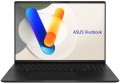 |  |
|---|---|---|
| Asus Vivobook S 16 OLED M5606UA [M5606UA-MX026] | Asus Vivobook S 15 OLED M5506UA [M5506UA-MA029] | |
| Outdated Product | Outdated Product | |
| User reviews | ||
| TOP sellers | ||
| Type | laptop | laptop |
Screen | ||
| Screen size | 16 " | 15.6 " |
| Screen type | OLED | OLED |
| Surface treatment | glossy | glossy |
| Screen resolution | 3200x2000 (16:10) | 2880x1620 (16:9) |
| Response time | 0.2 ms | 0.2 ms |
| Refresh rate | 120 Hz | 120 Hz |
| Brightness | 400 nt | 400 nt |
| HDR Brightness | 600 nit | 550 nit |
| Contrast | 1000000 :1 | 1000000 :1 |
| Colour gamut (DCI-P3) | 100 % | 100 % |
| TÜV Rheinland certificate |  | |
| HDR | HDR10 | HDR10 |
| VESA DisplayHDR Certification | DisplayHDR 500 True Black | DisplayHDR 500 True Black |
CPU | ||
| Series | Ryzen 7 | Ryzen 7 |
| Model | 8845HS | 8845HS |
| Processor code name | Hawk Point (Zen 4) | Hawk Point (Zen 4) |
| Processor cores | 8 | 8 |
| Total threads | 16 | 16 |
| CPU speed | 3.8 GHz | 3.8 GHz |
| TurboBoost / TurboCore frequency | 5.1 GHz | 5.1 GHz |
| CPU TDP | 45 W | 45 W |
| SuperPI 1M | 7.1 с | 7.1 с |
RAM | ||
| RAM | 32 GB | 32 GB |
| RAM type | LPDDR5X | LPDDR5X |
| RAM memory frequency | 7500 MHz | 7500 MHz |
| Amount of RAM slots | built-in | built-in |
Graphics card | ||
| Graphics card type | integrated | integrated |
| Graphics card series | AMD Radeon | AMD Radeon |
| Graphics card model | Radeon 780M | Radeon 780M |
| Test 3DMark06 | 42242 points | 42242 points |
| Test 3DMark Vantage P | 40258 points | 40258 points |
Storage | ||
| Drive type | SSD M.2 NVMe | SSD M.2 NVMe |
| Drive capacity | 1 TB | 1 TB |
| M.2 drive interface | PCIe 4.0 4x | PCIe 4.0 4x |
| M.2 drive size | 22x80 mm | 22x80 mm |
Connections | ||
| Connection ports | HDMI v2.1 | HDMI v2.1 |
| Card reader | | |
| USB-A 5Gbps | 2 pcs | 2 pcs |
| USB-C 5Gbps | 1 pcs | 2 pcs |
| USB-C 20Gbps | 1 pcs | |
| USB-C 20G (USB4) | 1 pcs | |
| Alternate Mode | | |
| Monitors connection | 3 | 3 |
| Wi-Fi | Wi-Fi 6E (802.11ax) | Wi-Fi 6E (802.11ax) |
| Bluetooth | v5.3 | v5.3 |
Multimedia | ||
| Webcam | 1920x1080 (Full HD) | 1920x1080 (Full HD) |
| Camera shutter | | |
| Speakers | 2 pcs | 2 pcs |
| Brand acoustics | Harman Kardon | Harman Kardon |
| Audio decoders | Dolby Atmos | Dolby Atmos |
| Security | 3D face scanner | 3D face scanner |
Keyboard | ||
| Backlight | RGB | RGB |
| Key design | island type | island type |
| Num block | | |
| Additional keys | 1 | |
| Input device | touchpad | touchpad |
Battery | ||
| Battery capacity | 75 W*h | 75 W*h |
| Operating time | 14 h | 14 h |
| Power Delivery via USB-C | | |
| Fast charge | | |
| Charging time | 60% in 49 min | 60% in 49 min |
| Power supply Included | 90 W | 90 W |
| DC charging port | in absent | in absent |
General | ||
| Preinstalled OS | without OS | without OS |
| MIL-STD-810 Military Standard | | |
| Material | aluminum | aluminum |
| Dimensions (WxDxT) | 354x247x16 mm | 354x247x16 mm |
| Weight | 1.5 kg | 1.5 kg |
| Color | ||
| Added to E-Catalog | august 2024 | august 2024 |


Compare Asus Vivobook S 16 OLED M5606UA and Vivobook S 15 OLED M5506UA
You may be interested in
My comparisons
Asus Vivobook S 16 OLED M5606UA often compared


Asus Vivobook S 15 OLED M5506UA often compared

Glossary
Screen size
Diagonal size of laptop display.
The larger the screen, the more convenient the laptop for watching high-definition movies, modern games, working with large-format graphic materials, etc. Large screens are especially important for multimedia and gaming models. On the other hand, the diagonal of the display directly affects the size and cost of the entire device. So if portability is key, it makes sense to pay attention to relatively small solutions; especially since most modern laptops have video outputs like HDMI or DisplayPort and allow connection of large-format external monitors.
In light of all this, the actual maximum for laptops these days is 17"(17.3"); however larger devices (18") reappeared at the beginning of 2023. The standard option for general purpose laptops is 15"(15.6"), less often 16", a diagonal of 13"(13.3") or 14" is considered small by the standards of such And smaller screens can be found mainly in specific compact varieties of laptops — ultrabooks, 2 in 1, transformers, netbooks; among such devices there are solutions for 12 ", 11" and even 10" or less.
The larger the screen, the more convenient the laptop for watching high-definition movies, modern games, working with large-format graphic materials, etc. Large screens are especially important for multimedia and gaming models. On the other hand, the diagonal of the display directly affects the size and cost of the entire device. So if portability is key, it makes sense to pay attention to relatively small solutions; especially since most modern laptops have video outputs like HDMI or DisplayPort and allow connection of large-format external monitors.
In light of all this, the actual maximum for laptops these days is 17"(17.3"); however larger devices (18") reappeared at the beginning of 2023. The standard option for general purpose laptops is 15"(15.6"), less often 16", a diagonal of 13"(13.3") or 14" is considered small by the standards of such And smaller screens can be found mainly in specific compact varieties of laptops — ultrabooks, 2 in 1, transformers, netbooks; among such devices there are solutions for 12 ", 11" and even 10" or less.
Screen resolution
The resolution of the screen installed in the laptop — that is, the size of the screen in pixels horizontally and vertically.
Higher resolution, on the one hand, gives a sharper, more detailed image; on the other hand, it increases the cost of the laptop. The latter is connected not only with the cost of the displays themselves, but also with the fact that in order to work effectively at high resolutions, you need the appropriate filling (primarily a graphics card). This is especially true in games; so if you are looking for a laptop with a high-resolution screen that can effectively "run" modern games — you should pay attention not only to the characteristics of the display, but also to other data (the type and parameters of the graphics card, test results, the ability to work with certain games — see everything below). On the other hand, if the device is planned to be used for simple tasks such as working with documents, surfing the Internet and watching videos, you can not pay much attention to the “hardware” parameters: anyway, they are selected so that the laptop is guaranteed to be able to cope with such tasks on full resolution of the "native" screen.
As for specific numbers, the resolution options that are relevant today can be divided into 3 groups: Full HD (1080), Quad HD and UltraHD 4K. Here is a more detailed description of them:
...— Full HD (1080). Initially, the Full HD standard provides a frame size of 1920x1080, and it is this resolution that is most often used in laptop screens from this category. However, in addition to this, other resolution options are also included in this format, where the vertical size is at least 1080 pixels, but does not reach 1440 pixels. Examples include 1920x1200 and 2560x1080. In general, Full HD displays provide a good balance between cost, image quality and laptop hardware requirements. Because of this, nowadays they are extremely widespread; matrices of this standard can be found even in low-cost devices, although they are mainly used in more advanced technology.
— Quad HD. A transitional option between the popular Full HD 1080 (see above) and the high-end and expensive UltraHD 4K. The vertical size of such screens starts from 1440 pixels and can reach 2000 pixels. Note that QuadHD resolutions are especially popular in Apple laptops; most often, such devices have 2560x1600 screens, although there are other options.
— Ultra HD 4K. The most advanced standard used in modern laptops. The vertical size of such screens is at least 2160 dots (up to 2400 in some configurations); the classic resolution of a modern UltraHD matrix is 3840x2160, but there are other values. Anyway, a 4K display allows for high image quality, however, it costs accordingly — including due to the corresponding requirements for a graphics adapter; in addition, to work with high resolutions, it can be more convenient to connect an external monitor to the laptop. Thus, such screens are used relatively rarely, and mainly among premium laptops.
Higher resolution, on the one hand, gives a sharper, more detailed image; on the other hand, it increases the cost of the laptop. The latter is connected not only with the cost of the displays themselves, but also with the fact that in order to work effectively at high resolutions, you need the appropriate filling (primarily a graphics card). This is especially true in games; so if you are looking for a laptop with a high-resolution screen that can effectively "run" modern games — you should pay attention not only to the characteristics of the display, but also to other data (the type and parameters of the graphics card, test results, the ability to work with certain games — see everything below). On the other hand, if the device is planned to be used for simple tasks such as working with documents, surfing the Internet and watching videos, you can not pay much attention to the “hardware” parameters: anyway, they are selected so that the laptop is guaranteed to be able to cope with such tasks on full resolution of the "native" screen.
As for specific numbers, the resolution options that are relevant today can be divided into 3 groups: Full HD (1080), Quad HD and UltraHD 4K. Here is a more detailed description of them:
...— Full HD (1080). Initially, the Full HD standard provides a frame size of 1920x1080, and it is this resolution that is most often used in laptop screens from this category. However, in addition to this, other resolution options are also included in this format, where the vertical size is at least 1080 pixels, but does not reach 1440 pixels. Examples include 1920x1200 and 2560x1080. In general, Full HD displays provide a good balance between cost, image quality and laptop hardware requirements. Because of this, nowadays they are extremely widespread; matrices of this standard can be found even in low-cost devices, although they are mainly used in more advanced technology.
— Quad HD. A transitional option between the popular Full HD 1080 (see above) and the high-end and expensive UltraHD 4K. The vertical size of such screens starts from 1440 pixels and can reach 2000 pixels. Note that QuadHD resolutions are especially popular in Apple laptops; most often, such devices have 2560x1600 screens, although there are other options.
— Ultra HD 4K. The most advanced standard used in modern laptops. The vertical size of such screens is at least 2160 dots (up to 2400 in some configurations); the classic resolution of a modern UltraHD matrix is 3840x2160, but there are other values. Anyway, a 4K display allows for high image quality, however, it costs accordingly — including due to the corresponding requirements for a graphics adapter; in addition, to work with high resolutions, it can be more convenient to connect an external monitor to the laptop. Thus, such screens are used relatively rarely, and mainly among premium laptops.
HDR Brightness
HDR brightness in laptops indicates how brightly the screen can display content with an extended dynamic range, where both very bright and dark areas of the frame are important at the same time. This parameter is especially noticeable in movies, games, and HDR videos: highlights, sunlight, lights, reflections, and other bright details look more expressive and realistic than on a standard screen. Unlike standard display brightness, which describes everyday work in SDR, HDR brightness specifically relates to the playback of HDR content and better reveals the capabilities of the matrix. The higher this indicator, the more impressive the compatible content looks, although contrast, matrix type, and local dimming are also important for the full result. In practice, a laptop with good HDR brightness is more enjoyable for watching Netflix, YouTube HDR, or modern games with extended range support.
USB-C 5Gbps
Number of USB-C 3.2 gen1 ports available on the laptop (previously these connectors were labeled USB-C 3.1 gen1 and USB-C 3.0).
USB-C is a versatile connector created relatively recently and designed for use in both desktop and portable computers and other devices. It is slightly larger than microUSB, has a convenient reversible design (it doesn't matter which way you plug in the connector), and also allows for increased power supply and a number of special features. Moreover, this connector is natively used in Thunderbolt interface versions v3 and v4, and technically it can be used for other interfaces as well; therefore, in some laptops, USB-C has a combined purpose — see more under "Alternate Mode." In certain models (mainly the most compact ones), USB-C can also be used to charge the device's own battery.
Specifically, the USB-C 3.2 gen1 version provides a connection speed of up to 5 Gbps. As for the number of such ports, it is usually small — typically 1 or 2. This is because peripherals for USB-C are significantly less common than full-sized USB. However, in specific configurations, the number of this type of connectors can reach 4.
USB-C is a versatile connector created relatively recently and designed for use in both desktop and portable computers and other devices. It is slightly larger than microUSB, has a convenient reversible design (it doesn't matter which way you plug in the connector), and also allows for increased power supply and a number of special features. Moreover, this connector is natively used in Thunderbolt interface versions v3 and v4, and technically it can be used for other interfaces as well; therefore, in some laptops, USB-C has a combined purpose — see more under "Alternate Mode." In certain models (mainly the most compact ones), USB-C can also be used to charge the device's own battery.
Specifically, the USB-C 3.2 gen1 version provides a connection speed of up to 5 Gbps. As for the number of such ports, it is usually small — typically 1 or 2. This is because peripherals for USB-C are significantly less common than full-sized USB. However, in specific configurations, the number of this type of connectors can reach 4.
USB-C 20Gbps
Number of USB-C 3.2 gen2x2 ports provided in the laptop.
USB-C is a universal connector that was created relatively recently and is designed for use in both desktop and portable computers. It is slightly larger than microUSB, has a convenient reversible design (it doesn't matter which way you connect the plug), and also allows for increased power supply and a number of special functions. Additionally, this same connector is natively used in the Thunderbolt v3 interface, and technically it can be used for other interfaces as well; therefore, in some laptops, USB-C has a combined purpose — see "Alternate Mode" for more details. In some laptops (mostly the more compact ones), USB-C can also be used for charging the device's own battery.
As for the specific version of USB-C 3.2 gen2x2, it allows for a connection speed of 20 Gbps — which is twice as fast as USB-C 3.2 gen2, hence the name. It is also worth noting that connection by the 3.2 gen2x2 standard is implemented only through USB-C connectors and is not used in ports of earlier standards. Such ports are still rare in laptops, and their number usually does not exceed 1 — this is because most peripheral devices usually suffice with the slower (and less expensive) varieties of USB-C.
USB-C is a universal connector that was created relatively recently and is designed for use in both desktop and portable computers. It is slightly larger than microUSB, has a convenient reversible design (it doesn't matter which way you connect the plug), and also allows for increased power supply and a number of special functions. Additionally, this same connector is natively used in the Thunderbolt v3 interface, and technically it can be used for other interfaces as well; therefore, in some laptops, USB-C has a combined purpose — see "Alternate Mode" for more details. In some laptops (mostly the more compact ones), USB-C can also be used for charging the device's own battery.
As for the specific version of USB-C 3.2 gen2x2, it allows for a connection speed of 20 Gbps — which is twice as fast as USB-C 3.2 gen2, hence the name. It is also worth noting that connection by the 3.2 gen2x2 standard is implemented only through USB-C connectors and is not used in ports of earlier standards. Such ports are still rare in laptops, and their number usually does not exceed 1 — this is because most peripheral devices usually suffice with the slower (and less expensive) varieties of USB-C.
USB-C 20G (USB4)
A next-generation port that supports data transfer at a speed of up to 20 Gbps. It uses a USB Type-C connector, providing versatility and compact connectivity for various devices, including laptops, monitors, and peripherals. This standard supports not only high-speed data transfer but also video output, allowing the connection of external displays with resolutions up to 4K, as well as powering devices with up to 100W.
Additional keys
The number of additional keys provided on the laptop keyboard.
Additional are called keys that do not belong to the standard set and perform various specific functions: calling the browser, controlling the media player, switching power and cooling modes, etc. Such equipment facilitates quick access to certain settings and applications. On the other hand, additional keys require additional space, and there is not much of it in laptops; in addition, some specific functions can be implemented through the Fn key, pressed simultaneously with one of the standard buttons. Therefore, this function is relatively rare in modern laptops, mainly among gaming models.
Additional are called keys that do not belong to the standard set and perform various specific functions: calling the browser, controlling the media player, switching power and cooling modes, etc. Such equipment facilitates quick access to certain settings and applications. On the other hand, additional keys require additional space, and there is not much of it in laptops; in addition, some specific functions can be implemented through the Fn key, pressed simultaneously with one of the standard buttons. Therefore, this function is relatively rare in modern laptops, mainly among gaming models.