
Comparison Xerox Phaser 3020 vs Samsung ML-2165W
Add to comparison | 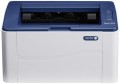 | 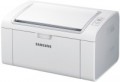 |
|---|---|---|
| Xerox Phaser 3020 | Samsung ML-2165W | |
from $164.83 | from $748.88 | |
| User reviews | ||
| TOP sellers | ||
| Print formats | A4 | A4 |
| Print type | laser | laser |
| Output type | monochrome | monochrome |
Print | ||
| Max. resolution | 1200x1200 dpi | 1200x1200 dpi |
| First page print time | 9 с | 9 с |
| Mono print | 20 ppm | 20 ppm |
Printing supplies | ||
| Monthly resource | 15 K pages | 10 K pages |
| Mono cartridge resource | 1500 page | 1500 page |
| Cartridges | 1 | 1 |
| Cartridge model | 106R02773, 106R03048 | MLT-D101S |
Features | ||
| Data transfer | PC connection (USB-B) | PC connection (USB-B) Wi-Fi 4 (802.11n) |
| Screen | no display | no display |
Hardware | ||
| Grammage (min) | 60 g/m² | |
| Grammage (max) | 163 g/m² | |
| RAM | 128 MB | 32 MB |
| Clock Speed | 600 MHz | 300 MHz |
General | ||
| Feed tray | 150 sheets | 150 sheets |
| Output tray | 100 sheets | 100 sheets |
| Noise level | 50 dB | |
| Power consumption | 313 W | 310 W |
| Dimensions (WxDxH) | 331x215x188 mm | 178x331x215 mm |
| Weight | 4.1 kg | 4 kg |
| Color | ||
| Added to E-Catalog | december 2014 | january 2012 |


Compare Xerox Phaser 3020 and Samsung ML-2165W
You may be interested in
My comparisons
Xerox Phaser 3020 often compared


Samsung ML-2165W often compared

Glossary
Monthly resource
The maximum number of pages the printer can print in a month while still operating at full capacity.
Cartridge model
The types of cartridges (both black and white and colour) used in the printer. Some printer models are able to work with "non-native" cartridges, but this feature usually refers to undocumented features, and the manufacturer's warranty covers only specific types of cartridges. So use "non-native" models with caution.
Data transfer
— Connection to PC (USB-B). Connecting to a PC via USB-B in printers means using the standard USB type B port found on the device body, which is used for data transfer from the computer. This port is usually used in wired printer models and connects to the PC with a USB-A to USB-B cable, where side A is inserted into the computer, and B into the printer. This type of connection provides stable communication, high data transfer speeds, and easy connectivity without network setup.
— Network Connection (LAN). The ability to connect to a local computer network via a standard LAN port (using an Ethernet cable). With such a connection, the printer becomes accessible to all computers on the network, which is very convenient for offices, coworking spaces, and other places where printing is used by different people from different computers. Note that the network connection can be accomplished either through one of the computers on the network or through a common router; in the latter case, the printer remains operational regardless of which computers on the network are currently on. Compared to another connection option — Wi-Fi — wired connection is less convenient due to the need to lay a cable; however, it is cheaper and the connection is maximally reliable.
— Wi-Fi. Wireless technology initially intended for working with computer networks, but nowadays also used for...direct communication between devices (Wi-Fi Direct see below). Typically, printers with Wi-Fi can work as network devices — when communication is via a local network, and all computers on the network have access to the printer; however, the ability for direct gadget connection is less common. Nevertheless, the specific functionality of Wi-Fi should be clarified separately in any case.
— Card Reader. A slot for reading memory cards, usually with a direct printing function (see above). In this case, this function is especially convenient because memory cards are widely used in modern photo and video cameras; thus, the card reader allows for quick and easy printing of captured materials — just remove the card from the camera and insert it into the printer. However, this function can also be useful for exchanging data with other devices — for instance, laptops; and on some printer models, it is even possible to work in an external card reader mode for a PC.
— USB-A. A full-size USB port that allows connecting various external peripherals to the printer. Most often used for direct printing from flash drives and other storage devices, but can also be used for other purposes — such as firmware updates, troubleshooting, etc. Do not confuse this function with connecting to a PC via USB-B, where the printer itself acts as a peripheral device.
— USB-C. A modern interface that replaces the classic USB-B port and provides a more compact, symmetrical, and reliable connection. This port allows quick document transfer from a PC or laptop, often without additional drivers, and is compatible with new devices including MacBook and ultrabooks. USB-C can also be used for connecting flash drives, phones, tablets.
— Bluetooth. A technology for direct wireless communication between various devices. In printers, it is mainly used for the traditional purpose — for receiving materials sent for printing from external devices. One of the advantages of such a connection is that it allows working not only with computers but also with portable gadgets like smartphones and tablets: built-in Bluetooth modules for such gadgets are almost mandatory, whereas wired connection methods are often not available at all. And it can even be more convenient to connect to a PC or laptop this way: Bluetooth requires no wires and confidently works at a distance of about 10 meters.
— NFC. A short-range wireless communication technology — up to 10 cm. In printers, it is usually used as an auxiliary function, to simplify Wi-Fi and Bluetooth connections: instead of manually setting up the connection, simply bring an NFC-enabled gadget close to the printer and confirm the connection. And in some models, materials can even be sent for printing immediately this way (by bringing the device to the printer); for this, usually, a branded application must be installed on the external gadget.
— Wi-Fi Direct. A feature found in models with built-in Wi-Fi modules (see above). Direct support allows other Wi-Fi devices (laptops, smartphones, cameras, etc.) to connect directly to such a printer without using a router and local network. This is especially convenient in the absence of network equipment, or if additional setup is required. The functionality of Wi-Fi Direct connection is generally similar to Bluetooth (see above); the main difference is that Wi-Fi provides faster and more reliable communication with greater range. This is particularly relevant for transferring large volumes of data — for example, sending large-format documents for printing. Additionally, this connection is better suited for direct printing from cameras — in such equipment, Wi-Fi is traditionally used for wireless connection.
— AirPrint. A similar feature to the one described above (Wi-Fi Direct). Allows connection to the device without involving a router. However, in this case, it refers to connecting Apple devices — iPhones, iPads, Mac laptops.
— Network Connection (LAN). The ability to connect to a local computer network via a standard LAN port (using an Ethernet cable). With such a connection, the printer becomes accessible to all computers on the network, which is very convenient for offices, coworking spaces, and other places where printing is used by different people from different computers. Note that the network connection can be accomplished either through one of the computers on the network or through a common router; in the latter case, the printer remains operational regardless of which computers on the network are currently on. Compared to another connection option — Wi-Fi — wired connection is less convenient due to the need to lay a cable; however, it is cheaper and the connection is maximally reliable.
— Wi-Fi. Wireless technology initially intended for working with computer networks, but nowadays also used for...direct communication between devices (Wi-Fi Direct see below). Typically, printers with Wi-Fi can work as network devices — when communication is via a local network, and all computers on the network have access to the printer; however, the ability for direct gadget connection is less common. Nevertheless, the specific functionality of Wi-Fi should be clarified separately in any case.
— Card Reader. A slot for reading memory cards, usually with a direct printing function (see above). In this case, this function is especially convenient because memory cards are widely used in modern photo and video cameras; thus, the card reader allows for quick and easy printing of captured materials — just remove the card from the camera and insert it into the printer. However, this function can also be useful for exchanging data with other devices — for instance, laptops; and on some printer models, it is even possible to work in an external card reader mode for a PC.
— USB-A. A full-size USB port that allows connecting various external peripherals to the printer. Most often used for direct printing from flash drives and other storage devices, but can also be used for other purposes — such as firmware updates, troubleshooting, etc. Do not confuse this function with connecting to a PC via USB-B, where the printer itself acts as a peripheral device.
— USB-C. A modern interface that replaces the classic USB-B port and provides a more compact, symmetrical, and reliable connection. This port allows quick document transfer from a PC or laptop, often without additional drivers, and is compatible with new devices including MacBook and ultrabooks. USB-C can also be used for connecting flash drives, phones, tablets.
— Bluetooth. A technology for direct wireless communication between various devices. In printers, it is mainly used for the traditional purpose — for receiving materials sent for printing from external devices. One of the advantages of such a connection is that it allows working not only with computers but also with portable gadgets like smartphones and tablets: built-in Bluetooth modules for such gadgets are almost mandatory, whereas wired connection methods are often not available at all. And it can even be more convenient to connect to a PC or laptop this way: Bluetooth requires no wires and confidently works at a distance of about 10 meters.
— NFC. A short-range wireless communication technology — up to 10 cm. In printers, it is usually used as an auxiliary function, to simplify Wi-Fi and Bluetooth connections: instead of manually setting up the connection, simply bring an NFC-enabled gadget close to the printer and confirm the connection. And in some models, materials can even be sent for printing immediately this way (by bringing the device to the printer); for this, usually, a branded application must be installed on the external gadget.
— Wi-Fi Direct. A feature found in models with built-in Wi-Fi modules (see above). Direct support allows other Wi-Fi devices (laptops, smartphones, cameras, etc.) to connect directly to such a printer without using a router and local network. This is especially convenient in the absence of network equipment, or if additional setup is required. The functionality of Wi-Fi Direct connection is generally similar to Bluetooth (see above); the main difference is that Wi-Fi provides faster and more reliable communication with greater range. This is particularly relevant for transferring large volumes of data — for example, sending large-format documents for printing. Additionally, this connection is better suited for direct printing from cameras — in such equipment, Wi-Fi is traditionally used for wireless connection.
— AirPrint. A similar feature to the one described above (Wi-Fi Direct). Allows connection to the device without involving a router. However, in this case, it refers to connecting Apple devices — iPhones, iPads, Mac laptops.
Grammage (min)
The minimum grammage on which the printer can produce normal print quality. Density is expressed in grams per square metre; accordingly, the thicker the paper, the thicker it is, and the greater the difference between the minimum and maximum paper weights, the greater the range of materials the printer can work with. The standard, most common A4 office paper has a density of 80 g/m² and is supported by the absolute majority of printers. If you use paper that is lighter than the minimum weight for this printer, you may experience problems such as wrinkled sheets or multiple sheets being picked up by the printer at the same time.
Grammage (max)
The maximum grammage on which the printer can produce normal print quality. For details about the weight, see "Paper Weight (Min)". An attempt to print on paper of a greater density than the maximum for this printer will, at best, end in nothing (the printer simply cannot capture the sheet), at worst, it can lead to a sheet jam in the printer, followed by the hassle of removing it.
RAM
The amount of internal memory installed in the printer.
The main purpose of such memory is to store tasks sent for printing. This gives various additional features: printing when the computer is turned off, continuing to work after troubleshooting, pausing the process and resuming at will, etc. The more memory, the wider these printer capabilities (in particular, large volumes allow you to store more tasks ).
Note that we are talking about the built-in memory; if the printer also has a hard drive (see below), its capacity is specified separately.
The main purpose of such memory is to store tasks sent for printing. This gives various additional features: printing when the computer is turned off, continuing to work after troubleshooting, pausing the process and resuming at will, etc. The more memory, the wider these printer capabilities (in particular, large volumes allow you to store more tasks ).
Note that we are talking about the built-in memory; if the printer also has a hard drive (see below), its capacity is specified separately.
Clock Speed
The clock speed of the processor installed in the printer. Theoretically, a higher clock speed improves performance and, accordingly, the actual speed of operation. However, in fact, these indicators depend on so many additional factors that the processor frequency is a purely reference parameter, and when choosing, it is worth focus on more “close to life” characteristics — print speed, first sheet output time, etc.
Noise level
Approximate noise level generated by the printer during normal operation. The decibels in which the noise level is expressed is a non-linear value, so it is easiest to evaluate this indicator using comparative tables. The quietest printers give out about 35 dB — this is the volume of a conversation in a whisper, such noise will not stand out even in a quiet library reading room. A volume of 40 dB approximately corresponds to a conversation at an average volume, according to sanitary standards, this is the upper limit of permissible constant noise in residential premises during the day. For offices, the border is slightly higher — 55 – 60 dB, this is the volume of a conversation in raised tones. And the most powerful and heavy models give out up to 70 dB — this is comparable to a noisy city street; if such a printer is planned to be used frequently, it is advisable to install it in a separate room.
In general, lower noise levels make the device more comfortable to use, but may affect performance and/or price.
In general, lower noise levels make the device more comfortable to use, but may affect performance and/or price.
Power consumption
The maximum power consumed by the printer during operation. The lower the power consumption, the less energy the printer consumes, the more economical it is. On the other hand, devices with lower power consumption are often less performant than their more high consumption counterparts. And for the same performance, a more economical printer is likely to cost more, but with heavy use, it can pay off in energy savings.