
Comparison Razer Viper 8KHz vs Razer DeathAdder V2
Add to comparison | 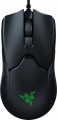 | 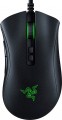 |
|---|---|---|
| Razer Viper 8KHz | Razer DeathAdder V2 | |
| Compare prices 7 | from $139.99 | |
| User reviews | ||
| TOP sellers | ||
Polling rate — 8000 Hz | Razer Focus+ sensor. Company switches. Razer Synapse app. | |
| Product type | mouse | mouse |
| Connection | wired | wired |
| Sensor | optical | optical |
| Type | for game | for game |
Sensor and control | ||
| Sensor | Razer Focus+ | Razer Focus+ |
| Sensor resolution | 20000 DPI | 400 – 20000 DPI |
| Max. acceleration | 50 G | 50 G |
| Max. speed | 450 ips | 650 ips |
| Max. polling rate | 1000 Hz (1 ms) | |
| Number of buttons | 6 | 6 |
| Side buttons |  | |
| DPI-button | | |
| Switch type | optical | optical |
| Switches | Razer Gen-2 | Razer |
| Switch resource | 70 mln | |
| Scroll wheels | 1 | 1 |
Additional features | ||
| DPI level indicator | |  |
| Optimal grip | palmar, finger | finger, claw |
| Programmable buttons | | |
| Built-in memory | | |
| Lighting | RGB | RGB |
| Lighting effects | Razer Chroma | Razer Chroma |
| Feet material | teflon (PTFE) | teflon (PTFE) |
Connection and power supply | ||
| Cable | USB-A braided | USB-A braided |
| Cable length | 2.1 m | 2.1 m |
General | ||
| Suitable for left-handers | | |
| Left handed | | |
| Size (LxWxH) | 127x66x38 mm | 127x62x43 mm |
| Weight | 69 g | 82 g |
| Color | ||
| Added to E-Catalog | march 2021 | january 2020 |




Compare Razer Viper 8KHz and DeathAdder V2
Both mice, Razer Viper 8KHz and Razer DeathAdder V2, are designed for gaming and have similar features, such as the Razer Focus+ optical sensor and 6 buttons. However, the Viper 8KHz stands out with a high polling rate of 8000 Hz, ensuring faster response, whereas the DeathAdder V2 has a polling rate of 1000 Hz. The Viper is also lighter (69 g compared to 82 g for the DeathAdder) and suitable for various grips, including palm and fingertip, while the DeathAdder is focused on fingertip and claw grip. In terms of maximum sensor resolution, both models achieve 20000 DPI, but the DeathAdder offers a range from 400 to 20000 DPI.
Price comparison
You may be interested in
My comparisons
Razer Viper 8KHz often compared


Razer DeathAdder V2 often compared


Glossary
Sensor resolution
Resolution of the sensor responsible for tracking mouse movements on the work surface. Specified in DPI — dots per inch.
The physical meaning of DPI as a whole is as follows. The sensor of a modern mouse works on the same principle as the camera matrix, and consists of pixels. And DPI is the number of pixels that fall on 1 inch of the underlying surface (length or width), "visible" by the sensor.
It is believed that more DPI means a more advanced sensor and mouse in general; nowadays, models for 3500 – 5000 DPI, 12000 DPI, 16000 DPI even more are not uncommon. In a way, it is — high resolution contributes to accuracy. However, the only thing that is directly determined by this indicator is the speed at which the cursor moves across the screen: the higher the resolution of the sensor, the greater the number of pixels that the cursor will move when the mouse itself moves a certain distance. At the same time, it is worth recalling that too high a speed is even more undesirable than too low. So the real need for high DPI ( 1000 and above) arises mainly when working on large screens (4K resolution and more); for more modest displays (HD and Full HD), smaller values are often enough.
The physical meaning of DPI as a whole is as follows. The sensor of a modern mouse works on the same principle as the camera matrix, and consists of pixels. And DPI is the number of pixels that fall on 1 inch of the underlying surface (length or width), "visible" by the sensor.
It is believed that more DPI means a more advanced sensor and mouse in general; nowadays, models for 3500 – 5000 DPI, 12000 DPI, 16000 DPI even more are not uncommon. In a way, it is — high resolution contributes to accuracy. However, the only thing that is directly determined by this indicator is the speed at which the cursor moves across the screen: the higher the resolution of the sensor, the greater the number of pixels that the cursor will move when the mouse itself moves a certain distance. At the same time, it is worth recalling that too high a speed is even more undesirable than too low. So the real need for high DPI ( 1000 and above) arises mainly when working on large screens (4K resolution and more); for more modest displays (HD and Full HD), smaller values are often enough.
Max. speed
The ips (inches per second) parameter is the linear speed of mouse movement, expressed in inches per second, at which the manipulator's sensor is able to read the surface. In top models, the maximum mouse movement speed often reaches 400-600 ips, but devices with ips in the region of 200 are more common.
Max. polling rate
The polling rate shows how often the mouse sensor exchanges data with the computer about cursor movement. This parameter is measured in hertz (Hz), with one second being taken as the unit of time for its assessment. The smoothness and speed of cursor movement directly depend on the polling rate of the sensor. Directly connected to it is the mouse response time — this is the time interval required for the signal about the manipulator's movement to reach the display of the cursor position change on the screen. Response time is measured in milliseconds (ms). The higher the mouse's "hertz rate," the lesser the response time it demonstrates. The most common value can be considered 1000 Hz with a response time of 1 millisecond. For competitive games, attention should be paid to faster mice, including 2000 Hz, 4000 Hz, and 8000 Hz. Values below might negatively manifest just in gaming scenarios.
Switches
The switches in a mouse indicate which specific switches are installed under the main buttons, such as Omron, Huano, Kailh, TTC, or proprietary solutions from the manufacturer. These determine the click characteristics, actuation force, click volume, lifespan, and the likelihood of double-clicking over time.
Unlike the general switch type, which refers to the working principle—mechanical or optical—the brand and model provide a more precise understanding of the performance level. For example, two mice with mechanical switches might feel different when clicked: some may be softer and quieter, while others could be stiffer, louder, and feel more "gaming-like."
Unlike the general switch type, which refers to the working principle—mechanical or optical—the brand and model provide a more precise understanding of the performance level. For example, two mice with mechanical switches might feel different when clicked: some may be softer and quieter, while others could be stiffer, louder, and feel more "gaming-like."
Switch resource
The durability of mouse switches is measured by the number of clicks the keys can withstand before they begin to show signs of wear or malfunction. Switches can have a lifespan of several million to tens of millions of clicks. In laboratory conditions, this parameter is checked using special testing machines, which diligently press the keys the required number of times, on the basis of which a verdict is made regarding the approximate service life of the switches.
DPI level indicator
An indicator showing the current resolution of the mouse sensor.
The DPI value indicator is found only in models that allow you to switch the sensor resolution and are equipped with the appropriate buttons (see above). The indicator allows you to easily monitor the set DPI settings. Note that it does not necessarily show specific numbers — conventions can be used, for example, different backlight colours.
The DPI value indicator is found only in models that allow you to switch the sensor resolution and are equipped with the appropriate buttons (see above). The indicator allows you to easily monitor the set DPI settings. Note that it does not necessarily show specific numbers — conventions can be used, for example, different backlight colours.
Optimal grip
Grip — a way of holding in the hand — for which this model is best suited.
Grip types are divided according to the position of the hand on the mouse. This parameter is relevant primarily in games: for maximum efficiency, the player needs a mouse that matches the usual type of grip. This is especially important for professional eSports, where any little thing can be the key to victory or defeat. Therefore, the types of grip are indicated mainly for gaming mice (see "By Direction"). At the same time, one can come across statements that certain types of grip are best suited for certain genres of games, but this is not entirely true: the main selection criterion is the user's personal preferences and characteristics. For example, some players quite successfully use a "slow" palm grip in dynamic shooters, compensating for the reduced speed with a good reaction; and others, even in quests, prefer a "quick" claw or finger hold.
Here is a more detailed description of the most popular grip options:
— Palmar. A holding method in which the mice touch both the entire fingers and most of the palm. In other words, with such a grip, the palm with fingers rests on the mouse, making maximum contact with it. It is under this option that most of the "rodents" are initially made, it is also popular in gaming models. Most models, specialized specifically for the palm grip, have a large length, as well as a characteristic asymmetrical design with protrusions...and depressions on the body — for maximum ergonomics; although there are exceptions. Anyway, the main advantages of this method of holding the mouse are the minimum strain on the wrist, as well as good smoothness and accuracy of movements. On the other hand, the speed of moving the mouse may be somewhat slower than with other types of grip.
— Claw. A claw grip is a grip in which the user's hand forms an arc and touches the mouse only with the lower part of the palm and fingertips. At the same time, the classic claw grip assumes an almost perpendicular arrangement of the fingertips relative to the buttons, but this requirement is not strictly necessary — the fingers can also lie at a slight angle. Anyway, due to the reduction of the contact area and the greater degree of freedom for the hand, such a hold provides more speed than the palm hold, and at the same time it is easier to master than the finger hold. Therefore, many gamers consider the claw grip to be the best option for shooters, action games and real-time strategies where reaction speed is important. Specialized mice for this method of holding are usually somewhat shorter than traditional "palm mice", and they often have a characteristic "hump" in the back of the case.
— Finger. A grip where the user only touches the mouse with their fingertips, with no hand contact with the mouse (but the wrist remains stationary). This type of grip allows you to achieve a high reaction rate, but it is quite difficult to master and does not differ in accuracy, especially if you are not used to it. However, many users use this method of retention intuitively, without thinking; the finger grip is specially mastered mainly by professional players and enthusiastic enthusiasts. Mice of this format usually have a small weight with a centre of gravity shifted closer to the front, and the body is made relatively short, most often symmetrical, and the “hump” (protrusion) is located closer to the centre of the body, or even absent (based on the fact that the palm still does not touch the mouse).
Note that there are models that combine several grip options — up to all three at once. The design of such mice may provide adjustment for one or another method of retention, however, the presence of such an adjustment does not interfere with clarifying separately.
Grip types are divided according to the position of the hand on the mouse. This parameter is relevant primarily in games: for maximum efficiency, the player needs a mouse that matches the usual type of grip. This is especially important for professional eSports, where any little thing can be the key to victory or defeat. Therefore, the types of grip are indicated mainly for gaming mice (see "By Direction"). At the same time, one can come across statements that certain types of grip are best suited for certain genres of games, but this is not entirely true: the main selection criterion is the user's personal preferences and characteristics. For example, some players quite successfully use a "slow" palm grip in dynamic shooters, compensating for the reduced speed with a good reaction; and others, even in quests, prefer a "quick" claw or finger hold.
Here is a more detailed description of the most popular grip options:
— Palmar. A holding method in which the mice touch both the entire fingers and most of the palm. In other words, with such a grip, the palm with fingers rests on the mouse, making maximum contact with it. It is under this option that most of the "rodents" are initially made, it is also popular in gaming models. Most models, specialized specifically for the palm grip, have a large length, as well as a characteristic asymmetrical design with protrusions...and depressions on the body — for maximum ergonomics; although there are exceptions. Anyway, the main advantages of this method of holding the mouse are the minimum strain on the wrist, as well as good smoothness and accuracy of movements. On the other hand, the speed of moving the mouse may be somewhat slower than with other types of grip.
— Claw. A claw grip is a grip in which the user's hand forms an arc and touches the mouse only with the lower part of the palm and fingertips. At the same time, the classic claw grip assumes an almost perpendicular arrangement of the fingertips relative to the buttons, but this requirement is not strictly necessary — the fingers can also lie at a slight angle. Anyway, due to the reduction of the contact area and the greater degree of freedom for the hand, such a hold provides more speed than the palm hold, and at the same time it is easier to master than the finger hold. Therefore, many gamers consider the claw grip to be the best option for shooters, action games and real-time strategies where reaction speed is important. Specialized mice for this method of holding are usually somewhat shorter than traditional "palm mice", and they often have a characteristic "hump" in the back of the case.
— Finger. A grip where the user only touches the mouse with their fingertips, with no hand contact with the mouse (but the wrist remains stationary). This type of grip allows you to achieve a high reaction rate, but it is quite difficult to master and does not differ in accuracy, especially if you are not used to it. However, many users use this method of retention intuitively, without thinking; the finger grip is specially mastered mainly by professional players and enthusiastic enthusiasts. Mice of this format usually have a small weight with a centre of gravity shifted closer to the front, and the body is made relatively short, most often symmetrical, and the “hump” (protrusion) is located closer to the centre of the body, or even absent (based on the fact that the palm still does not touch the mouse).
Note that there are models that combine several grip options — up to all three at once. The design of such mice may provide adjustment for one or another method of retention, however, the presence of such an adjustment does not interfere with clarifying separately.
Suitable for left-handers
Mice with a symmetrical body shape. The main advantage of such models is that their shape is the same well suited for both right and left hands. Considering that specialized "left-handed" devices are extremely rare, a symmetrical mouse can be a real salvation for a left-hander. At the same time, note that the symmetry in this case concerns only the shape of the case and the location of the main buttons; additional buttons can be placed exclusively under the right hand. If the mouse is bought for a left-hander, it is necessary to clarify these points.
Left handed
The Left-Handed filter helps quickly find mice that don't force left-handed users to adapt to non-ergonomic designs: these models have the right body geometry and logical button placement, making handling as natural as it is for right-handed users with standard models. This category includes several different designs. Firstly, there are models made exclusively for the left hand, where the body and side buttons are mirrored, so everything presses naturally. Secondly, it includes symmetrical mice without additional side buttons: they are universal, do not press on the fingers, and are ideal for those who value simplicity and comfort without extra elements. Thirdly, there are symmetrical options without side buttons but with additional buttons on top — a compromise when extra buttons are needed without anchoring to the right side of the body. Lastly, symmetrical mice with buttons on both sides fall here: a left-hander gets the same quick actions as a right-hander, but it's worth remembering that different models have different implementations of button deactivation/remapping, which affects convenience.