
Comparison Zalman N2 black vs Zalman Z1 Neo black
Add to comparison | 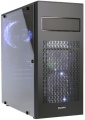 | 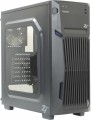 |
|---|---|---|
| Zalman N2 black | Zalman Z1 Neo black | |
| Outdated Product | from $74.99 | |
| User reviews | ||
| TOP sellers | ||
| Features | gaming | gaming |
| Form factor | Midi Tower | Midi Tower |
| Mount | vertical | vertical |
| Motherboard support | ATX | ATX |
| PSU form factor | ATX (regular) | ATX (regular) |
Computer case | ||
| Dimensions (HxWxD) | 425x197x446 mm | 445x203x464 mm |
| Graphics card max lenght | 360 mm | 375 mm |
| Fan max height | 155 mm | 160 mm |
| Weight | 4.4 kg | 4.4 kg |
| Material | steel | steel |
| Sidewall thickness | 0.5 mm | |
| Rubber feet |  | |
| Lighting type | backlit fan | backlit fan |
| Lighting colour | blue | |
| Side panel | removable | removable |
Storage | ||
| PSU |  | |
| PSU mount | bottom | bottom |
| 5.25" bays | 1 | 1 |
| 3.5" bays | 2 | 4 |
| internal 2.5" compartments | 3 | 5 |
| Expansion slots | 9 | 7 |
| Screwless | | |
Cooling | ||
| Installed fans | 3 шт | 3 шт |
| Fans (back) | 1x120mm | 1x120mm |
| Fans (front) | 2x120mm | 2x120mm |
| Fan mounts total | 3 | 3 |
| Dust filter | + | + |
Connectors and functions | ||
| Placement | on top of the case | on the front |
| USB-A 2.0 | 2 pcs | 2 pcs |
| USB-A 5Gbps | 1 pcs | 1 pcs |
| Audio (microphone/headphones) | | |
More features | ||
| Front panel | lattice | lattice |
| Side panel window | + | + |
| More features | hidden wiring CPU cooling mount window | CPU cooling mount window |
| Color | ||
| Added to E-Catalog | february 2018 | march 2017 |


Compare Zalman N2 and Z1 Neo
You may be interested in
Zalman N2 often compared


Zalman Z1 Neo often compared


Glossary
Graphics card max lenght
The maximum length of a graphics card that can be installed in this case.
Modern mid-range and top-end video cards with high performance often differ in considerable length, which is why such a card can not fit into any case. So before collecting components, it is worth evaluating the length of the proposed graphics card and choosing a case in which it is guaranteed to fit. This forethought is useful anyway, but it's especially true if you're building a system that requires a powerful graphics adapter, such as a high-end gaming PC or 3D design workstation.
Modern mid-range and top-end video cards with high performance often differ in considerable length, which is why such a card can not fit into any case. So before collecting components, it is worth evaluating the length of the proposed graphics card and choosing a case in which it is guaranteed to fit. This forethought is useful anyway, but it's especially true if you're building a system that requires a powerful graphics adapter, such as a high-end gaming PC or 3D design workstation.
Fan max height
The highest cooler height allowed for this case.
In this case, we mean a cooler used to cool the processor — such a component is found in the vast majority of modern PCs. Height is measured relative to the motherboard.
In this case, we mean a cooler used to cool the processor — such a component is found in the vast majority of modern PCs. Height is measured relative to the motherboard.
Sidewall thickness
The thickness of the side walls used in the case. When choosing a thickness, manufacturers have to compromise between several points at once. On the one hand, thin walls are inexpensive and heat dissipates faster through them, which has a positive effect on cooling efficiency. On the other hand, powerful systems inevitably require thick walls, otherwise the case may simply not withstand the weight of advanced high-performance components. Thirdly, steel is a fairly durable material even with a relatively small thickness. In light of all this, in most models this indicator does not exceed 0.7 — 0.8 mm, and more often it is about 0.5 – 0.6 mm.
Lighting colour
For more on decorative lighting in general, see Light Type above. Here we note that it can have different shades, and sometimes several options are indicated in the characteristics at once. If these options are listed through "and" (for example, "red, blue and green") — this means that this model contains all the specified colours, and the user can switch between them at his discretion. If the shades are listed through “or” (for example, “red, blue or green”), this means that this model is available in several versions that differ in the colour of the backlight.
Special mention is the "RGB" option. This is the name of the most advanced backlight, the shade of which can be chosen at your discretion. However the original RGB backlighting is capable of simultaneously displaying only one of several basic colours (white, yellow, green, red, blue or purple); nevertheless, even these possibilities are enough to customize the appearance of the case and apply various effects (such as backlight synchronization — see below).
And relatively recently, an even more advanced type of adjustable systems has appeared — ARGB backlight. The key difference between ARGB and classic RGB is the possibility of simultaneous operation of diodes of different colours. In other words, classic RGB lighting can display only one colour at a time, while ARGB can display several colours, which provides additional effects. Also, ARGB lighting is connecte...d using a 3pin 5v connector, while regular RGB uses a 4pin 12v connection. It can be represented by various types of illumination. So, ARGB is often integrated into the cooling system, the front panel and magnetic LED strips, which the user can mount at his discretion. To control the backlight, a special controller is usually provided, and buttons or controls for switching the illumination operation modes are placed on the interface panel. In some cases, the backlight is controlled by the motherboard, through a special connector. Many ARGB systems support the ability to fine-tune through specialized software.
Special mention is the "RGB" option. This is the name of the most advanced backlight, the shade of which can be chosen at your discretion. However the original RGB backlighting is capable of simultaneously displaying only one of several basic colours (white, yellow, green, red, blue or purple); nevertheless, even these possibilities are enough to customize the appearance of the case and apply various effects (such as backlight synchronization — see below).
And relatively recently, an even more advanced type of adjustable systems has appeared — ARGB backlight. The key difference between ARGB and classic RGB is the possibility of simultaneous operation of diodes of different colours. In other words, classic RGB lighting can display only one colour at a time, while ARGB can display several colours, which provides additional effects. Also, ARGB lighting is connecte...d using a 3pin 5v connector, while regular RGB uses a 4pin 12v connection. It can be represented by various types of illumination. So, ARGB is often integrated into the cooling system, the front panel and magnetic LED strips, which the user can mount at his discretion. To control the backlight, a special controller is usually provided, and buttons or controls for switching the illumination operation modes are placed on the interface panel. In some cases, the backlight is controlled by the motherboard, through a special connector. Many ARGB systems support the ability to fine-tune through specialized software.
3.5" bays
The number of internal 3.5" form factor bays provided in the design of the case. Such bays, in accordance with the name, are intended for internal components, mainly hard drives and some SSD modules; to access them, the case must be disassembled.
Theoretically, the number of bays corresponds to the maximum number of drives that can be installed in the chassis. However, in fact, the best option is to install drives through a single slot to ensure efficient cooling. Accordingly, it is best to select a case in such a way that the number of internal 3.5" bays is twice the expected number of hard drives.
Theoretically, the number of bays corresponds to the maximum number of drives that can be installed in the chassis. However, in fact, the best option is to install drives through a single slot to ensure efficient cooling. Accordingly, it is best to select a case in such a way that the number of internal 3.5" bays is twice the expected number of hard drives.
internal 2.5" compartments
The number of internal 2.5" bays provided in the case design.
Such bays are mainly used for installing internal hard drives and SSD modules; The 2.5" form factor was originally created as "laptop" form factor, but recently it has been increasingly used in components for full-size PCs. At the same time, when evaluating the number of these bays, note that drives are recommended to be installed through a slot; so in Ideally, the number of bays should be twice the planned number of drives.
Also note that some cases use combined bays: initially they have a size of 3.5", but if desired, they can be converted to 2.5". These bays count towards both 3.5-inch and 2.5-inch slots. In fact, this means that the total number of available slots is not always equal to the sum of the number of both. For example, a case with 10 3.5" bays and 6 2.5" bays can have 4 combined bays, and the total number of slots in this case will not be 16, but only 12.
Such bays are mainly used for installing internal hard drives and SSD modules; The 2.5" form factor was originally created as "laptop" form factor, but recently it has been increasingly used in components for full-size PCs. At the same time, when evaluating the number of these bays, note that drives are recommended to be installed through a slot; so in Ideally, the number of bays should be twice the planned number of drives.
Also note that some cases use combined bays: initially they have a size of 3.5", but if desired, they can be converted to 2.5". These bays count towards both 3.5-inch and 2.5-inch slots. In fact, this means that the total number of available slots is not always equal to the sum of the number of both. For example, a case with 10 3.5" bays and 6 2.5" bays can have 4 combined bays, and the total number of slots in this case will not be 16, but only 12.
Expansion slots
The number of slots for expansion cards located on the rear panel of the case.
The expansion card itself (graphics card, sound card, TV tuner, etc.) is installed in a slot on the motherboard, and an external panel of such a card with inputs and outputs is attached to the hole on the back of the case. The more holes are provided in the case, the more expansion cards can be installed in it. Note that some boards can occupy two or even three holes at once; this is especially common in powerful video cards. On the other hand, you have to pay attention to the number of holes mainly if you are building a powerful high-performance system. For an ordinary household PC, in most cases, one opening is enough for a graphics card; and in many configurations, the openings on the rear panel are not used at all.
The expansion card itself (graphics card, sound card, TV tuner, etc.) is installed in a slot on the motherboard, and an external panel of such a card with inputs and outputs is attached to the hole on the back of the case. The more holes are provided in the case, the more expansion cards can be installed in it. Note that some boards can occupy two or even three holes at once; this is especially common in powerful video cards. On the other hand, you have to pay attention to the number of holes mainly if you are building a powerful high-performance system. For an ordinary household PC, in most cases, one opening is enough for a graphics card; and in many configurations, the openings on the rear panel are not used at all.
Placement
The location of the front set of connectors provided in the case. Such connectors can be located on the front panel, on the side wall or in the upper part of the case. The first two options are found in all case form factors (see above), while the top placement is considered optimal for tower solutions, originally designed for installation under the table.
More features
— Front Cover. A flap cover that entirely or partially conceals the front panel. It gives the computer a neat appearance by hiding ports and external slots under a uniform surface and serves as childproof protection.
— Panel Display. A display on the front or side panel of the case used to show various service information: current CPU frequency, system temperature data, cooling mode, etc. Various important data can be displayed independently of what happens in the software part of the computer.
— Graphics Card Holder. A structural solution for supporting the graphics card inside the case. Specialized stands or holders prevent the graphics adapter from sagging over time and reduce the strain on the PCI-E slot of the motherboard. The fact is, many modern graphics card models have significantly increased in weight — holders are designed to compensate for their heaviness. Stands are available as built-in solutions or standalone accessories that can be installed inside the case independently.
— Side Panel Lock. A special lock on the removable side panel of the case. Such a lock prevents unauthorized access to the internal space of the system unit.
— Noise Insulation. The presence of additional noise insulation in the case. This can be a special coating on the interior sid...e or other, more specific solutions (e.g., damping systems on "mounting spots" for individual components, reducing the level of vibrations transmitted to the case). In any case, this feature helps reduce the noise level emitted by the system — sometimes quite significantly.
— Removable HDD Cage. The presence of a removable cage under the internal peripherals of 3.5" form factor (in most cases these are hard drives, hence the name) in the case design. This cage facilitates assembly because removing and installing a hard drive is much easier than securing it in a non-removable slot inside the case; this aspect is particularly useful if the system plans to install multiple hard drives.
— HDD Docking Station. Built-in docking station for quick connection of internal hard drives. In fact, this feature allows connecting an internal HDD as an external one: the docking station port is located outside the case and equipped with quick-connect fasteners for convenient connection.
— Hidden Cable Routing. The ability to route cables from the power supply on the reverse side of the motherboard (considering the main side where the processor and expansion card slots are located). Thus, the main "mobo" side is freed from cables, positively affecting cooling efficiency.
— Cooling System Installation Window (CS) for the processor. The presence of a separate window in the case opposite the CS mounts for the processor. The fastening system is located on the reverse side of the motherboard, and usually, replacing it requires removing the entire "mainboard"; the CS installation window frees the user from this necessity and significantly simplifies the installation and replacement of CS.
— Panel Display. A display on the front or side panel of the case used to show various service information: current CPU frequency, system temperature data, cooling mode, etc. Various important data can be displayed independently of what happens in the software part of the computer.
— Graphics Card Holder. A structural solution for supporting the graphics card inside the case. Specialized stands or holders prevent the graphics adapter from sagging over time and reduce the strain on the PCI-E slot of the motherboard. The fact is, many modern graphics card models have significantly increased in weight — holders are designed to compensate for their heaviness. Stands are available as built-in solutions or standalone accessories that can be installed inside the case independently.
— Side Panel Lock. A special lock on the removable side panel of the case. Such a lock prevents unauthorized access to the internal space of the system unit.
— Noise Insulation. The presence of additional noise insulation in the case. This can be a special coating on the interior sid...e or other, more specific solutions (e.g., damping systems on "mounting spots" for individual components, reducing the level of vibrations transmitted to the case). In any case, this feature helps reduce the noise level emitted by the system — sometimes quite significantly.
— Removable HDD Cage. The presence of a removable cage under the internal peripherals of 3.5" form factor (in most cases these are hard drives, hence the name) in the case design. This cage facilitates assembly because removing and installing a hard drive is much easier than securing it in a non-removable slot inside the case; this aspect is particularly useful if the system plans to install multiple hard drives.
— HDD Docking Station. Built-in docking station for quick connection of internal hard drives. In fact, this feature allows connecting an internal HDD as an external one: the docking station port is located outside the case and equipped with quick-connect fasteners for convenient connection.
— Hidden Cable Routing. The ability to route cables from the power supply on the reverse side of the motherboard (considering the main side where the processor and expansion card slots are located). Thus, the main "mobo" side is freed from cables, positively affecting cooling efficiency.
— Cooling System Installation Window (CS) for the processor. The presence of a separate window in the case opposite the CS mounts for the processor. The fastening system is located on the reverse side of the motherboard, and usually, replacing it requires removing the entire "mainboard"; the CS installation window frees the user from this necessity and significantly simplifies the installation and replacement of CS.