
Comparison Asus PRIME B250-PRO vs Asus PRIME B250-PLUS
Add to comparison | 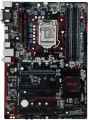 | 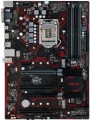 |
|---|---|---|
| Asus PRIME B250-PRO | Asus PRIME B250-PLUS | |
from $104.52 up to $126.68 | Compare prices 2 | |
| TOP sellers | ||
| Features | gaming | gaming |
| Socket | LGA 1151 | LGA 1151 |
| Form factor | ATX | ATX |
| Power phases | 6 | |
| LED lighting |  | |
| Size (HxW) | 305x218 mm | 305x218 mm |
Chipset | ||
| Chipset | Intel B250 | Intel B250 |
| BIOS | Ami | Ami |
| UEFI BIOS | | |
RAM | ||
| DDR4 | 4 slot(s) | 4 slot(s) |
| Memory module | DIMM | DIMM |
| Operation mode | 2 channel | 2 channel |
| Max. clock frequency | 2400 MHz | 2400 MHz |
| Max. memory | 34 GB | 64 GB |
| XMP | | |
Drive interface | ||
| SATA 3 (6Gbps) | 6 | 6 |
| M.2 connector | 2 | 2 |
| M.2 | 1xSATA/PCIe 4x, 1xPCIe 4x | 1xSATA/PCIe 4x, 1xPCIe 4x |
Expansion slots | ||
| 1x PCIe slots | 2 pcs | 2 pcs |
| PCIe 16x slots | 2 pcs | 2 pcs |
| PCIe modes | 16x/4x | 16x/4x |
| PCIe support | 3.0 | 3.0 |
| PCI slots | 2 | 2 |
| CrossFire (AMD) | | |
Internal connections | ||
| USB-A 2.0 | 1 pcs | 1 pcs |
| USB-A 5Gbps | 1 pcs | 1 pcs |
Video outputs | ||
| D-Sub output (VGA) | | |
| DVI output | DVI-D | DVI-D |
| HDMI output | | |
Integrated audio | ||
| Audiochip | Realtek ALC887 | Realtek ALC887 |
| Sound (channels) | 7.1 | 7.1 |
Network interfaces | ||
| LAN (RJ-45) | 1 Gbps | 1 Gbps |
| LAN ports | 1 | 1 |
| LAN controller | Realtek RTL8111H | Realtek RTL8111H |
External connections | ||
| USB-A 2.0 | 2 pcs | 4 pcs |
| USB-A 5Gbps | 2 pcs | 2 pcs |
| USB-A 10Gbps | 2 pcs | |
| USB-C 5Gbps | 1 pcs | 1 pcs |
| PS/2 | 1 | 1 |
Power connectors | ||
| Main power socket | 24-pin | 24-pin |
| CPU power | 8-pin | 8-pin |
| Fan power connectors | 3 | 3 |
| Added to E-Catalog | january 2017 | january 2017 |



Compare Asus PRIME B250-PRO and PRIME B250-PLUS
Price comparison
You may be interested in
My comparisons
Asus PRIME B250-PLUS often compared


Glossary
Power phases
The number of processor power phases provided on the motherboard.
Very simplistically, phases can be described as electronic blocks of a special design, through which power is supplied to the processor. The task of such blocks is to optimize this power, in particular, to minimize power surges when the load on the processor changes. In general, the more phases, the lower the load on each of them, the more stable the power supply and the more durable the electronics of the board. And the more powerful the CPU and the more cores it has, the more phases it needs; this number increases even more if the processor is planned to be overclocked. For example, for a conventional quad-core chip, only four phases are often enough, and for an overclocked one, at least eight may be needed. It is because of this that powerful processors can have problems when used on inexpensive low-phase motherboards.
Detailed recommendations on choosing the number of phases for specific CPU series and models can be found in special sources (including the documentation for CPU itself). Here we note that with numerous phases on the motherboard (more than 8), some of them can be virtual. To do this, real electronic blocks are supplemented with doublers or even triplers, which, formally, increases the number of phases: for example, 12 claimed phases can represent 6 physical blocks with doublers. However, virtual phases are much inferior to real ones in terms of capabilities — in fact, t...hey are just additions that slightly improve the characteristics of real phases. So, let's say, in our example, it is more correct to speak not about twelve, but only about six (though improved) phases. These nuances must be specified when choosing a motherboard.
Very simplistically, phases can be described as electronic blocks of a special design, through which power is supplied to the processor. The task of such blocks is to optimize this power, in particular, to minimize power surges when the load on the processor changes. In general, the more phases, the lower the load on each of them, the more stable the power supply and the more durable the electronics of the board. And the more powerful the CPU and the more cores it has, the more phases it needs; this number increases even more if the processor is planned to be overclocked. For example, for a conventional quad-core chip, only four phases are often enough, and for an overclocked one, at least eight may be needed. It is because of this that powerful processors can have problems when used on inexpensive low-phase motherboards.
Detailed recommendations on choosing the number of phases for specific CPU series and models can be found in special sources (including the documentation for CPU itself). Here we note that with numerous phases on the motherboard (more than 8), some of them can be virtual. To do this, real electronic blocks are supplemented with doublers or even triplers, which, formally, increases the number of phases: for example, 12 claimed phases can represent 6 physical blocks with doublers. However, virtual phases are much inferior to real ones in terms of capabilities — in fact, t...hey are just additions that slightly improve the characteristics of real phases. So, let's say, in our example, it is more correct to speak not about twelve, but only about six (though improved) phases. These nuances must be specified when choosing a motherboard.
Max. memory
The maximum amount of RAM that can be installed on the motherboard.
When choosing according to this parameter, it is important to take into account the planned use of the PC and the real needs of the user. So, volumes up to 32 GB inclusive are quite enough to solve any basic problems and run games comfortably, but without a significant reserve for an upgrade. 64 GB is the optimal option for many professional use cases, and for the most resource-intensive tasks like 3D rendering, 96 GB or even 128 GB of memory will not be a limit. The most “capacious” motherboards are compatible with volumes of 192 GB or more - they are mainly top-end solutions for servers and HEDT (see “In the direction”).
You can choose this parameter with a reserve – taking into account a potential RAM upgrade, because installing additional RAM sticks is the simplest way to increase system performance. Taking this factor into account, many relatively simple motherboards support very significant amounts of RAM.
When choosing according to this parameter, it is important to take into account the planned use of the PC and the real needs of the user. So, volumes up to 32 GB inclusive are quite enough to solve any basic problems and run games comfortably, but without a significant reserve for an upgrade. 64 GB is the optimal option for many professional use cases, and for the most resource-intensive tasks like 3D rendering, 96 GB or even 128 GB of memory will not be a limit. The most “capacious” motherboards are compatible with volumes of 192 GB or more - they are mainly top-end solutions for servers and HEDT (see “In the direction”).
You can choose this parameter with a reserve – taking into account a potential RAM upgrade, because installing additional RAM sticks is the simplest way to increase system performance. Taking this factor into account, many relatively simple motherboards support very significant amounts of RAM.
USB-A 2.0
The number of USB-A 2.0 ports installed on the rear panel of the motherboard.
Let us remind you, USB is the most popular modern connector for connecting various external peripherals — from keyboards and mice to specialized equipment. And USB-A 2.0 is the oldest of the currently relevant versions of this interface; it is significantly inferior to the newer USB-A 5Gbps in terms of speed (up to 480 Mbps), as well as power supply and additional functionality. On the other hand, even such characteristics are often sufficient for low-demand peripherals (like those same keyboards/mice); and devices of newer versions can be perfectly connected to ports of this standard — as long as there is enough power supply. So, this version of USB is still found in modern motherboards, though fewer new models with USB-A 2.0 ports are being produced.
Note that in addition to the ports on the back panel, USB connectivity may also be provided by connectors on the board itself (more precisely, the ports on the PC case connected to such connectors). For more details, see below.
Let us remind you, USB is the most popular modern connector for connecting various external peripherals — from keyboards and mice to specialized equipment. And USB-A 2.0 is the oldest of the currently relevant versions of this interface; it is significantly inferior to the newer USB-A 5Gbps in terms of speed (up to 480 Mbps), as well as power supply and additional functionality. On the other hand, even such characteristics are often sufficient for low-demand peripherals (like those same keyboards/mice); and devices of newer versions can be perfectly connected to ports of this standard — as long as there is enough power supply. So, this version of USB is still found in modern motherboards, though fewer new models with USB-A 2.0 ports are being produced.
Note that in addition to the ports on the back panel, USB connectivity may also be provided by connectors on the board itself (more precisely, the ports on the PC case connected to such connectors). For more details, see below.
USB-A 10Gbps
The number of proprietary USB-A 10Gbps connectors provided on the back panel of the motherboard. In this case, traditional, full-sized USB-A type ports are implied.
The version USB-A 10Gbps (previously known as USB 3.2 gen2 and simply USB 3.1) is a further development of the USB-A 5Gbps version. This standard provides a connection speed of up to 10 Gbps, and can support the USB Power Delivery technology (see below) for powering external devices in such connectors, allowing up to 100 W per device (however, Power Delivery support is not mandatory; its presence should be verified separately). Traditionally for the USB standard, this interface is backward compatible with previous versions—in simple terms, you can easily connect a device supporting USB-A 2.0 or USB-A 5Gbps to such a port (though the operating speed will be limited by the capabilities of the slower version).
The more connectors provided in the construction, the more peripheral devices can be connected to the motherboard without using additional equipment (USB hubs). In certain models of motherboards, the number of such ports is 5 or even more. Note that in addition to the connectors on the back panel, USB connection can also be provided through connectors on the motherboard itself (more precisely, ports on the case connected to such connectors). For more details, see below.
The version USB-A 10Gbps (previously known as USB 3.2 gen2 and simply USB 3.1) is a further development of the USB-A 5Gbps version. This standard provides a connection speed of up to 10 Gbps, and can support the USB Power Delivery technology (see below) for powering external devices in such connectors, allowing up to 100 W per device (however, Power Delivery support is not mandatory; its presence should be verified separately). Traditionally for the USB standard, this interface is backward compatible with previous versions—in simple terms, you can easily connect a device supporting USB-A 2.0 or USB-A 5Gbps to such a port (though the operating speed will be limited by the capabilities of the slower version).
The more connectors provided in the construction, the more peripheral devices can be connected to the motherboard without using additional equipment (USB hubs). In certain models of motherboards, the number of such ports is 5 or even more. Note that in addition to the connectors on the back panel, USB connection can also be provided through connectors on the motherboard itself (more precisely, ports on the case connected to such connectors). For more details, see below.