
Comparison Logitech Wireless Combo MK270 vs Logitech Wireless Combo MK330
Add to comparison | 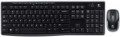 | 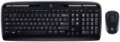 |
|---|---|---|
| Logitech Wireless Combo MK270 | Logitech Wireless Combo MK330 | |
| Compare prices 38 | from $69.69 | |
| User reviews | ||
| TOP sellers | ||
| In box | keyboard and mouse | keyboard and mouse |
| Connection | radio | radio |
| Form factor | 100% (full size) | 1800 (compact full-size) |
| Layout | ANSI | ANSI |
Keyboard | ||
| Key profile | low | low |
| Key type | classic type | classic type |
| Switch technology | membrane | membrane |
| Additional keys | 8 | 12 |
| Fn key |  |  |
Features | ||
| Cyrillic colour | white | white |
| Volume control | add. keys | add. keys |
Connection and power supply | ||
| Power source | 2xAAA | 2xAAA |
| Battery time | 36 months | 24 months |
| Receiver (dongle) | USB A | USB A |
General | ||
| Waterproof | | |
Mouse | ||
| Sensor | optical | optical |
| Number of buttons | 2 | 2 |
| Scroll wheels | 1 | 1 |
| Sensor resolution | 1000 DPI | 1000 DPI |
| Power supply (wireless) | 1xAA | 1xAA |
| Weight | 50 g | |
| Color | ||
| Added to E-Catalog | january 2014 | february 2013 |




Compare Logitech Wireless Combo MK270 and MK330
Comparing the Logitech Wireless Combo MK270 and Logitech Wireless Combo MK330, it can be noted that both models offer a standard format with a Num pad and operate at a 2.4 GHz radio frequency with a range of up to 10 meters. However, the MK330 has 12 additional keys and an Fn key, making it more functional for users who need extra features. While the MK270 offers 8 additional keys, its keys have a lower profile, which may be preferable for some users. Both sets have good battery life: the MK270 operates up to 36 months, and the MK330 up to 24 months. Users note that the MK330 has a more modern design and ease of use, while the MK270 may be more reliable in terms of connectivity.
Price comparison
You may be interested in
My comparisons
Logitech Wireless Combo MK270 often compared


Glossary
Form factor
— 100% (full-sized). Classic layout with 104/105 keys featuring a full NumPad, dedicated F1–F12 row, and navigation cluster including Insert/Delete, Home/End, PgUp/PgDn; this version is valued for its familiar geometry, typing speed, and ease of frequent number entry, making it optimal for work in Excel, accounting, IDEs, and editing programs, while in games, the NumPad is often used for binds and macros; compared to TKL/80% without a numeric block, as well as 96% and 1800-compact, the 100% format offers maximum comfort and requires less retraining, but takes up more desk space and pushes the mouse further away, so for compact workplaces, it might be wiser to consider smaller formats.
— 1800 (compact full-sized). A full-featured layout with a numeric block but in a narrower body: the NumPad is shifted closer to the main field, and navigation is often placed above it or compacted next to the arrow keys. It feels like "100%", but is shorter by a few centimeters, so the mouse is closer to the center, offering more comfort for wrists. Compared to TKL, you retain fast number entry, and against 96%, you gain a slightly more "airy" geometry with clear orientation. Note the non-standard sizes of some keys and the right block, which sometimes require special keycap sets. This format is convenient for Excel, accounting, IDEs, and editing, while offering gamers the NumPad for macros while saving desk space.
...r>
— 96% (compact full-sized). Keyboards that preserve all key zones of 100% (F1–F12 row, arrow keys, navigation, and NumPad) but place them in a tight "grid" layout, almost like TKL in width. The numeric block is shifted closer to the main area, while Insert/Home/End and PgUp/PgDn are often reduced to 1u and grouped above the arrows or next to the NumPad. Compared to the 1800 format, 96% is even more compact and visually "smoother," and against TKL, you do not lose the speed of number entry. Note the possible non-standard sizes of the right shift, zeros, and plus on the NumPad, requiring a more selective keycap choice. This format is chosen for Excel and accounting, editing and coding, while gamers use the NumPad for macros, gaining maximum functions with minimal table width.
— 80% (TKL, without Num-block). A full-featured keyboard without a numeric block: retains the F1–F12 row, arrow keys, and navigation Insert/Delete, Home/End, PgUp/PgDn, but is considerably narrower, bringing the mouse closer to the center, which is easier on the shoulders and wrists. Gamers and developers favor this format: there’s more desk space, while familiar keys and hotkeys remain in place. Compared to 100%, you only lose quick number entry, which can be supplemented with a separate wireless NumPad. In comparison to 75%, TKL is more readable and "airy" thanks to its separate navigation block; unlike 96%, it is more compact for mouse grip, though lacking a NumPad. The 80% (TKL) format is optimal for FPS, work in IDEs, editing, and everyday office tasks where numbers aren’t entered continuously.
— 75% (compact TKL, without Num-block). "Almost TKL," where all main keys are within reach, but the body is shorter by several centimeters due to a tight "staircase" arrangement of arrows and navigation. Compared to 80%, it decreases the distance between hands and mouse, enhancing ergonomics for prolonged use, and relative to 100% and 96%, you lose only the numeric block, gaining space for the mouse and a more neutral shoulder posture. This format is chosen for IDEs and design packages, FPS and MOBA, mobile setups with narrow desks, when numbers are entered infrequently or supplemented with an external NumPad. Note: 75% may have non-standard sizes in the right block and individual keys, which is important when selecting keycaps and stabilizers.
— 65% (ultra-compact, without F-row). "Condensed TKL": the alphanumeric block, arrow keys, and a pair of navigation keys remain in place, while the NumPad and the top F1–F12 row are accessed via Fn. This layout is significantly narrower in width, moving the mouse closer to the center, which reduces the spread of arms — ideal for narrow desks, when working on a laptop, and for travel. Compared to 60%, the 65% format is more practical thanks to dedicated arrows and Delete; against 75% and 80%, it is more compact but often requires getting accustomed to layers. Possible non-standard sizes of the right shift and navigation keys are important when choosing keycaps. In real-world scenarios, the 65% format is excellent for IDEs, streaming, and FPS/MOBA games, while regular number entry is complemented by an external wireless NumPad.
— 60% (mini). Classic "trimmed" layout with ~61/62 keys without NumPad, no F1–F12 top row, and no separate navigation cluster: all accessed through the Fn layer, with arrows usually assigned to combinations. Compared to 65%, this format is even more compact but often requires acclimatization to layers; against 75%/80%, you save desk width and achieve a more neutral shoulder posture, at the cost of losing "quick" F-keys. The strong points of 60% are portability, free space for the mouse and mat, and reduced arm movement between keyboard and mouse, making it popular with FPS gamers, streamers, and those working on laptops at narrow desks or traveling. If active number entry or "hot" F-keys are needed, an external wireless NumPad and well-thought-out layer layout help.
— 40% (ultra-mini). Radically compact layout with about 40–50 keys, lacking a number row, arrows, and F-keys: all are accessed via Fn layers, combined presses, and macros, often with an ortholinear matrix. Due to the minimal width, the mouse is closer to the center, reducing hand spread and freeing up desk space, appreciated by mobile users and minimalists. Compared to 60% and 65%, the 40% format requires more serious adaptation and thoughtful firmware (QMK/VIA, home-row mods, tap-dance), and keycap selection is more challenging due to non-standard sizes. The strong point is portability and speed after getting used to it; weakness — reliance on layers and inconvenience of frequent number entry and arrow navigation. The 40% format is practical for travel, work on laptops with docking stations, text editing with hotkeys, and streaming, while numbers are usually supplemented with an external NumPad.
— 1800 (compact full-sized). A full-featured layout with a numeric block but in a narrower body: the NumPad is shifted closer to the main field, and navigation is often placed above it or compacted next to the arrow keys. It feels like "100%", but is shorter by a few centimeters, so the mouse is closer to the center, offering more comfort for wrists. Compared to TKL, you retain fast number entry, and against 96%, you gain a slightly more "airy" geometry with clear orientation. Note the non-standard sizes of some keys and the right block, which sometimes require special keycap sets. This format is convenient for Excel, accounting, IDEs, and editing, while offering gamers the NumPad for macros while saving desk space.
— 80% (TKL, without Num-block). A full-featured keyboard without a numeric block: retains the F1–F12 row, arrow keys, and navigation Insert/Delete, Home/End, PgUp/PgDn, but is considerably narrower, bringing the mouse closer to the center, which is easier on the shoulders and wrists. Gamers and developers favor this format: there’s more desk space, while familiar keys and hotkeys remain in place. Compared to 100%, you only lose quick number entry, which can be supplemented with a separate wireless NumPad. In comparison to 75%, TKL is more readable and "airy" thanks to its separate navigation block; unlike 96%, it is more compact for mouse grip, though lacking a NumPad. The 80% (TKL) format is optimal for FPS, work in IDEs, editing, and everyday office tasks where numbers aren’t entered continuously.
— 75% (compact TKL, without Num-block). "Almost TKL," where all main keys are within reach, but the body is shorter by several centimeters due to a tight "staircase" arrangement of arrows and navigation. Compared to 80%, it decreases the distance between hands and mouse, enhancing ergonomics for prolonged use, and relative to 100% and 96%, you lose only the numeric block, gaining space for the mouse and a more neutral shoulder posture. This format is chosen for IDEs and design packages, FPS and MOBA, mobile setups with narrow desks, when numbers are entered infrequently or supplemented with an external NumPad. Note: 75% may have non-standard sizes in the right block and individual keys, which is important when selecting keycaps and stabilizers.
— 65% (ultra-compact, without F-row). "Condensed TKL": the alphanumeric block, arrow keys, and a pair of navigation keys remain in place, while the NumPad and the top F1–F12 row are accessed via Fn. This layout is significantly narrower in width, moving the mouse closer to the center, which reduces the spread of arms — ideal for narrow desks, when working on a laptop, and for travel. Compared to 60%, the 65% format is more practical thanks to dedicated arrows and Delete; against 75% and 80%, it is more compact but often requires getting accustomed to layers. Possible non-standard sizes of the right shift and navigation keys are important when choosing keycaps. In real-world scenarios, the 65% format is excellent for IDEs, streaming, and FPS/MOBA games, while regular number entry is complemented by an external wireless NumPad.
— 60% (mini). Classic "trimmed" layout with ~61/62 keys without NumPad, no F1–F12 top row, and no separate navigation cluster: all accessed through the Fn layer, with arrows usually assigned to combinations. Compared to 65%, this format is even more compact but often requires acclimatization to layers; against 75%/80%, you save desk width and achieve a more neutral shoulder posture, at the cost of losing "quick" F-keys. The strong points of 60% are portability, free space for the mouse and mat, and reduced arm movement between keyboard and mouse, making it popular with FPS gamers, streamers, and those working on laptops at narrow desks or traveling. If active number entry or "hot" F-keys are needed, an external wireless NumPad and well-thought-out layer layout help.
— 40% (ultra-mini). Radically compact layout with about 40–50 keys, lacking a number row, arrows, and F-keys: all are accessed via Fn layers, combined presses, and macros, often with an ortholinear matrix. Due to the minimal width, the mouse is closer to the center, reducing hand spread and freeing up desk space, appreciated by mobile users and minimalists. Compared to 60% and 65%, the 40% format requires more serious adaptation and thoughtful firmware (QMK/VIA, home-row mods, tap-dance), and keycap selection is more challenging due to non-standard sizes. The strong point is portability and speed after getting used to it; weakness — reliance on layers and inconvenience of frequent number entry and arrow navigation. The 40% format is practical for travel, work on laptops with docking stations, text editing with hotkeys, and streaming, while numbers are usually supplemented with an external NumPad.
Additional keys
The number of additional keys provided in the design of the keyboard.
Such keys do not belong to the standard layout and are intended for quick access to specific functions or individual applications — for example, to control the media player or open mail with one click. This function is convenient because commands from additional keys are usually recognized by the system regardless of what is on the screen — thanks to this, for example, you do not have to close the text editor to switch tracks in the player.
Note that in this case we are talking about individual keys that have a strictly defined purpose and corresponding markings. Programmable buttons, the Fn key (see below) and the functions of the main keys implemented through Fn are not taken into account in this paragraph.
Such keys do not belong to the standard layout and are intended for quick access to specific functions or individual applications — for example, to control the media player or open mail with one click. This function is convenient because commands from additional keys are usually recognized by the system regardless of what is on the screen — thanks to this, for example, you do not have to close the text editor to switch tracks in the player.
Note that in this case we are talking about individual keys that have a strictly defined purpose and corresponding markings. Programmable buttons, the Fn key (see below) and the functions of the main keys implemented through Fn are not taken into account in this paragraph.
Fn key
The presence on the keyboard of the Fn key(short for function). It belongs to modifiers, similar to Shift or Ctrl: by itself it does not perform any action, but when pressed simultaneously with another key, it changes its original purpose. Fn is often found in compact keyboards (see "Format"), but can also be set in full-sized ones. The features it provides include quickly changing the screen brightness or sound volume directly from the keyboard, using the centre keys as a Numpad, launching individual applications, and so on. Specific features of using the Fn key depend on the keyboard model.
Battery time
The operating time in this case is quite approximate: it is indicated for a certain average mode of use. The actual battery life may turn out to be either less or more than the claimed one, depending on the specifics of the application; in addition, the quality of a particular brand of batteries greatly affects the operating time. Nevertheless, this is a fairly reliable indicator, it is quite possible to evaluate different models and compare them with each other: the difference in the claimed operating time is usually quite consistent with the difference in real battery life when using batteries of similar quality.
It is worth saying that modern battery-powered keyboards have pretty solid battery life, measured in months; in the most "long-playing" models, the operating time is about 36 months (that is, 3 years).
It is worth saying that modern battery-powered keyboards have pretty solid battery life, measured in months; in the most "long-playing" models, the operating time is about 36 months (that is, 3 years).
Waterproof
Protecting the keyboard from spilling liquid on it. Most waterproof keyboards do not have a full-fledged sealed case and are designed to remain operational in the event of accidental contact with a relatively small amount of liquid (up to 200 mL) — for example, in the classic case of spilling coffee on the keyboard.