
Comparison Epson WorkForce M105 vs Epson WorkForce K101
Add to comparison | 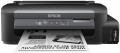 | 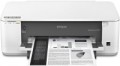 |
|---|---|---|
| Epson WorkForce M105 | Epson WorkForce K101 | |
from $319.98 | from $100.00 | |
| TOP sellers | ||
| Print formats | A4 | A4 |
| Print type | inkjet | inkjet |
| Output type | monochrome | monochrome |
Print | ||
| Max. resolution | 1440x720 dpi | 1440x720 dpi |
| First page print time | 5 с | |
| Mono print | 34 ppm | 37 ppm |
| Duplex printing |  |  |
Printing supplies | ||
| Monthly resource | 7 K pages | |
| Mono cartridge resource | 6000 page | 2000 page |
| Built-in CISS | | |
| Cartridges | 2 | |
| Cartridge model | C13T13614A10 | |
Features | ||
| Data transfer | PC connection (USB-B) Wi-Fi 4 (802.11n) | PC connection (USB-B) network connection (LAN) |
| Screen | no display | no display |
Hardware | ||
| Grammage (min) | 64 g/m² | 64 g/m² |
| Grammage (max) | 95 g/m² | 300 g/m² |
| Drive capacity | 7 GB | |
General | ||
| Feed tray | 100 sheets | 250 sheets |
| Noise level | 38 dB | |
| Power consumption | 13 W | 18 W |
| Dimensions (WxDxH) | 435x267x148 mm | 330x445x154 mm |
| Weight | 3.4 kg | 4.6 kg |
| Added to E-Catalog | january 2013 | april 2012 |


Compare Epson WorkForce M105 and K101
You may be interested in
My comparisons
Epson WorkForce M105 often compared


Glossary
First page print time
The time from the receipt of a print command to the exit from the printer of the first page printed in black and white, in other words, how long after pressing the "Print" button, the user will receive the first page. Most often indicated for draft (fastest) print mode, higher quality will take longer. You should pay attention to this parameter if you often need to print small documents (on one or several pages) on the printer.
Mono print
The black and white print speed provided by the printer. It should be noted that this parameter is often indicated for low quality when the device is running at maximum performance; at a higher quality (even at standard), the actual speed can be noticeably lower, so you should choose with a certain margin. Also note that high speed significantly affects the price, power consumption and noise level. Therefore, it does not always make sense to chase maximum performance — for simple applications (for example, at home or in a small office), a relatively slow and inexpensive device may be the best choice.
As for specific values, speeds up to 20 ppm are considered relatively low, 20 – 30 ppm — average, 31 – 40 ppm — decent, and the fastest models are capable of delivering more than 40 pages per minute.
As for specific values, speeds up to 20 ppm are considered relatively low, 20 – 30 ppm — average, 31 – 40 ppm — decent, and the fastest models are capable of delivering more than 40 pages per minute.
Duplex printing
Automatic duplex printing function .
In this mode, the user does not need to manually turn over each sheet and send it to print on the second side — this will be done by the printer mechanism, and materials printed on both sides will immediately enter the output tray. This not only saves time, but also eliminates confusion: a person can make a mistake and print one of the sides “upside down”, automation does not allow such errors.
In this mode, the user does not need to manually turn over each sheet and send it to print on the second side — this will be done by the printer mechanism, and materials printed on both sides will immediately enter the output tray. This not only saves time, but also eliminates confusion: a person can make a mistake and print one of the sides “upside down”, automation does not allow such errors.
Monthly resource
The maximum number of pages the printer can print in a month while still operating at full capacity.
Mono cartridge resource
The maximum number of pages that the printer's ink (toner) can print. The value is rather conditional, in reality the deviations from the norm are very large (up or down). In inkjet printers, the cartridge life is relatively small and amounts to several hundred prints. In laser and LED devices, the bill is already in the thousands.
Built-in CISS
The printer has a built-in CISS — a continuous ink supply system.
The essence of such a system is that the ink for printing is not in the cartridge, but in external containers, from where it is supplied to the print head as needed. This provides a number of advantages over traditional cartridges. Firstly, CISS containers hold much more ink and need to be refilled less frequently. Secondly, refilling the CISS in terms of one print is much cheaper than "recharging" and even more so replacing the cartridge. Thirdly, dyes of different colours are refilled into such a system separately, and when ink of one colour is exhausted, it is enough to replenish only their stock (whereas some colour cartridges need to be changed completely, even if only one of the colours has run out).
Note that CISS can be installed separately; however, the factory setting is more reliable, such devices are less likely to fail. At the same time, this feature significantly increases the cost and complicates the design of the printer. Therefore, it is worth paying attention to models with built-in CISS first of all if you plan to print often and in large quantities.
The essence of such a system is that the ink for printing is not in the cartridge, but in external containers, from where it is supplied to the print head as needed. This provides a number of advantages over traditional cartridges. Firstly, CISS containers hold much more ink and need to be refilled less frequently. Secondly, refilling the CISS in terms of one print is much cheaper than "recharging" and even more so replacing the cartridge. Thirdly, dyes of different colours are refilled into such a system separately, and when ink of one colour is exhausted, it is enough to replenish only their stock (whereas some colour cartridges need to be changed completely, even if only one of the colours has run out).
Note that CISS can be installed separately; however, the factory setting is more reliable, such devices are less likely to fail. At the same time, this feature significantly increases the cost and complicates the design of the printer. Therefore, it is worth paying attention to models with built-in CISS first of all if you plan to print often and in large quantities.
Cartridges
The number of ink cartridges required for the full operation of the printer. In black and white devices, usually, one cartridge is installed. For colour printing, at least 4 colours are required (CMYK colour scheme), however, cartridges in such devices can be installed as 4 (one for each colour), or only 2 — black and "colour". The latter is essentially three multi-coloured cartridges in one case; This design somewhat reduces the cost, but creates certain inconveniences: when the supply of ink of one colour is exhausted, the entire colour cartridge becomes inoperative. However, this disadvantage is not critical if the possibility of refueling is provided.
Printers designed for more than 4 cartridges are also available. This design means that this model uses one of the extended colour schemes; this, on the one hand, contributes to high-quality colour reproduction, on the other hand, it significantly affects the price. In the most advanced photo printers, the number of cartridges can reach 9.
Printers designed for more than 4 cartridges are also available. This design means that this model uses one of the extended colour schemes; this, on the one hand, contributes to high-quality colour reproduction, on the other hand, it significantly affects the price. In the most advanced photo printers, the number of cartridges can reach 9.
Cartridge model
The types of cartridges (both black and white and colour) used in the printer. Some printer models are able to work with "non-native" cartridges, but this feature usually refers to undocumented features, and the manufacturer's warranty covers only specific types of cartridges. So use "non-native" models with caution.
Data transfer
— Connection to PC (USB-B). Connecting to a PC via USB-B in printers means using the standard USB type B port found on the device body, which is used for data transfer from the computer. This port is usually used in wired printer models and connects to the PC with a USB-A to USB-B cable, where side A is inserted into the computer, and B into the printer. This type of connection provides stable communication, high data transfer speeds, and easy connectivity without network setup.
— Network Connection (LAN). The ability to connect to a local computer network via a standard LAN port (using an Ethernet cable). With such a connection, the printer becomes accessible to all computers on the network, which is very convenient for offices, coworking spaces, and other places where printing is used by different people from different computers. Note that the network connection can be accomplished either through one of the computers on the network or through a common router; in the latter case, the printer remains operational regardless of which computers on the network are currently on. Compared to another connection option — Wi-Fi — wired connection is less convenient due to the need to lay a cable; however, it is cheaper and the connection is maximally reliable.
— Wi-Fi. Wireless technology initially intended for working with computer networks, but nowadays also used for...direct communication between devices (Wi-Fi Direct see below). Typically, printers with Wi-Fi can work as network devices — when communication is via a local network, and all computers on the network have access to the printer; however, the ability for direct gadget connection is less common. Nevertheless, the specific functionality of Wi-Fi should be clarified separately in any case.
— Card Reader. A slot for reading memory cards, usually with a direct printing function (see above). In this case, this function is especially convenient because memory cards are widely used in modern photo and video cameras; thus, the card reader allows for quick and easy printing of captured materials — just remove the card from the camera and insert it into the printer. However, this function can also be useful for exchanging data with other devices — for instance, laptops; and on some printer models, it is even possible to work in an external card reader mode for a PC.
— USB-A. A full-size USB port that allows connecting various external peripherals to the printer. Most often used for direct printing from flash drives and other storage devices, but can also be used for other purposes — such as firmware updates, troubleshooting, etc. Do not confuse this function with connecting to a PC via USB-B, where the printer itself acts as a peripheral device.
— USB-C. A modern interface that replaces the classic USB-B port and provides a more compact, symmetrical, and reliable connection. This port allows quick document transfer from a PC or laptop, often without additional drivers, and is compatible with new devices including MacBook and ultrabooks. USB-C can also be used for connecting flash drives, phones, tablets.
— Bluetooth. A technology for direct wireless communication between various devices. In printers, it is mainly used for the traditional purpose — for receiving materials sent for printing from external devices. One of the advantages of such a connection is that it allows working not only with computers but also with portable gadgets like smartphones and tablets: built-in Bluetooth modules for such gadgets are almost mandatory, whereas wired connection methods are often not available at all. And it can even be more convenient to connect to a PC or laptop this way: Bluetooth requires no wires and confidently works at a distance of about 10 meters.
— NFC. A short-range wireless communication technology — up to 10 cm. In printers, it is usually used as an auxiliary function, to simplify Wi-Fi and Bluetooth connections: instead of manually setting up the connection, simply bring an NFC-enabled gadget close to the printer and confirm the connection. And in some models, materials can even be sent for printing immediately this way (by bringing the device to the printer); for this, usually, a branded application must be installed on the external gadget.
— Wi-Fi Direct. A feature found in models with built-in Wi-Fi modules (see above). Direct support allows other Wi-Fi devices (laptops, smartphones, cameras, etc.) to connect directly to such a printer without using a router and local network. This is especially convenient in the absence of network equipment, or if additional setup is required. The functionality of Wi-Fi Direct connection is generally similar to Bluetooth (see above); the main difference is that Wi-Fi provides faster and more reliable communication with greater range. This is particularly relevant for transferring large volumes of data — for example, sending large-format documents for printing. Additionally, this connection is better suited for direct printing from cameras — in such equipment, Wi-Fi is traditionally used for wireless connection.
— AirPrint. A similar feature to the one described above (Wi-Fi Direct). Allows connection to the device without involving a router. However, in this case, it refers to connecting Apple devices — iPhones, iPads, Mac laptops.
— Network Connection (LAN). The ability to connect to a local computer network via a standard LAN port (using an Ethernet cable). With such a connection, the printer becomes accessible to all computers on the network, which is very convenient for offices, coworking spaces, and other places where printing is used by different people from different computers. Note that the network connection can be accomplished either through one of the computers on the network or through a common router; in the latter case, the printer remains operational regardless of which computers on the network are currently on. Compared to another connection option — Wi-Fi — wired connection is less convenient due to the need to lay a cable; however, it is cheaper and the connection is maximally reliable.
— Wi-Fi. Wireless technology initially intended for working with computer networks, but nowadays also used for...direct communication between devices (Wi-Fi Direct see below). Typically, printers with Wi-Fi can work as network devices — when communication is via a local network, and all computers on the network have access to the printer; however, the ability for direct gadget connection is less common. Nevertheless, the specific functionality of Wi-Fi should be clarified separately in any case.
— Card Reader. A slot for reading memory cards, usually with a direct printing function (see above). In this case, this function is especially convenient because memory cards are widely used in modern photo and video cameras; thus, the card reader allows for quick and easy printing of captured materials — just remove the card from the camera and insert it into the printer. However, this function can also be useful for exchanging data with other devices — for instance, laptops; and on some printer models, it is even possible to work in an external card reader mode for a PC.
— USB-A. A full-size USB port that allows connecting various external peripherals to the printer. Most often used for direct printing from flash drives and other storage devices, but can also be used for other purposes — such as firmware updates, troubleshooting, etc. Do not confuse this function with connecting to a PC via USB-B, where the printer itself acts as a peripheral device.
— USB-C. A modern interface that replaces the classic USB-B port and provides a more compact, symmetrical, and reliable connection. This port allows quick document transfer from a PC or laptop, often without additional drivers, and is compatible with new devices including MacBook and ultrabooks. USB-C can also be used for connecting flash drives, phones, tablets.
— Bluetooth. A technology for direct wireless communication between various devices. In printers, it is mainly used for the traditional purpose — for receiving materials sent for printing from external devices. One of the advantages of such a connection is that it allows working not only with computers but also with portable gadgets like smartphones and tablets: built-in Bluetooth modules for such gadgets are almost mandatory, whereas wired connection methods are often not available at all. And it can even be more convenient to connect to a PC or laptop this way: Bluetooth requires no wires and confidently works at a distance of about 10 meters.
— NFC. A short-range wireless communication technology — up to 10 cm. In printers, it is usually used as an auxiliary function, to simplify Wi-Fi and Bluetooth connections: instead of manually setting up the connection, simply bring an NFC-enabled gadget close to the printer and confirm the connection. And in some models, materials can even be sent for printing immediately this way (by bringing the device to the printer); for this, usually, a branded application must be installed on the external gadget.
— Wi-Fi Direct. A feature found in models with built-in Wi-Fi modules (see above). Direct support allows other Wi-Fi devices (laptops, smartphones, cameras, etc.) to connect directly to such a printer without using a router and local network. This is especially convenient in the absence of network equipment, or if additional setup is required. The functionality of Wi-Fi Direct connection is generally similar to Bluetooth (see above); the main difference is that Wi-Fi provides faster and more reliable communication with greater range. This is particularly relevant for transferring large volumes of data — for example, sending large-format documents for printing. Additionally, this connection is better suited for direct printing from cameras — in such equipment, Wi-Fi is traditionally used for wireless connection.
— AirPrint. A similar feature to the one described above (Wi-Fi Direct). Allows connection to the device without involving a router. However, in this case, it refers to connecting Apple devices — iPhones, iPads, Mac laptops.