
Comparison GamePro MK160 vs GamePro MK180
Add to comparison |  | 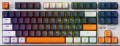 |
|---|---|---|
| GamePro MK160 | GamePro MK180 | |
| Outdated Product | Outdated Product | |
| User reviews | ||
| TOP sellers | ||
| Connection | wired | wired |
| Cable length | 1.8 m | 1.8 m |
| Type | for game | for game |
| Form factor | 75% (compact TKL, without Num-block) | 80% (TKL, without Numpad) |
| Layout | ANSI | ANSI |
Keyboard | ||
| Key profile | high | high |
| Key type | classic type | classic type |
| Switch technology | mechanical | mechanical |
| Switches | Outemu Red (Linear) | Outemu Red (Linear) |
| Switch resource | 50 million clicks | 50 million clicks |
| Hot Swap |  | |
| Additional keys | 2 | |
| Anti-Ghosting | | |
| #KRO | N-KRO | N-KRO |
| Fn key | | |
Features | ||
| Cyrillic colour | transparent | transparent |
| Application of symbols (Latin) | double-shot | |
| Volume control | wheel | wheel |
| Game mode | | |
| Lighting | RGB | RGB |
| Lighting effects | + | + |
Connection and power supply | ||
| Cable | USB-A removable | USB-A removable |
| Port on the device | USB C | USB C |
General | ||
| Gasket Mount | | |
| Size | 327x135x41 mm | 365x138x40 mm |
| Weight | 640 g | 800 g |
| Added to E-Catalog | july 2024 | july 2024 |


Compare GamePro MK160 and MK180
Keyboards GamePro MK160 and MK180 have many similar features, such as wired connection, Outemu Red mechanical switches with a lifespan of 50 million presses, and RGB lighting with effects. However, the MK180 offers a compact layout without a numpad and includes two additional keys, which may be more convenient for users who prefer to save space on their desk. Meanwhile, the MK160 has a standard layout and is slightly lighter. Both devices support Hot Swap and have a high key travel, but the MK180 weighs 800 g compared to 640 g for the MK160. The choice between them depends on preferences for the layout and weight of the keyboard.
You may be interested in
My comparisons
GamePro MK160 often compared


GamePro MK180 often compared


Glossary
Form factor
— 100% (full-sized). Classic layout with 104/105 keys featuring a full NumPad, dedicated F1–F12 row, and navigation cluster including Insert/Delete, Home/End, PgUp/PgDn; this version is valued for its familiar geometry, typing speed, and ease of frequent number entry, making it optimal for work in Excel, accounting, IDEs, and editing programs, while in games, the NumPad is often used for binds and macros; compared to TKL/80% without a numeric block, as well as 96% and 1800-compact, the 100% format offers maximum comfort and requires less retraining, but takes up more desk space and pushes the mouse further away, so for compact workplaces, it might be wiser to consider smaller formats.
— 1800 (compact full-sized). A full-featured layout with a numeric block but in a narrower body: the NumPad is shifted closer to the main field, and navigation is often placed above it or compacted next to the arrow keys. It feels like "100%", but is shorter by a few centimeters, so the mouse is closer to the center, offering more comfort for wrists. Compared to TKL, you retain fast number entry, and against 96%, you gain a slightly more "airy" geometry with clear orientation. Note the non-standard sizes of some keys and the right block, which sometimes require special keycap sets. This format is convenient for Excel, accounting, IDEs, and editing, while offering gamers the NumPad for macros while saving desk space.
...r>
— 96% (compact full-sized). Keyboards that preserve all key zones of 100% (F1–F12 row, arrow keys, navigation, and NumPad) but place them in a tight "grid" layout, almost like TKL in width. The numeric block is shifted closer to the main area, while Insert/Home/End and PgUp/PgDn are often reduced to 1u and grouped above the arrows or next to the NumPad. Compared to the 1800 format, 96% is even more compact and visually "smoother," and against TKL, you do not lose the speed of number entry. Note the possible non-standard sizes of the right shift, zeros, and plus on the NumPad, requiring a more selective keycap choice. This format is chosen for Excel and accounting, editing and coding, while gamers use the NumPad for macros, gaining maximum functions with minimal table width.
— 80% (TKL, without Num-block). A full-featured keyboard without a numeric block: retains the F1–F12 row, arrow keys, and navigation Insert/Delete, Home/End, PgUp/PgDn, but is considerably narrower, bringing the mouse closer to the center, which is easier on the shoulders and wrists. Gamers and developers favor this format: there’s more desk space, while familiar keys and hotkeys remain in place. Compared to 100%, you only lose quick number entry, which can be supplemented with a separate wireless NumPad. In comparison to 75%, TKL is more readable and "airy" thanks to its separate navigation block; unlike 96%, it is more compact for mouse grip, though lacking a NumPad. The 80% (TKL) format is optimal for FPS, work in IDEs, editing, and everyday office tasks where numbers aren’t entered continuously.
— 75% (compact TKL, without Num-block). "Almost TKL," where all main keys are within reach, but the body is shorter by several centimeters due to a tight "staircase" arrangement of arrows and navigation. Compared to 80%, it decreases the distance between hands and mouse, enhancing ergonomics for prolonged use, and relative to 100% and 96%, you lose only the numeric block, gaining space for the mouse and a more neutral shoulder posture. This format is chosen for IDEs and design packages, FPS and MOBA, mobile setups with narrow desks, when numbers are entered infrequently or supplemented with an external NumPad. Note: 75% may have non-standard sizes in the right block and individual keys, which is important when selecting keycaps and stabilizers.
— 65% (ultra-compact, without F-row). "Condensed TKL": the alphanumeric block, arrow keys, and a pair of navigation keys remain in place, while the NumPad and the top F1–F12 row are accessed via Fn. This layout is significantly narrower in width, moving the mouse closer to the center, which reduces the spread of arms — ideal for narrow desks, when working on a laptop, and for travel. Compared to 60%, the 65% format is more practical thanks to dedicated arrows and Delete; against 75% and 80%, it is more compact but often requires getting accustomed to layers. Possible non-standard sizes of the right shift and navigation keys are important when choosing keycaps. In real-world scenarios, the 65% format is excellent for IDEs, streaming, and FPS/MOBA games, while regular number entry is complemented by an external wireless NumPad.
— 60% (mini). Classic "trimmed" layout with ~61/62 keys without NumPad, no F1–F12 top row, and no separate navigation cluster: all accessed through the Fn layer, with arrows usually assigned to combinations. Compared to 65%, this format is even more compact but often requires acclimatization to layers; against 75%/80%, you save desk width and achieve a more neutral shoulder posture, at the cost of losing "quick" F-keys. The strong points of 60% are portability, free space for the mouse and mat, and reduced arm movement between keyboard and mouse, making it popular with FPS gamers, streamers, and those working on laptops at narrow desks or traveling. If active number entry or "hot" F-keys are needed, an external wireless NumPad and well-thought-out layer layout help.
— 40% (ultra-mini). Radically compact layout with about 40–50 keys, lacking a number row, arrows, and F-keys: all are accessed via Fn layers, combined presses, and macros, often with an ortholinear matrix. Due to the minimal width, the mouse is closer to the center, reducing hand spread and freeing up desk space, appreciated by mobile users and minimalists. Compared to 60% and 65%, the 40% format requires more serious adaptation and thoughtful firmware (QMK/VIA, home-row mods, tap-dance), and keycap selection is more challenging due to non-standard sizes. The strong point is portability and speed after getting used to it; weakness — reliance on layers and inconvenience of frequent number entry and arrow navigation. The 40% format is practical for travel, work on laptops with docking stations, text editing with hotkeys, and streaming, while numbers are usually supplemented with an external NumPad.
— 1800 (compact full-sized). A full-featured layout with a numeric block but in a narrower body: the NumPad is shifted closer to the main field, and navigation is often placed above it or compacted next to the arrow keys. It feels like "100%", but is shorter by a few centimeters, so the mouse is closer to the center, offering more comfort for wrists. Compared to TKL, you retain fast number entry, and against 96%, you gain a slightly more "airy" geometry with clear orientation. Note the non-standard sizes of some keys and the right block, which sometimes require special keycap sets. This format is convenient for Excel, accounting, IDEs, and editing, while offering gamers the NumPad for macros while saving desk space.
— 80% (TKL, without Num-block). A full-featured keyboard without a numeric block: retains the F1–F12 row, arrow keys, and navigation Insert/Delete, Home/End, PgUp/PgDn, but is considerably narrower, bringing the mouse closer to the center, which is easier on the shoulders and wrists. Gamers and developers favor this format: there’s more desk space, while familiar keys and hotkeys remain in place. Compared to 100%, you only lose quick number entry, which can be supplemented with a separate wireless NumPad. In comparison to 75%, TKL is more readable and "airy" thanks to its separate navigation block; unlike 96%, it is more compact for mouse grip, though lacking a NumPad. The 80% (TKL) format is optimal for FPS, work in IDEs, editing, and everyday office tasks where numbers aren’t entered continuously.
— 75% (compact TKL, without Num-block). "Almost TKL," where all main keys are within reach, but the body is shorter by several centimeters due to a tight "staircase" arrangement of arrows and navigation. Compared to 80%, it decreases the distance between hands and mouse, enhancing ergonomics for prolonged use, and relative to 100% and 96%, you lose only the numeric block, gaining space for the mouse and a more neutral shoulder posture. This format is chosen for IDEs and design packages, FPS and MOBA, mobile setups with narrow desks, when numbers are entered infrequently or supplemented with an external NumPad. Note: 75% may have non-standard sizes in the right block and individual keys, which is important when selecting keycaps and stabilizers.
— 65% (ultra-compact, without F-row). "Condensed TKL": the alphanumeric block, arrow keys, and a pair of navigation keys remain in place, while the NumPad and the top F1–F12 row are accessed via Fn. This layout is significantly narrower in width, moving the mouse closer to the center, which reduces the spread of arms — ideal for narrow desks, when working on a laptop, and for travel. Compared to 60%, the 65% format is more practical thanks to dedicated arrows and Delete; against 75% and 80%, it is more compact but often requires getting accustomed to layers. Possible non-standard sizes of the right shift and navigation keys are important when choosing keycaps. In real-world scenarios, the 65% format is excellent for IDEs, streaming, and FPS/MOBA games, while regular number entry is complemented by an external wireless NumPad.
— 60% (mini). Classic "trimmed" layout with ~61/62 keys without NumPad, no F1–F12 top row, and no separate navigation cluster: all accessed through the Fn layer, with arrows usually assigned to combinations. Compared to 65%, this format is even more compact but often requires acclimatization to layers; against 75%/80%, you save desk width and achieve a more neutral shoulder posture, at the cost of losing "quick" F-keys. The strong points of 60% are portability, free space for the mouse and mat, and reduced arm movement between keyboard and mouse, making it popular with FPS gamers, streamers, and those working on laptops at narrow desks or traveling. If active number entry or "hot" F-keys are needed, an external wireless NumPad and well-thought-out layer layout help.
— 40% (ultra-mini). Radically compact layout with about 40–50 keys, lacking a number row, arrows, and F-keys: all are accessed via Fn layers, combined presses, and macros, often with an ortholinear matrix. Due to the minimal width, the mouse is closer to the center, reducing hand spread and freeing up desk space, appreciated by mobile users and minimalists. Compared to 60% and 65%, the 40% format requires more serious adaptation and thoughtful firmware (QMK/VIA, home-row mods, tap-dance), and keycap selection is more challenging due to non-standard sizes. The strong point is portability and speed after getting used to it; weakness — reliance on layers and inconvenience of frequent number entry and arrow navigation. The 40% format is practical for travel, work on laptops with docking stations, text editing with hotkeys, and streaming, while numbers are usually supplemented with an external NumPad.
Additional keys
The number of additional keys provided in the design of the keyboard.
Such keys do not belong to the standard layout and are intended for quick access to specific functions or individual applications — for example, to control the media player or open mail with one click. This function is convenient because commands from additional keys are usually recognized by the system regardless of what is on the screen — thanks to this, for example, you do not have to close the text editor to switch tracks in the player.
Note that in this case we are talking about individual keys that have a strictly defined purpose and corresponding markings. Programmable buttons, the Fn key (see below) and the functions of the main keys implemented through Fn are not taken into account in this paragraph.
Such keys do not belong to the standard layout and are intended for quick access to specific functions or individual applications — for example, to control the media player or open mail with one click. This function is convenient because commands from additional keys are usually recognized by the system regardless of what is on the screen — thanks to this, for example, you do not have to close the text editor to switch tracks in the player.
Note that in this case we are talking about individual keys that have a strictly defined purpose and corresponding markings. Programmable buttons, the Fn key (see below) and the functions of the main keys implemented through Fn are not taken into account in this paragraph.
Application of symbols (Latin)
Legend application indicates how the Latin characters on the keys are made and how well they will survive years of heavy typing.
— Double-shot. The keycap is molded from two different plastics: the main “body” and a separate legend insert are formed together in a single mold, so the letters don’t wear off or fade at all. This method is ideal for RGB backlighting: if the legend layer is semi-transparent, light passes through the symbols without halos. ABS double-shot is more common (bright glow, pleasantly smooth feel), while the pricier PBT double-shot is rarer and offers higher surface wear resistance. Compared to laser engraving, the lifespan is an order of magnitude higher, and it beats the dye-sub method for backlighting (dye-sub doesn’t shine through). Downsides include cost and sometimes visible seams/thick walls that can affect the click’s sound profile. In practice, these keycaps are in demand for mechanical gaming keyboards, esports arenas, developers, and frequent hotkey typing—where double-shot keeps legends readable for years.
— Sublimation. A method of applying Latin symbols to keycaps where, under heat and pressure, the dye penetrates the top layer of plastic, creating a durable, “absorbed” legend. The print won’t rub off from fingers, resists household cleaners and UV light, preserves a matte texture, and maintains high contrast on light backgrounds, but it doesn’t let RGB shine through the symbols and is limited in palette. Compared to laser...engraving, it offers higher lifespan and readability, and versus double-shot it only loses in shine-through effects. Typical use cases include mechanical keyboards for typing, developers, and office work, where durability, the tactile matte PBT feel, and stable readability over years matter.
— Laser engraving. Burning/removing the top coating layer with a beam to form highly precise symbols. Legends last for years, but over time the fill paint can wear and contrast can drop in high-contact areas. Advantages include thin typefaces, clean contours, RGB compatibility, and low cost. Compared to double-shot, engraving is cheaper and more flexible in design, but not “forever”; versus dye-sub it wins on backlighting, but loses in tactile uniformity and longevity. Typical applications are mass-market office and gaming models with backlighting.
— Double-shot. The keycap is molded from two different plastics: the main “body” and a separate legend insert are formed together in a single mold, so the letters don’t wear off or fade at all. This method is ideal for RGB backlighting: if the legend layer is semi-transparent, light passes through the symbols without halos. ABS double-shot is more common (bright glow, pleasantly smooth feel), while the pricier PBT double-shot is rarer and offers higher surface wear resistance. Compared to laser engraving, the lifespan is an order of magnitude higher, and it beats the dye-sub method for backlighting (dye-sub doesn’t shine through). Downsides include cost and sometimes visible seams/thick walls that can affect the click’s sound profile. In practice, these keycaps are in demand for mechanical gaming keyboards, esports arenas, developers, and frequent hotkey typing—where double-shot keeps legends readable for years.
— Sublimation. A method of applying Latin symbols to keycaps where, under heat and pressure, the dye penetrates the top layer of plastic, creating a durable, “absorbed” legend. The print won’t rub off from fingers, resists household cleaners and UV light, preserves a matte texture, and maintains high contrast on light backgrounds, but it doesn’t let RGB shine through the symbols and is limited in palette. Compared to laser...engraving, it offers higher lifespan and readability, and versus double-shot it only loses in shine-through effects. Typical use cases include mechanical keyboards for typing, developers, and office work, where durability, the tactile matte PBT feel, and stable readability over years matter.
— Laser engraving. Burning/removing the top coating layer with a beam to form highly precise symbols. Legends last for years, but over time the fill paint can wear and contrast can drop in high-contact areas. Advantages include thin typefaces, clean contours, RGB compatibility, and low cost. Compared to double-shot, engraving is cheaper and more flexible in design, but not “forever”; versus dye-sub it wins on backlighting, but loses in tactile uniformity and longevity. Typical applications are mass-market office and gaming models with backlighting.