
Comparison Huion HS611 vs Huion HS610
Add to comparison | 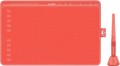 | 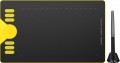 |
|---|---|---|
| Huion HS611 | Huion HS610 | |
| Compare prices 1 | Compare prices 1 | |
| TOP sellers | ||
Drawing lesson included | ||
| Product type | graphics Tablet | graphics Tablet |
| Format | A5 | A5 |
| Workspace | 258x161 mm | 254x159 mm |
| Aspect ratio | 16:10 | 16:10 |
| Control keys | 10 | 12 |
| Touch ring |  |  |
| Touch strip | | |
Connection | ||
| Connection type | wired | wired |
| Connector on device | USB C | microUSB |
| Compatibility | Windows MacOS Android | Windows MacOS Android |
Pen | ||
| Pen model | PW500 | PW100 |
| Pen power source | no battery (passive) | no battery (passive) |
| Max. reading height | 10 mm | 10 mm |
| Pressure levels | 8192 | 8192 |
| Pen angle | 60 ° | 60 ° |
| Resolution | 5080 lpi | 5080 lpi |
| Response | 266 PPS | 266 PPS |
| Control keys | 2 | 2 |
General | ||
| In box | replacement pen nibs pen holder | replacement pen nibs pen holder |
| Power source | USB port | USB port |
| Size | 333x218x7.3 mm | 350x212x8 mm |
| Tablet weight | 0.55 kg | 0.6 kg |
| Added to E-Catalog | october 2020 | january 2020 |

Compare Huion HS611 and HS610
Graphic tablets Huion HS611 and Huion HS610 have similar features, but there are a few key differences. Both tablets are A5 format with a working area of about 254-258 mm, however, the HS611 is slightly larger and lighter (0.55 kg versus 0.6 kg for the HS610). The HS611 has 12 control keys, while the HS610 has 10, which may be important for users who need additional features. The HS611 connects via USB-C, while the HS610 uses microUSB. Both devices support 8192 pressure levels and have the same resolution and pen response. The choice between them may depend on connection preferences and the number of keys.
Price comparison
You may be interested in
Huion HS611 often compared


Huion HS610 often compared


Glossary
Workspace
The exact size of the active area of a tablet (or screen in a graphic display) in width and height. In general, it is more of a reference than a practically significant parameter: when choosing a traditional graphics tablet, there is often enough information about the format (see above), and for displays, primarily the diagonal (see above) and aspect ratio (see below) are of practical importance . However, the exact dimensions can also be useful in fact: for example, you can determine the aspect ratio from them (for classic tablets, this parameter is often not indicated).
Control keys
The number of control keys provided in the design of the tablet.
Each of these keys is responsible for a specific function, while the set of these functions can be configured: in some models they can be selected manually, in others the functionality of the keys changes automatically, depending on the currently active application. Anyway, additional keys allow the user to perform various actions without looking up from the tablet — this can be very convenient in the midst of the work process, when you don’t want to change the pen to the mouse again or reach for the keyboard. And the more control keys — so, respectively, more additional actions can be performed using the tablet. On the other hand, with relatively simple tasks, the abundance of additional buttons can hinder and confuse the user rather than help.
The most modest modern tablets provide up to 5 control keys ; the most popular option is from 6 to 10 keys, and in advanced models this number can reach 15 or even more.
Each of these keys is responsible for a specific function, while the set of these functions can be configured: in some models they can be selected manually, in others the functionality of the keys changes automatically, depending on the currently active application. Anyway, additional keys allow the user to perform various actions without looking up from the tablet — this can be very convenient in the midst of the work process, when you don’t want to change the pen to the mouse again or reach for the keyboard. And the more control keys — so, respectively, more additional actions can be performed using the tablet. On the other hand, with relatively simple tasks, the abundance of additional buttons can hinder and confuse the user rather than help.
The most modest modern tablets provide up to 5 control keys ; the most popular option is from 6 to 10 keys, and in advanced models this number can reach 15 or even more.
Touch ring
The device has a touch ring for quick control of popular parameters. By simply moving your finger around the ring, you can zoom and scroll in graphics applications, switch between layers, change brush size, rotate the canvas, etc. Note that the touch ring can have several operating modes, and a physical button in the center of the circle is often responsible for switching between them. In advanced devices, the ring can be reprogrammed for certain actions, and even sensitivity (scrolling speed) can be adjusted.
Touch strip
A touch-sensitive surface, usually located along one of the edges of the front panel of the tablet case. The touch strip provides additional controls such as scrolling, zooming, canvas rotation, and other gestures that can be customized to perform different tasks. Thus, the strip can often be reprogrammed for certain actions, be it quickly switching between tools in a graphic editor or changing brush parameters.
Connector on device
- microUSB. A smaller version of the USB connector designed for portable devices. Currently it is losing ground to the USB type C interface with a more convenient symmetrical contact group.
- miniUSB. Almost the same interface as described above, which differs only in the size and shape of the connector.
— USB-A. Standard (full-size) USB connector used to connect the device to a computer and other external devices.
— USB-C. A miniature version of the USB connector, gaining popularity and in the future capable of displacing microUSB. The interface has a high data transfer rate, and most importantly, it is symmetrical, so the plug can be connected to either side.
- Branded. A connection connector that does not belong to generally accepted standards and is used to a limited extent - in models of one or several manufacturers. However, due to general standardization, this option has practically disappeared from the scene.
- miniUSB. Almost the same interface as described above, which differs only in the size and shape of the connector.
— USB-A. Standard (full-size) USB connector used to connect the device to a computer and other external devices.
— USB-C. A miniature version of the USB connector, gaining popularity and in the future capable of displacing microUSB. The interface has a high data transfer rate, and most importantly, it is symmetrical, so the plug can be connected to either side.
- Branded. A connection connector that does not belong to generally accepted standards and is used to a limited extent - in models of one or several manufacturers. However, due to general standardization, this option has practically disappeared from the scene.
Pen model
The model of the pen that comes with the device. Allows you to understand which one is used and learn more fully its full characteristics. In this case, in the case of a replacement, you will already be aware of which accessory is needed for the purchase. However, nothing prevents you from replacing the existing one with a more advanced one, of course, if the graphics tablet itself allows you to work with a different pen model.