
Comparison Razer DeathAdder V3 Pro vs Razer DeathAdder Essential
Add to comparison | 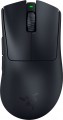 | 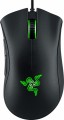 |
|---|---|---|
| Razer DeathAdder V3 Pro | Razer DeathAdder Essential | |
| Compare prices 23 | Compare prices 101 | |
| User reviews | ||
| TOP sellers | ||
4G sensor. Company switches. Additional keys. Razer Synapse app. | ||
| Product type | mouse | mouse |
| Connection | radio / wired | wired |
| Sensor | optical | optical |
| Type | for game | for game |
Sensor and control | ||
| Sensor | Razer Focus Pro | |
| Sensor resolution | 400 – 30000 DPI | 6400 DPI |
| Max. acceleration | 70 G | 30 G |
| Max. speed | 750 ips | 220 ips |
| Max. polling rate | 1000 Hz (1 ms) | 1000 Hz (1 ms) |
| Number of buttons | 4 | 4 |
| Side buttons |  | |
| DPI-button | |  |
| Switch type | optical | mechanical |
| Switches | Razer Gen-3 | Razer (Omron D2FC-F-7N) |
| Switch resource | 90 mln | |
| Scroll wheels | 1 | 1 |
Additional features | ||
| Optimal grip | finger, claw | palmar |
| Programmable buttons | | |
| Built-in memory | | |
| Lighting | green | |
| Lighting effects | + | |
| Feet material | teflon (PTFE) | teflon (PTFE) |
Connection and power supply | ||
| Cable | USB-A removable braided | USB-A braided |
| Cable length | 2.1 m | 1.8 m |
| Power source | battery | |
| Battery life | 90 h | |
| Port on the device | USB-C | |
General | ||
| In box | USB-A dongle | |
| Size (LxWxH) | 128x68x44 mm | 127x73x43 mm |
| Weight | 63 g | 96 g |
| Color | ||
| Added to E-Catalog | october 2022 | august 2019 |





Compare Razer DeathAdder V3 Pro and DeathAdder Essential
Comparing the Razer DeathAdder V3 Pro and Razer DeathAdder Essential, several key differences can be highlighted. The DeathAdder V3 Pro offers a significantly higher maximum DPI — up to 30000 compared to Essential's 6400, making it more suitable for professional gamers. Additionally, the V3 Pro is lighter (63g vs. 96g) and features a more advanced optical sensor. Unlike the Essential, the V3 Pro supports both wired and wireless connections and offers longer battery life — up to 90 hours. At the same time, the DeathAdder Essential, being a more affordable model, offers good ergonomics and reliable mechanical switches, but with fewer customization options and performance. Therefore, the choice between these mice depends on your needs: the V3 Pro is suited for serious gaming, while the Essential is a good choice for everyday use.
Price comparison
You may be interested in
Razer DeathAdder V3 Pro often compared


Razer DeathAdder Essential often compared


Glossary
Connection
The type of connection used by the mouse.
All types of mouse connection can be divided into wired and wireless. There are also combined models that allow both methods; however, for a number of reasons, they have not received much distribution.
Wired mice can vary in connector type; however, the universal standard nowadays is USB, other options are much less common (see "Cable" for them). Anyway, such mice are much cheaper than wireless counterparts, moreover, they do not require batteries / accumulators and have an almost unlimited lifespan. On the other hand, the wire restricts mobility and can be inconvenient when connecting, especially if the computer is located far away or in a hard-to-reach place.
Wireless devices, in turn, can connect via radio, Bluetooth, or Wi-Fi ; in some models, two options are combined — at the user's choice, (usually radio and Bluetooth). Regardless of the interface used, all such models are more convenient than wired ones due, in fact, to the absence of a cable; and their range is at least a few metres, so a wireless mouse can also work as a kind of remote control. At the same time, a wireless connection is more expensive than a wired connection, and besides, it requires autonomous power supply — as a result, the per...iod of continuous operation of the mouse is limited.
As for the different types of wireless connection, here are their features:
— Radio. To connect over the air, usually, a wireless adapter is used, which is connected to the USB port of the computer. This method is convenient in that it can be used with any computer, including systems that do not have built-in Bluetooth or Wi-Fi modules. The disadvantages of this option include the fact that the adapter requires a free connector; as a result, with a small number of USB ports, difficulties can arise. However, this moment, if necessary, can be easily corrected by connecting a USB hub; so it is this connection method that is most popular among modern wireless mice.
— Bluetooth. The main advantage of this connection method is that many modern devices — laptops, most monoblock computers, smart TVs, etc. — have built-in Bluetooth modules. Thus, you can connect the mouse to such equipment directly, without occupying hardware connectors. And for PCs not equipped with internal Bluetooth modules, appropriate adapters are available (which may even be included with the mouse). In addition, some advanced models with such a connection are able to remember several Bluetooth devices at the same time and switch between them literally “with the touch of a button”. The Bluetooth communication range is at least 10 m with line of sight.
— Wi-Fi. A rather specific option, which is extremely rare — in certain models of laptop mice (see "In the direction"). In many respects it is similar to Bluetooth — in particular, it is designed mainly to work with built-in modules and allows you to use a mouse without occupying hardware connectors. At the same time, the range of communication via Wi-Fi is much greater. On the other hand, this advantage is not of fundamental importance, and on the technical side, the creation of Wi-Fi mice is associated with certain difficulties. That is why this type of connection has not received distribution.
All types of mouse connection can be divided into wired and wireless. There are also combined models that allow both methods; however, for a number of reasons, they have not received much distribution.
Wired mice can vary in connector type; however, the universal standard nowadays is USB, other options are much less common (see "Cable" for them). Anyway, such mice are much cheaper than wireless counterparts, moreover, they do not require batteries / accumulators and have an almost unlimited lifespan. On the other hand, the wire restricts mobility and can be inconvenient when connecting, especially if the computer is located far away or in a hard-to-reach place.
Wireless devices, in turn, can connect via radio, Bluetooth, or Wi-Fi ; in some models, two options are combined — at the user's choice, (usually radio and Bluetooth). Regardless of the interface used, all such models are more convenient than wired ones due, in fact, to the absence of a cable; and their range is at least a few metres, so a wireless mouse can also work as a kind of remote control. At the same time, a wireless connection is more expensive than a wired connection, and besides, it requires autonomous power supply — as a result, the per...iod of continuous operation of the mouse is limited.
As for the different types of wireless connection, here are their features:
— Radio. To connect over the air, usually, a wireless adapter is used, which is connected to the USB port of the computer. This method is convenient in that it can be used with any computer, including systems that do not have built-in Bluetooth or Wi-Fi modules. The disadvantages of this option include the fact that the adapter requires a free connector; as a result, with a small number of USB ports, difficulties can arise. However, this moment, if necessary, can be easily corrected by connecting a USB hub; so it is this connection method that is most popular among modern wireless mice.
— Bluetooth. The main advantage of this connection method is that many modern devices — laptops, most monoblock computers, smart TVs, etc. — have built-in Bluetooth modules. Thus, you can connect the mouse to such equipment directly, without occupying hardware connectors. And for PCs not equipped with internal Bluetooth modules, appropriate adapters are available (which may even be included with the mouse). In addition, some advanced models with such a connection are able to remember several Bluetooth devices at the same time and switch between them literally “with the touch of a button”. The Bluetooth communication range is at least 10 m with line of sight.
— Wi-Fi. A rather specific option, which is extremely rare — in certain models of laptop mice (see "In the direction"). In many respects it is similar to Bluetooth — in particular, it is designed mainly to work with built-in modules and allows you to use a mouse without occupying hardware connectors. At the same time, the range of communication via Wi-Fi is much greater. On the other hand, this advantage is not of fundamental importance, and on the technical side, the creation of Wi-Fi mice is associated with certain difficulties. That is why this type of connection has not received distribution.
Sensor
The model of the sensor installed in the mouse. This information is indicated mainly for models equipped with high-end sensors, which are significantly superior in their capabilities to simpler solutions. Such characteristics are important primarily for gaming mice, so most of the devices for which the sensor model is specified belong to this category.
Knowing the name, you can find detailed data on the sensor and evaluate its capabilities. Note that one of the most popular brands nowadays, under which advanced sensors are produced, is PixArt ; on the market are often found, in particular, sensors PixArt 3212, PixArt 3325, PixArt 3327, PixArt 3335, PixArt 3360, PixArt 3389, PixArt 3395, PixArt 3950.
Knowing the name, you can find detailed data on the sensor and evaluate its capabilities. Note that one of the most popular brands nowadays, under which advanced sensors are produced, is PixArt ; on the market are often found, in particular, sensors PixArt 3212, PixArt 3325, PixArt 3327, PixArt 3335, PixArt 3360, PixArt 3389, PixArt 3395, PixArt 3950.
Sensor resolution
Resolution of the sensor responsible for tracking mouse movements on the work surface. Specified in DPI — dots per inch.
The physical meaning of DPI as a whole is as follows. The sensor of a modern mouse works on the same principle as the camera matrix, and consists of pixels. And DPI is the number of pixels that fall on 1 inch of the underlying surface (length or width), "visible" by the sensor.
It is believed that more DPI means a more advanced sensor and mouse in general; nowadays, models for 3500 – 5000 DPI, 12000 DPI, 16000 DPI even more are not uncommon. In a way, it is — high resolution contributes to accuracy. However, the only thing that is directly determined by this indicator is the speed at which the cursor moves across the screen: the higher the resolution of the sensor, the greater the number of pixels that the cursor will move when the mouse itself moves a certain distance. At the same time, it is worth recalling that too high a speed is even more undesirable than too low. So the real need for high DPI ( 1000 and above) arises mainly when working on large screens (4K resolution and more); for more modest displays (HD and Full HD), smaller values are often enough.
The physical meaning of DPI as a whole is as follows. The sensor of a modern mouse works on the same principle as the camera matrix, and consists of pixels. And DPI is the number of pixels that fall on 1 inch of the underlying surface (length or width), "visible" by the sensor.
It is believed that more DPI means a more advanced sensor and mouse in general; nowadays, models for 3500 – 5000 DPI, 12000 DPI, 16000 DPI even more are not uncommon. In a way, it is — high resolution contributes to accuracy. However, the only thing that is directly determined by this indicator is the speed at which the cursor moves across the screen: the higher the resolution of the sensor, the greater the number of pixels that the cursor will move when the mouse itself moves a certain distance. At the same time, it is worth recalling that too high a speed is even more undesirable than too low. So the real need for high DPI ( 1000 and above) arises mainly when working on large screens (4K resolution and more); for more modest displays (HD and Full HD), smaller values are often enough.
Max. acceleration
The greatest acceleration during movement, at which the mouse maintains normal performance; if this indicator is exceeded, the cursor may “break down” (moving to an unexpected place due to incorrect processing of data from the sensor).
The faster the mouse moves, the greater the acceleration acting on it. Accordingly, this parameter determines the sensitivity to sudden movements, the extent to which this model is able to normally perceive and process such movements. High values of maximum acceleration ( 40 G, 50 G) are important first of all in dynamic games, especially for professional e-sportsmen and advanced enthusiasts. If the mouse is bought for relatively simple tasks (working with documents, surfing the web, etc.), you can ignore this indicator.
The faster the mouse moves, the greater the acceleration acting on it. Accordingly, this parameter determines the sensitivity to sudden movements, the extent to which this model is able to normally perceive and process such movements. High values of maximum acceleration ( 40 G, 50 G) are important first of all in dynamic games, especially for professional e-sportsmen and advanced enthusiasts. If the mouse is bought for relatively simple tasks (working with documents, surfing the web, etc.), you can ignore this indicator.
Max. speed
The ips (inches per second) parameter is the linear speed of mouse movement, expressed in inches per second, at which the manipulator's sensor is able to read the surface. In top models, the maximum mouse movement speed often reaches 400-600 ips, but devices with ips in the region of 200 are more common.
DPI-button
A separate button that allows you to change the working resolution of the sensor on the fly without going into the software settings.
Recall that the sensitivity of the mouse and the speed of moving the cursor around the screen depend on the set DPI. For different tasks, the optimal DPI values \u200b\u200bcan also be different: for example, when working with graphic materials or maps on a large screen, high sensitivity is often convenient, and in a shooting game you may need to reduce it — for accurate aiming. Setting the sensitivity using the DPI switch button is as simple and convenient as possible: it is available regardless of the currently running programme, including in situations where it is difficult or impossible to enter the software settings of the mouse (the same games can be used as an example). Also note that the DPI level indicator can be built into this button (see below).
Recall that the sensitivity of the mouse and the speed of moving the cursor around the screen depend on the set DPI. For different tasks, the optimal DPI values \u200b\u200bcan also be different: for example, when working with graphic materials or maps on a large screen, high sensitivity is often convenient, and in a shooting game you may need to reduce it — for accurate aiming. Setting the sensitivity using the DPI switch button is as simple and convenient as possible: it is available regardless of the currently running programme, including in situations where it is difficult or impossible to enter the software settings of the mouse (the same games can be used as an example). Also note that the DPI level indicator can be built into this button (see below).
Switch type
The type of switches in a mouse indicates the mechanism used under the main buttons to register a click. It affects the feel when pressing, actuation speed, lifespan, and resistance to accidental double clicks.
— Optical. Button mechanisms where the press is registered not by closing metal contacts but by interrupting a light beam. This makes them faster, less prone to wear, and almost unaffected by accidental double-click issues.
These switches are especially valued in gaming mice, where response speed and stability after a large number of clicks are crucial. For example, in shooters or MOBA games, they help achieve clear feedback without delay and contact bouncing.
— Mechanical. Classic button mechanisms where a click is registered due to the closing of metal contacts. They provide a familiar tactile feel, a well-audible click, and are widely used in both office and gaming models.
Compared to optical switches, mechanical ones are usually simpler and cheaper, but over time the contacts may wear out. For example, with active gaming or daily work, after a few years, a double click might occur instead of a single press.
— Optical. Button mechanisms where the press is registered not by closing metal contacts but by interrupting a light beam. This makes them faster, less prone to wear, and almost unaffected by accidental double-click issues.
These switches are especially valued in gaming mice, where response speed and stability after a large number of clicks are crucial. For example, in shooters or MOBA games, they help achieve clear feedback without delay and contact bouncing.
— Mechanical. Classic button mechanisms where a click is registered due to the closing of metal contacts. They provide a familiar tactile feel, a well-audible click, and are widely used in both office and gaming models.
Compared to optical switches, mechanical ones are usually simpler and cheaper, but over time the contacts may wear out. For example, with active gaming or daily work, after a few years, a double click might occur instead of a single press.
Switches
The switches in a mouse indicate which specific switches are installed under the main buttons, such as Omron, Huano, Kailh, TTC, or proprietary solutions from the manufacturer. These determine the click characteristics, actuation force, click volume, lifespan, and the likelihood of double-clicking over time.
Unlike the general switch type, which refers to the working principle—mechanical or optical—the brand and model provide a more precise understanding of the performance level. For example, two mice with mechanical switches might feel different when clicked: some may be softer and quieter, while others could be stiffer, louder, and feel more "gaming-like."
Unlike the general switch type, which refers to the working principle—mechanical or optical—the brand and model provide a more precise understanding of the performance level. For example, two mice with mechanical switches might feel different when clicked: some may be softer and quieter, while others could be stiffer, louder, and feel more "gaming-like."
Switch resource
The durability of mouse switches is measured by the number of clicks the keys can withstand before they begin to show signs of wear or malfunction. Switches can have a lifespan of several million to tens of millions of clicks. In laboratory conditions, this parameter is checked using special testing machines, which diligently press the keys the required number of times, on the basis of which a verdict is made regarding the approximate service life of the switches.