
Comparison Vinga Advanced D57 Advanced D5759 vs Artline Business B45 QUBE QB05M U3 B45v09
Add to comparison | 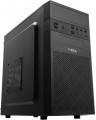 | 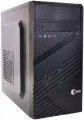 |
|---|---|---|
| Vinga Advanced D57 Advanced D5759 | Artline Business B45 QUBE QB05M U3 B45v09 | |
| Outdated Product | Outdated Product | |
| TOP sellers | ||
| Product type | desktop | desktop |
| Form factor | Mini Tower | Mini Tower |
CPU | ||
| Chipset | AMD B450 | AMD B450 |
| Type | desktop | desktop |
| Series | Ryzen 5 | Ryzen 5 |
| Model | 5600G | 5600G |
| Code name | Cezanne (Zen 3) | Cezanne (Zen 3) |
| Cores | 6 | 6 |
| Threads | 12 | 12 |
| Speed | 3.9 GHz | 3.9 GHz |
| TurboBoost / TurboCore | 4.4 GHz | 4.4 GHz |
| Passmark CPU Mark test | 19916 points | 20063 points |
Memory | ||
| RAM | 8 GB | 8 GB |
| Memory type | DDR4 | DDR4 |
| Speed | 3200 MHz | 3200 MHz |
| Number of slots | 2 | 2 |
| Max. memory support | 64 GB | 32 GB |
Graphics card | ||
| Graphics card type | integrated | integrated |
| Graphics card model | Radeon Vega 7 | Radeon Vega 7 |
Storage | ||
| Drive type | SSD | SSD |
| Drive capacity | 256 GB | 240 GB |
| NVMe |  |  |
| M.2 connector | | |
Back panel | ||
| Connectors | VGA DVI HDMI output | VGA DVI HDMI output |
| PS/2 | 1 | 2 |
| USB-A 2.0 | 2 pcs | |
| USB-A 5Gbps | 4 pcs | 4 pcs |
| USB-A 10Gbps | 2 pcs | |
| Monitors connection | 3 | |
Front Panel | ||
| Optical drive | in absent | in absent |
| mini-Jack (3.5 mm) | | |
| USB-A 2.0 | 2 pcs | |
| USB-A 5Gbps | 2 pcs | |
Multimedia | ||
| LAN (RJ-45) | 1 Gbps | 1 Gbps |
| Wi-Fi | in absent | in absent |
| Sound | 7.1 | |
| Audiochip | Realtek ALC887 | |
General | ||
| PSU power | 400 W | 400 W |
| Preinstalled OS | without OS | without OS |
| Material | steel | steel |
| Dimensions (HxWxD) | 352x185x372 mm | 350x170x345 mm |
| Weight | 6 kg | |
| Color | ||
| Added to E-Catalog | september 2023 | october 2021 |


Compare Vinga Advanced D57 and Artline Business B45 QUBE QB05M U3 Vinga Advanced D5759 и Artline B45v09?
You may be interested in
My comparisons
Vinga Advanced D57 often compared


Artline Business B45 QUBE QB05M U3 often compared

Glossary
Passmark CPU Mark test
The result shown by the PC processor in the test (benchmark) Passmark CPU Mark.
Passmark CPU Mark is a comprehensive test that allows you to evaluate CPU performance in various modes and with a different number of processed threads. The results are displayed in points; the more points, the higher the overall performance of the processor. For comparison: as of 2020, in low-cost solutions, the results are measured in hundreds of points, in mid-range models they range from 800 – 900 to more than 6,000 points, and individual top-end chips are capable of showing 40,000 points or more.
Passmark CPU Mark is a comprehensive test that allows you to evaluate CPU performance in various modes and with a different number of processed threads. The results are displayed in points; the more points, the higher the overall performance of the processor. For comparison: as of 2020, in low-cost solutions, the results are measured in hundreds of points, in mid-range models they range from 800 – 900 to more than 6,000 points, and individual top-end chips are capable of showing 40,000 points or more.
Max. memory support
The maximum amount of RAM that can be installed on a computer. It depends, in particular, on the type of memory modules used, as well as on the number of slots for them. Paying attention to this parameter makes sense, first of all, if the PC is bought with the expectation of upgrading RAM and the amount of actually installed memory in it is noticeably less than the maximum available
So the amount of maximum installed memory depends on the number of slots in the PC and can be from 16 GB(a modest PC) to 64 GB and above. The most popular on the market are PCs with a maximum installed 32 GB of memory.
So the amount of maximum installed memory depends on the number of slots in the PC and can be from 16 GB(a modest PC) to 64 GB and above. The most popular on the market are PCs with a maximum installed 32 GB of memory.
Drive capacity
Объем основного накопителя, поставляемого в комплекте с ПК. Для моделей с комбинированными хранилищами (например, HDD+SSD, см. «Тип накопителя») основным в данном случае считается более емкий жесткий диск; а если в комплекте два HDD, то они обычно имеют одинаковую вместимость.
С чисто практической стороны чем больше данных вмещает накопитель — тем лучше. Так что выбор по данному показателю упирается в основном в цену: большая емкость неизбежно означает и более высокую стоимость. Кроме того, напомним, что SSD-модули в пересчете на гигабайт емкости обходятся заметно дороже жестких дисков; так что сравнивать по сочетанию объема и стоимости можно только носители одного типа.
Что касается конкретной вместимости, то объем в 250 ГБ и менее в современных ПК можно встретить основном среди SSD. Жесткие диски такого объема практически не встречаются, для них емкость от 250 до 500 ГБ все еще считается довольно скромной. 501 – 750 ГБ является довольно неплохим значением для SSD и среди них же в основном и используется. 751 ГБ – 1 ТБ — внушительный показатель для SSD и средний уровень для жестких дисков, 1,5 – 2 ТБ является весьма солидной емкостью даже для HDD. А очень высокая вместимость — более чем в 2 ТБ — как ни парадоксально, встречается даже среди чистых SSD: такие...накопители устанавливаются в высококлассные рабочие станции, где скорость работы не менее важна, чем вместимость.
С чисто практической стороны чем больше данных вмещает накопитель — тем лучше. Так что выбор по данному показателю упирается в основном в цену: большая емкость неизбежно означает и более высокую стоимость. Кроме того, напомним, что SSD-модули в пересчете на гигабайт емкости обходятся заметно дороже жестких дисков; так что сравнивать по сочетанию объема и стоимости можно только носители одного типа.
Что касается конкретной вместимости, то объем в 250 ГБ и менее в современных ПК можно встретить основном среди SSD. Жесткие диски такого объема практически не встречаются, для них емкость от 250 до 500 ГБ все еще считается довольно скромной. 501 – 750 ГБ является довольно неплохим значением для SSD и среди них же в основном и используется. 751 ГБ – 1 ТБ — внушительный показатель для SSD и средний уровень для жестких дисков, 1,5 – 2 ТБ является весьма солидной емкостью даже для HDD. А очень высокая вместимость — более чем в 2 ТБ — как ни парадоксально, встречается даже среди чистых SSD: такие...накопители устанавливаются в высококлассные рабочие станции, где скорость работы не менее важна, чем вместимость.
NVMe
PC motherboard support for NVMe technology.
NVMe is a standard specifically designed for connecting SSD drives via the PCIe bus. Most often it is used when installed in the M.2 connector, but it can also be used with other interfaces. This standard initially takes into account the features of solid-state memory, allowing you to maximize its capabilities. So the presence of NVMe is mandatory if you plan to use the fastest SSD modules in the system. Such modules may or may not be included in the delivery package, this point will not hurt to clarify separately; and the need for them arises in resource-intensive tasks, in particular, demanding modern games.
NVMe is a standard specifically designed for connecting SSD drives via the PCIe bus. Most often it is used when installed in the M.2 connector, but it can also be used with other interfaces. This standard initially takes into account the features of solid-state memory, allowing you to maximize its capabilities. So the presence of NVMe is mandatory if you plan to use the fastest SSD modules in the system. Such modules may or may not be included in the delivery package, this point will not hurt to clarify separately; and the need for them arises in resource-intensive tasks, in particular, demanding modern games.
M.2 connector
The presence of at least one M.2 connector on the computer motherboard.
Technically, this is a small slot for compact components and expansion cards, which allows you to use two connection interfaces at once — SATA and PCIe; most often, both are supported in this connector at once, but this point needs to be specified separately. One of the most popular ways to use M.2 is to connect high-speed SSD drives running over PCIe: this interface allows you to fully use the capabilities of solid-state memory, while a SATA connection often lacks bandwidth. In addition, expansion boards are also available for M.2 — in particular, Wi-Fi and Bluetooth wireless adapters.
Note that in the standard configuration of the PC, this connector can be either free or busy — this should be specified separately.
Technically, this is a small slot for compact components and expansion cards, which allows you to use two connection interfaces at once — SATA and PCIe; most often, both are supported in this connector at once, but this point needs to be specified separately. One of the most popular ways to use M.2 is to connect high-speed SSD drives running over PCIe: this interface allows you to fully use the capabilities of solid-state memory, while a SATA connection often lacks bandwidth. In addition, expansion boards are also available for M.2 — in particular, Wi-Fi and Bluetooth wireless adapters.
Note that in the standard configuration of the PC, this connector can be either free or busy — this should be specified separately.
PS/2
The number of PS/2 connectors provided on the back of the PC.
PS/2 (colloquially "pi-es in half") is a specialized connector with a characteristic round shape, used exclusively for keyboards and mice. Due to the advent of more advanced interfaces (USB 3.2, Thunderbolt, etc.), it is considered obsolete, but it is still found in certain PC models. This is due, in part, to the fact that the use of PS/2 peripherals allows you to free up more advanced ports that may be required for more demanding devices.
As for the quantity, PS/2 connectors are used for a maximum of two — one for the keyboard, the second for the mouse. There are configurations with one such socket — in such cases it is usually made combined and allows the connection of both types of peripherals, to choose from. However, it's ok to clarify these details separately.
PS/2 (colloquially "pi-es in half") is a specialized connector with a characteristic round shape, used exclusively for keyboards and mice. Due to the advent of more advanced interfaces (USB 3.2, Thunderbolt, etc.), it is considered obsolete, but it is still found in certain PC models. This is due, in part, to the fact that the use of PS/2 peripherals allows you to free up more advanced ports that may be required for more demanding devices.
As for the quantity, PS/2 connectors are used for a maximum of two — one for the keyboard, the second for the mouse. There are configurations with one such socket — in such cases it is usually made combined and allows the connection of both types of peripherals, to choose from. However, it's ok to clarify these details separately.
USB-A 2.0
The number of full size USB 2.0 connectors on the back of the PC.
USB is the most popular modern interface for connecting peripherals. And the number of connectors is, accordingly, the number of devices that can be simultaneously connected to the rear panel without the use of splitters. Specifically, version 2.0 was the most popular some time ago, but now it is considered obsolete, it is gradually being replaced by more advanced standards like USB 3.0 (3.1 gen1). However, USB 2.0 capabilities (data transfer rates up to 480 Mbps) are still sufficient for many peripheral devices, from keyboards and mice to printers. So it's still a long way from the end of the standard, and some PCs may have 4 or more USB 2.0 ports on the back.
Separately, it should be noted that similar connectors can be placed on the front side of the case. However, for peripherals that need to be constantly connected to the computer, it is more convenient to use the rear panel, while the front placement is better suited for frequent connection / disconnection.
USB is the most popular modern interface for connecting peripherals. And the number of connectors is, accordingly, the number of devices that can be simultaneously connected to the rear panel without the use of splitters. Specifically, version 2.0 was the most popular some time ago, but now it is considered obsolete, it is gradually being replaced by more advanced standards like USB 3.0 (3.1 gen1). However, USB 2.0 capabilities (data transfer rates up to 480 Mbps) are still sufficient for many peripheral devices, from keyboards and mice to printers. So it's still a long way from the end of the standard, and some PCs may have 4 or more USB 2.0 ports on the back.
Separately, it should be noted that similar connectors can be placed on the front side of the case. However, for peripherals that need to be constantly connected to the computer, it is more convenient to use the rear panel, while the front placement is better suited for frequent connection / disconnection.
USB-A 10Gbps
Number of full-size USB-A 10Gbps ports provided on the rear panel of the PC.
USB is the most popular modern interface for connecting peripherals. The number of ports accordingly represents the number of devices that can be simultaneously connected to the rear panel without using splitters. The version formerly known as USB 3.1 and USB 3.2 Gen2 is now officially called USB-A 10Gbps. The maximum data transfer speed in this version reaches 10 Gbps, and with USB Power Delivery support, it can supply power to external devices up to 100 W through such a port.
It is worth noting that ports of this type can also be placed on the front of the case. However, for peripherals that need to remain constantly connected to the computer, it is more convenient to use the rear panel, while the front placement is better suited for frequent connecting/disconnecting.
USB is the most popular modern interface for connecting peripherals. The number of ports accordingly represents the number of devices that can be simultaneously connected to the rear panel without using splitters. The version formerly known as USB 3.1 and USB 3.2 Gen2 is now officially called USB-A 10Gbps. The maximum data transfer speed in this version reaches 10 Gbps, and with USB Power Delivery support, it can supply power to external devices up to 100 W through such a port.
It is worth noting that ports of this type can also be placed on the front of the case. However, for peripherals that need to remain constantly connected to the computer, it is more convenient to use the rear panel, while the front placement is better suited for frequent connecting/disconnecting.
Monitors connection
The maximum number of monitors that can be connected to PC at the same time and shared.
Simultaneous connection of several screens allows you to expand the visual space available to the user. For example, it can be useful for designers and layout designers when working with large-format materials, for programmers to separate tasks (one monitor for writing code, the second for searching for the necessary information and other auxiliary purposes), and for gamers-enthusiasts — to ensure the maximum immersion effect.
Simultaneous connection of several screens allows you to expand the visual space available to the user. For example, it can be useful for designers and layout designers when working with large-format materials, for programmers to separate tasks (one monitor for writing code, the second for searching for the necessary information and other auxiliary purposes), and for gamers-enthusiasts — to ensure the maximum immersion effect.