
Comparison Ugreen CM352 vs Ugreen 50743
Add to comparison | 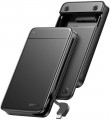 | 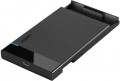 |
|---|---|---|
| Ugreen CM352 | Ugreen 50743 | |
| Expecting restock | from $18.99 | |
| TOP sellers | ||
| Type | external | external |
| Features | portable | portable |
| Drive form factor | 2.5" | 2.5" |
| Drive interface | SATA 3 | SATA 3 |
| Connectivity | USB-C 5Gbps | USB-C 10Gbps |
| Material | plastic | plastic |
| Storage slots | 1 | 1 |
| Power source | USB port | USB port |
| Size | 143x83x18 mm | 82x28.5x14 mm |
| Color | ||
| Added to E-Catalog | october 2023 | november 2022 |


Compare Ugreen CM352 and 50743
You may be interested in
Ugreen 50743 often compared


Glossary
Connectivity
The method of connecting a pocket with an installed drive to a computer as provided in the design.
Note that this parameter is specified only in cases where the interface for connecting differs from the interface of the drive (see above). This feature is typical for all external models and docks (see "Type"): nowadays they most frequently use USB-A 5Gbps, less often — USB-A 2.0 or USB-C of various versions (see below). In internal solutions, the drive's connector is very rarely different from the pocket's connector, although exceptions occur.
It is also worth mentioning that in external models the connection method is usually determined by the type of complete cable; such a cable is often made detachable, with the possibility to replace it with a "cord" with a different type of plug.
As for specific connection methods, here are their main features:
— USB-A 2.0. USB is used for connecting external peripherals, including pockets; this is the most popular modern interface for such purposes. Version 2.0 is the oldest USB standard still current today. The capabilities of such a connection are rather modest — for instance, the power capacity through the connector is 2.5 W, and the maximum data transfer speed does not exceed 480 Mbps. This is noticeably slower than even SATA 2 (3 Gbps), let alone SATA 3 (6 Gbps); thus this standard is gene...rally considered obsolete, and in pockets with this type of connection, the overall performance is limited to the capabilities of USB-A 2.0. Nevertheless, supporting this interface is inexpensive; for simple tasks that don't involve large amounts of data, it often proves to be quite enough; moreover, USB 2.0 devices are fully compatible with USB ports of newer versions. Thus, today you can still find pockets with this type of connection — mainly the simplest and cheapest models.
— USB-A 5Gbps. This version (previously known as USB 3.2 gen1 and USB 3.0) is the direct successor of USB-A 2.0, providing data transfer speeds 10 times higher — up to 4.8 Gbps — and higher power capacity. The mentioned speed practically matches the capabilities of the popular internal SATA 3 interface; therefore, pockets with this type of connection are extremely widespread today.
— USB-A 10Gbps. Connection to a computer through a full-size USB connector, supporting data transfer speeds up to 10 Gbps. This version is particularly useful for fast SSDs, where a higher-speed interface helps better utilize the drive's capabilities. Compared to USB-A 5Gbps, this variant is more attractive for copying large files, working with video archives, and backups, where not just compatibility but also higher data exchange speed is important. For regular HDDs, the difference may also be present, but the effect is often more modest because the hard drive is usually slower than an SSD.
— USB-C 5Gbps. Modern USB-C connector with data transfer up to 5 Gbps. This option is suitable for regular external SSDs and HDDs, when convenient connection and normal speed for daily tasks are important. Compared to USB-C 10Gbps, it's a more basic option, but for many drives, it is already quite sufficient.
— USB-C 10Gbps. High-speed USB-C interface with data transfer up to 10 Gbps. This option is especially interesting for fast SSDs, where a higher speed cap helps better leverage the drive's capabilities. Compared to USB-C 5Gbps, it is more suited for large video projects, massive archives, frequent copying of heavy files, and using the drive almost like an external working disk. For regular HDDs, the difference is often less noticeable because the hard drive is usually slower than an SSD.
— USB-C 20Gbps. The fastest USB-C option in this line, designed for data transfer up to 20 Gbps. This format is especially interesting for fast SSDs when the pocket is used not just as an external storage, but almost like a full-fledged working disk for large projects, editing, archives, and regular copying of heavy files. It is essential to ensure that a compatible port and cable are available for such speed. Thus, USB-C 20Gbps is an option for those who want to get the most out of an external SSD and not be limited by the interface too soon.
— PCI-E. Connection to a standard PCI-E slot on the motherboard. In other words, such pockets connect to the computer in the same way as video adapters, sound cards, and other expansion cards. This design is used in specific internal models for M.2 SSD form factor drives; such a pocket allows connecting a similar drive to a desktop PC even if the native M.2 ports on the motherboard are occupied, unavailable, incompatible for connection (for example, using the SATA interface while the drive is made for PCI-E), or completely absent.
Note that these pockets are usually compatible with SSD modules on M.2 PCI-E without issues, but compatibility with M.2 SATA should be clarified separately (though such functionality does exist). It should also be noted that PCI-E slots and devices under them can have a different number of lanes, and the general rule here is: the number of lanes of the slot on the motherboard should be at least as many as the card being connected. However, pockets with such connections usually provide no more than 4 lanes, so they can be connected to PCI-E slots starting from 4x.
— IDE. An outdated interface for connecting internal drives. It is extremely rarely encountered in modern pockets — only in certain models designed for installing modern HDDs/SSDs in outdated computers without SATA and other current connectors.
Note that this parameter is specified only in cases where the interface for connecting differs from the interface of the drive (see above). This feature is typical for all external models and docks (see "Type"): nowadays they most frequently use USB-A 5Gbps, less often — USB-A 2.0 or USB-C of various versions (see below). In internal solutions, the drive's connector is very rarely different from the pocket's connector, although exceptions occur.
It is also worth mentioning that in external models the connection method is usually determined by the type of complete cable; such a cable is often made detachable, with the possibility to replace it with a "cord" with a different type of plug.
As for specific connection methods, here are their main features:
— USB-A 2.0. USB is used for connecting external peripherals, including pockets; this is the most popular modern interface for such purposes. Version 2.0 is the oldest USB standard still current today. The capabilities of such a connection are rather modest — for instance, the power capacity through the connector is 2.5 W, and the maximum data transfer speed does not exceed 480 Mbps. This is noticeably slower than even SATA 2 (3 Gbps), let alone SATA 3 (6 Gbps); thus this standard is gene...rally considered obsolete, and in pockets with this type of connection, the overall performance is limited to the capabilities of USB-A 2.0. Nevertheless, supporting this interface is inexpensive; for simple tasks that don't involve large amounts of data, it often proves to be quite enough; moreover, USB 2.0 devices are fully compatible with USB ports of newer versions. Thus, today you can still find pockets with this type of connection — mainly the simplest and cheapest models.
— USB-A 5Gbps. This version (previously known as USB 3.2 gen1 and USB 3.0) is the direct successor of USB-A 2.0, providing data transfer speeds 10 times higher — up to 4.8 Gbps — and higher power capacity. The mentioned speed practically matches the capabilities of the popular internal SATA 3 interface; therefore, pockets with this type of connection are extremely widespread today.
— USB-A 10Gbps. Connection to a computer through a full-size USB connector, supporting data transfer speeds up to 10 Gbps. This version is particularly useful for fast SSDs, where a higher-speed interface helps better utilize the drive's capabilities. Compared to USB-A 5Gbps, this variant is more attractive for copying large files, working with video archives, and backups, where not just compatibility but also higher data exchange speed is important. For regular HDDs, the difference may also be present, but the effect is often more modest because the hard drive is usually slower than an SSD.
— USB-C 5Gbps. Modern USB-C connector with data transfer up to 5 Gbps. This option is suitable for regular external SSDs and HDDs, when convenient connection and normal speed for daily tasks are important. Compared to USB-C 10Gbps, it's a more basic option, but for many drives, it is already quite sufficient.
— USB-C 10Gbps. High-speed USB-C interface with data transfer up to 10 Gbps. This option is especially interesting for fast SSDs, where a higher speed cap helps better leverage the drive's capabilities. Compared to USB-C 5Gbps, it is more suited for large video projects, massive archives, frequent copying of heavy files, and using the drive almost like an external working disk. For regular HDDs, the difference is often less noticeable because the hard drive is usually slower than an SSD.
— USB-C 20Gbps. The fastest USB-C option in this line, designed for data transfer up to 20 Gbps. This format is especially interesting for fast SSDs when the pocket is used not just as an external storage, but almost like a full-fledged working disk for large projects, editing, archives, and regular copying of heavy files. It is essential to ensure that a compatible port and cable are available for such speed. Thus, USB-C 20Gbps is an option for those who want to get the most out of an external SSD and not be limited by the interface too soon.
— PCI-E. Connection to a standard PCI-E slot on the motherboard. In other words, such pockets connect to the computer in the same way as video adapters, sound cards, and other expansion cards. This design is used in specific internal models for M.2 SSD form factor drives; such a pocket allows connecting a similar drive to a desktop PC even if the native M.2 ports on the motherboard are occupied, unavailable, incompatible for connection (for example, using the SATA interface while the drive is made for PCI-E), or completely absent.
Note that these pockets are usually compatible with SSD modules on M.2 PCI-E without issues, but compatibility with M.2 SATA should be clarified separately (though such functionality does exist). It should also be noted that PCI-E slots and devices under them can have a different number of lanes, and the general rule here is: the number of lanes of the slot on the motherboard should be at least as many as the card being connected. However, pockets with such connections usually provide no more than 4 lanes, so they can be connected to PCI-E slots starting from 4x.
— IDE. An outdated interface for connecting internal drives. It is extremely rarely encountered in modern pockets — only in certain models designed for installing modern HDDs/SSDs in outdated computers without SATA and other current connectors.