
Comparison Cobra GK-103 vs Genius KB G265
Add to comparison | 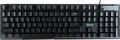 | 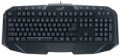 |
|---|---|---|
| Cobra GK-103 | Genius KB G265 | |
| Outdated Product | from $33.00 | |
| User reviews | ||
| TOP sellers | ||
| Connection | wired | wired |
| Cable length | 1.5 m | |
| Type | for game | for game |
| Form factor | 100% (full size) | 100% (full size) |
| Layout | ANSI | KS |
Keyboard | ||
| Key profile | high | high |
| Key type | classic type | classic type |
| Switch technology | membrane | membrane |
| Additional keys | 8 | |
| Fn key |  |  |
Features | ||
| Cyrillic colour | white | |
| Volume control | fn | add. keys |
| Palm rest | + | |
| USB hub | 2xUSB-A | |
| Lighting | multicolor | blue |
Connection and power supply | ||
| Cable | USB-A | USB-A |
General | ||
| Skeleton keyboard | | |
| Size | 442x135x30 mm | |
| Weight | 400 g | |
| Color | ||
| Added to E-Catalog | november 2021 | september 2013 |


Compare Cobra GK-103 and Genius KB G265
Keyboards Cobra GK-103 and Genius KB G265 have similar features, such as wired connection and standard format with Num-pad. However, they also have key differences. The Cobra GK-103 offers multicolor backlighting and volume control via the Fn key, while the Genius KB G265 has blue backlighting and additional keys for volume adjustment. Additionally, the Genius KB G265 includes a wrist rest, which can enhance comfort during extended use. Both devices have high key travel and membrane construction, but the Cobra GK-103 does not have additional keys, unlike the Genius KB G265, which offers 8 additional keys.
You may be interested in
My comparisons
Cobra GK-103 often compared


Glossary
Cable length
The length of the cable that the keyboard is equipped with for wired connection (see "Connection type").
When choosing this parameter, you should first of all take into account the distance from the device to the connection port: a cable that is too short may simply not reach the connector, and a cable that is too long may get confused at hand and create inconvenience. As for specific values, the reference length is 1.8 m. However, there are cables both shorter and longer.
When choosing this parameter, you should first of all take into account the distance from the device to the connection port: a cable that is too short may simply not reach the connector, and a cable that is too long may get confused at hand and create inconvenience. As for specific values, the reference length is 1.8 m. However, there are cables both shorter and longer.
Layout
The layout describes the physical geometry of the keys and their standard arrangement: the shape of Enter and Shift, the presence of additional keys, the width of the space bar, and consequently, compatibility with keycap sets and typing familiarity. The standards hardly affect productivity in software and gaming — comfort and how easy it is to find suitable keycaps/cases are more important. The following types are found:
— ANSI (American). A distinctive feature of the American layout is the single-row Enter key; it is the only popular layout where this key occupies one row, not two. Additionally, unlike the European ISO, the Shift keys on ANSI keyboards have the same width, and the Alt key has the same function. The backslash “\” is usually placed above the Enter and can be longer.
— ISO (European). One characteristic feature of the European layout is the Enter key, which occupies two rows and is slightly wider at the top. Also, the modifier keys are asymmetrical: the Shift keys differ in size (the left one is shorter than the right), and the Alts differ in function (the right Alt is marked as “Alt Gr” and is used for typing special characters of European languages). From the similar in many ways "Japanese" JIS layout, the ISO layout differs by the placement of the backslash “\” — it is standardly located near the left Shift (in some models, it is duplicated near the Enter). As a result,...the left Shift is shorter than usual; this can be inconvenient, especially for new users.
— KS (Korean). The “Korean” layout can be distinguished by the characteristic shape of the Enter key: it occupies two rows and is longer at the bottom than at the top. Another feature is the backslash “\”, which is located to the left of the Backspace, resulting in a shorter Backspace than in other layouts.
— JIS (Japanese). A layout much like the European ISO: it has the same two-row Enter with an increased length of the upper half. In many models, the right Alt is labeled “Alt Gr” and is designed for typing special symbols. The main differences lie in two aspects: the length of the left Shift (it is standard in JIS, not shortened) and the placement of the backslash “\” (it is standardly installed to the left of the lower half of the Enter, where some ISO keyboards have a second, additional backslash).
— ANSI (American). A distinctive feature of the American layout is the single-row Enter key; it is the only popular layout where this key occupies one row, not two. Additionally, unlike the European ISO, the Shift keys on ANSI keyboards have the same width, and the Alt key has the same function. The backslash “\” is usually placed above the Enter and can be longer.
— ISO (European). One characteristic feature of the European layout is the Enter key, which occupies two rows and is slightly wider at the top. Also, the modifier keys are asymmetrical: the Shift keys differ in size (the left one is shorter than the right), and the Alts differ in function (the right Alt is marked as “Alt Gr” and is used for typing special characters of European languages). From the similar in many ways "Japanese" JIS layout, the ISO layout differs by the placement of the backslash “\” — it is standardly located near the left Shift (in some models, it is duplicated near the Enter). As a result,...the left Shift is shorter than usual; this can be inconvenient, especially for new users.
— KS (Korean). The “Korean” layout can be distinguished by the characteristic shape of the Enter key: it occupies two rows and is longer at the bottom than at the top. Another feature is the backslash “\”, which is located to the left of the Backspace, resulting in a shorter Backspace than in other layouts.
— JIS (Japanese). A layout much like the European ISO: it has the same two-row Enter with an increased length of the upper half. In many models, the right Alt is labeled “Alt Gr” and is designed for typing special symbols. The main differences lie in two aspects: the length of the left Shift (it is standard in JIS, not shortened) and the placement of the backslash “\” (it is standardly installed to the left of the lower half of the Enter, where some ISO keyboards have a second, additional backslash).
Additional keys
The number of additional keys provided in the design of the keyboard.
Such keys do not belong to the standard layout and are intended for quick access to specific functions or individual applications — for example, to control the media player or open mail with one click. This function is convenient because commands from additional keys are usually recognized by the system regardless of what is on the screen — thanks to this, for example, you do not have to close the text editor to switch tracks in the player.
Note that in this case we are talking about individual keys that have a strictly defined purpose and corresponding markings. Programmable buttons, the Fn key (see below) and the functions of the main keys implemented through Fn are not taken into account in this paragraph.
Such keys do not belong to the standard layout and are intended for quick access to specific functions or individual applications — for example, to control the media player or open mail with one click. This function is convenient because commands from additional keys are usually recognized by the system regardless of what is on the screen — thanks to this, for example, you do not have to close the text editor to switch tracks in the player.
Note that in this case we are talking about individual keys that have a strictly defined purpose and corresponding markings. Programmable buttons, the Fn key (see below) and the functions of the main keys implemented through Fn are not taken into account in this paragraph.
Fn key
The presence on the keyboard of the Fn key(short for function). It belongs to modifiers, similar to Shift or Ctrl: by itself it does not perform any action, but when pressed simultaneously with another key, it changes its original purpose. Fn is often found in compact keyboards (see "Format"), but can also be set in full-sized ones. The features it provides include quickly changing the screen brightness or sound volume directly from the keyboard, using the centre keys as a Numpad, launching individual applications, and so on. Specific features of using the Fn key depend on the keyboard model.
Cyrillic colour
The colour of the Cyrillic letters printed on the keyboard.
This colour is usually chosen so that the letters are clearly visible. This point does not affect the functionality of the keyboard, and the choice in this case depends mainly on personal preferences. However, there is also a practical point: for inexperienced users who have not mastered touch typing, it is desirable that the letters stand out as much as possible against the background of the keys.
Transparent letters are a separate case — they are used in keyboards equipped with a backlight (see below), due to which such characters, when the backlight is on, are visible even in the dark.
This colour is usually chosen so that the letters are clearly visible. This point does not affect the functionality of the keyboard, and the choice in this case depends mainly on personal preferences. However, there is also a practical point: for inexperienced users who have not mastered touch typing, it is desirable that the letters stand out as much as possible against the background of the keys.
Transparent letters are a separate case — they are used in keyboards equipped with a backlight (see below), due to which such characters, when the backlight is on, are visible even in the dark.
Volume control
Volume control methodprovided in the keyboard (if such a possibility is provided at all).
— Through Fn. Adjustment using the Fn key (see above): increasing and decreasing the volume is carried out by simultaneously pressing Fn and one of the main keys of the keyboard (usually from the F1 — F12 row), The main advantage of this control is that it allows you not to overload the keyboard with additional controls — this, in turn, has a positive effect on the dimensions and cost. The disadvantage is the need to simultaneously press two keys, which is not always convenient.
— Additional keys. Control with additional keys specially designed for working with volume. A very convenient and practical option: additional keys are usually clearly labeled, while they take up less space and are cheaper than a wheel or a touch slider (see below).
— Wheel. Control by means of a mechanical wheel, the rotation of which up and down or left and right provides a change in volume. A fairly user-friendly option — visual, intuitive and accessible even blindly. At the same time, the wheel can take up quite a lot of space, and it significantly affects the cost of the keyboard.
— Touch slider. Management using a touch surface, the movement of a finger in one direction or another. The sensor takes up minimal space, looks neat...and generally fits well with the overall design of the keyboard, but it is not cheap. Therefore, this option is extremely rare, mainly in high-end gaming or multimedia keyboards.
— Through Fn. Adjustment using the Fn key (see above): increasing and decreasing the volume is carried out by simultaneously pressing Fn and one of the main keys of the keyboard (usually from the F1 — F12 row), The main advantage of this control is that it allows you not to overload the keyboard with additional controls — this, in turn, has a positive effect on the dimensions and cost. The disadvantage is the need to simultaneously press two keys, which is not always convenient.
— Additional keys. Control with additional keys specially designed for working with volume. A very convenient and practical option: additional keys are usually clearly labeled, while they take up less space and are cheaper than a wheel or a touch slider (see below).
— Wheel. Control by means of a mechanical wheel, the rotation of which up and down or left and right provides a change in volume. A fairly user-friendly option — visual, intuitive and accessible even blindly. At the same time, the wheel can take up quite a lot of space, and it significantly affects the cost of the keyboard.
— Touch slider. Management using a touch surface, the movement of a finger in one direction or another. The sensor takes up minimal space, looks neat...and generally fits well with the overall design of the keyboard, but it is not cheap. Therefore, this option is extremely rare, mainly in high-end gaming or multimedia keyboards.
Palm rest
The presence of an additional palm rest in the design of the keyboard. Such a stand is located in the lower (closest to the user) part of the device and is a kind of continuation of the “board”, providing additional support and increasing the comfort of use. However, comfort is largely a matter of personal preference, and not all users like stands; therefore, most often they are made removable.
USB hub
Built-in connectors in the case allow you to connect a flash drive, a mouse, a 2.4 GHz receiver, or a cable for charging gadgets to the PC without running a wire to the main unit. Such a USB hub saves laptop ports, simplifies cable management, and is often called USB pass-through, although technically it's the same mini-hub with 1-2 ports. In most models, the speed corresponds to USB 2.0, and power is limited: connecting external SSDs and "power-hungry" accessories is not always correct; for stability, some keyboards require a second plug or USB-C with increased current. Compared to keyboards without a hub, convenience is higher, compared to a separate desktop hub, it's more compact but has more modest functionality. A practical example: a gaming laptop with two ports works with a mouse and flash drive through the keyboard's USB hub, while the keyboard itself remains connected to the PC with a single cable.
Lighting
The colour of the backlight provided in the design of the keyboard.
In general, the backlight performs two functions: practical (makes the keys more visible in low light) and aesthetic (gives the keyboard a beautiful appearance). However, it cannot be said that non-backlit keyboards will be unusable in the dark, the light from the monitor will still illuminate the buttons. The simplest version of the backlight is one-colour. In this case, specific colours can be different: for example, white is well suited for general-purpose keyboards (work or home), but other shades can be found in gaming or design models, for example, red, green, blue, purple or orange. If two or three colours are indicated for the keyboard, this may mean either the ability to switch between these colours, or that this model comes in several versions that differ in the shade of the backlight; these nuances should be clarified separately.
The most advanced options are multi-colour and RGB backlighting. Multi-colour systems are called systems in which more than three colour options are provided, sometimes with intermediate shades. And RGB-backlight all...ows you to choose almost any shade at the request of the user; in addition, the possibility of synchronization (see "Illumination with effects") is found mainly in such systems, although single-colour keyboards can also be equipped with other effects.
In general, the backlight performs two functions: practical (makes the keys more visible in low light) and aesthetic (gives the keyboard a beautiful appearance). However, it cannot be said that non-backlit keyboards will be unusable in the dark, the light from the monitor will still illuminate the buttons. The simplest version of the backlight is one-colour. In this case, specific colours can be different: for example, white is well suited for general-purpose keyboards (work or home), but other shades can be found in gaming or design models, for example, red, green, blue, purple or orange. If two or three colours are indicated for the keyboard, this may mean either the ability to switch between these colours, or that this model comes in several versions that differ in the shade of the backlight; these nuances should be clarified separately.
The most advanced options are multi-colour and RGB backlighting. Multi-colour systems are called systems in which more than three colour options are provided, sometimes with intermediate shades. And RGB-backlight all...ows you to choose almost any shade at the request of the user; in addition, the possibility of synchronization (see "Illumination with effects") is found mainly in such systems, although single-colour keyboards can also be equipped with other effects.